For contact info, please see the Sci.Electronics.Repair FAQ Email Links Page.
Copyright © 1994-2021
Reproduction of this document in whole or in part is permitted if both of the
following conditions are satisfied:
1. This notice is included in its entirety at the beginning.
All Rights Reserved
2. There is no charge except to cover the costs of copying.
DISCLAIMER
Working inside a CRT-based computer or video monitor, or television set can
be lethal from line-connected and high voltage power supplies as well as
CRT implosion. Read and follow ALL of the safety guidelines found in
Safety Guidelines for High Voltage and/or Line Powered
Equipment and the section "SAFETY", below. If in doubt about your
abilities or experience, leave repair and internal adjustments to a
professional.
We will not be responsible for damage to equipment, your ego, county wide power outages, spontaneously generated mini (or larger) black holes, planetary disruptions, or personal injury or worse that may result from the use of this material.
The earliest personal computers didn't come with a display - you connected them to the family TV. You and your kids shared the single TV and the Flintstones often won out. The Commodore 64 would never have been as successful as it was if an expensive monitor were required rather than an option.
However, as computer performance improved, it quickly became clear that a dedicated display was essential. Even for simple text, a TV can only display 40 characters across the screen with any degree of clarity.
When the IBM PC was introduced, it came with a nice 80x25 green monochrome text display. It was bright, crisp, and stable. Mono graphics (MGA or MDA) was added at 720x350, CGA at a range of resolutions from 160x200 to 640x200 at 2 to 16 colors, and EGA extended this up to a spectacular resolution of 640x350. This was really fine until the introduction of Windows (well, at least once Windows stayed up long enough for you to care).
All of these displays used digital video - TTL signals which coded for a specific discrete number of possible colors and intensities. Both the video adapter and the monitor were limited to 2, 4, 16, or a whopping 64 colors depending on the graphics standard. The video signals were logic bits - 0s and 1s.
With the introduction of the VGA standard, personal computer graphics became 'real'. VGA and its successors - PGA, XGA, and all of the SVGA (non) standards use analog video - each of the R, G, and B signals is a continuous voltage which can represent a continuous range of intensities for each color. In principle, an analog monitor is capable of an unlimited number of possible colors and intensities. (In practice, unavoidable noise and limitations of the CRT restricts the actual number to order of 64-256 distinguishable intensities for each channel.)
Note that analog video was only new to the PC world. TVs and other video equipment, workstations, and image analysis systems had utilized analog signals for many years prior to the PC's 'discovery' of this approach. In all fairness, both the display adapter and monitor are more expensive so it is not surprising that early PCs did not use analog video.
Most of the information in this document applies to color computer video monitors and TV studio monitors as well as the display portions of television sets. Black and white, gray scale, and monochrome monitors use a subset of the circuitry (and generally at lower power levels) in color monitors so much of it applies to these as well.
For most descriptions of symptoms, testing, diagnosis, and repair, an auto-scan PC SVGA monitor is assumed. For a fixed frequency workstation monitor, studio video monitor, or closed circuit TV monitor, only a subset of the possible faults and procedures will apply.
Note: we use the term 'auto-scan' to describe a monitor which accepts a wide (and possibly continuous) range of scan rates. Usually, this refers mostly to the horizontal frequency as the vertical refresh rate is quite flexible on many monitors of all types. Fixed scan or fixed frequency monitors are designed to work with a single scan rate (though a 5% or so variation may actually be accepted). Multi-scan monitors sync at two or more distinct scan rates. While not very common anymore, multi-scan monitors may still be found in some specific applications.
Monitors designed for PCs, workstations, and studio video have many characteristics in common. Modern computer monitors share many similarities with TVs but the auto-scan and high scan rate deflection circuitry and more sophisticated power supplies complicates their servicing.
Currently, most inexpensive computer monitors are still based on the Cathode Ray Tube (CRT) as the display device. However, handheld equipment, laptop computers, and the screens inside video projectors now use flat panel technology, mostly Liquid Crystal Displays - LCDs. These are a lot less bulky than CRTs, use less power, and have better geometry - but suffer from certain flaws. As the price of LCD (and other technology) flat screen technology decreases, such monitors will become dominant for desktop computers as well and CRT based monitors will eventually go the way of dinosaurs, core memory, and long playing records that dominated their respective industries for decades but eventually yielded to fundamentally new technology. :)
However, there are still problems with (low cost, at least) LCD monitors. First, the picture quality in terms of gray scale and color is generally inferior to a decent analog monitor. The number of distinct shades of gray or distinct colors is a lot more limited. They are generally not as responsive as CRTs when it comes to real-time video which is becoming increasingly important with multimedia computers. This is partly due to the response of the LCD material itself but also a result of the scan conversion that's needed for non-native resolution formats. Brightness is generally not as good as a decent CRT display. And last but not least, the cost is still somewhat higher due both to the increased complexity of flat panel technology and lower production volumes (though this is certainly increasing dramatically). It is really hard to beat the simplicity of the shadow mask CRT.
The really bad news from the perspective of repair is that they generally cannot be repaired outside of a manufacturer authorized service center and the way they do the repair most likely will be to swap the entire LCD/driver panel, if not the entire monitor. Only repair of the most simple problems like obvious bad connections, a bad cable, a bad backlight lamp, or a failure of the power supply or backlight inverter, can realistically be accomplished without fancy specialized test equipment and facilities. Access to the backlight lamps might substantial disassembly.
Buying a broken LCD monitor to repair may have better odds than the State Lottery, but probably not by much. Where one or more columns or rows or an entire half screen are not displaying properly, I wouldn't consider it unless nearly totally free, hoping for a miracle, and even then it might not be worth it. Loose connectors and solder joints are possible, though not nearly as common as with CRT monitors.
Also a note to those with less than perfect vision: If you tend to view your monitor from less than 10 to 15 inches, you may be disappointed, or at least have a hard time getting used to LCD monitors. The appearance of a CRT display is nearly independent of viewing angle. But for an LCD display, this is not the case. Only the central part of your field of vision will have the proper brightness, contrast, and color rendition. If the curser isn't within this central area, it will be harder to locate than on a CRT. In short, don't just depend on the hype. An LCD with a slightly lower contrast ratio and lower price may have a substantially wider viewing angle and better match to your needs than a top-of-the-line model. Test drive multiple LCD monitors before committing to one!
Nonetheless, a variety of technologies are currently competing for use in the flat panel displays of the future. Among these are advanced LCD, plasma discharge, and field emission displays. Only time will tell which, if any survives to become **the** picture-on-the-wall or notepad display - at reasonable cost.
Projection displays, on the other hand, can take advantage of a novel development in integrated micromachining - the Texas Instruments Inc. Digital Micromirror Device (DMD). This is basically an integrated circuit with a tiltable micromirror for each pixel fabricated on top of a static memory - RAM - cell. DMD technology would permit nearly any size projection display to be produced and would therefore be applicable to HDTV as well as PCs. Since it is a reflective device, the light source can be as bright as needed. This technology is already appearing in commercial high performance computer projectors and is competing for use in totally digital movie theaters to replace the film projector, but to my knowledge is not in any consumer TV sets - yet.
As noted, the plasma panel flat screen display has been around for several years in high-end TVs, typically in the 42 inch diagonal range. But they are very expensive ($5,000 to $15,000 as of Winter, 2003), and their life expectancy may be limited due to the gradual degradation of the active pixel cells - which occurs faster than for a CRT. The physical resolution is also probably still too low to really justify the large screen size for computer displays. However, there is little doubt that this or a similar technology will eventually replace the direct view CRT and 3-tube projection TVs in the mid to large screen sizes in the not too distant future. But to what extent it is used for computer monitors is still unclear.
The remainder of this document concentrates on CRT based computer and video monitors since these still dominate the market and realistically, they are the only type where there is a good chance of repair without access to specialized test equipment and parts. I wouldn't recommend any sort of attempt at repair of flat screen TVs or monitors - no matter what the size - beyond checking for bad connections, dead power supplies, or other obvious problems. The chance of success is vanishingly small and it's very likely that even with great care, damage could occur to the panels or circuitry.
A monochrome monitor has a CRT with a single electron gun. However, the actual color of the display may be white, amber, green, or whatever single color is desired as determined by the phosphor of the CRT selected.
Analog inputs allow for a theoretically unlimited number of possible gray levels or colors. However, the actual storage and digital-to-analog convertors in any display adapter or frame store and/or unavoidable noise and other characteristics of the CRT - and ultimately, limitations in the psychovisual eye-brain system will limit this to a practical maximum of 64-256 discernible levels for a gray scale display or for each color channel.
However, very high performance digital video sources may have RAMDACs (D/A convertors with video lookup tables) of up to 10 or more bits of intensity resolution. While it is not possible to perceive this many distinct gray levels or colors (per color channel), this does permit more accurate tone scale ('gamma') correction to be applied (via a lookup table in the RAMDAC) to compensate for the unavoidable non-linearity of the CRT phosphor response curve or to match specific photometric requirements.
Note: The generic term 'auto-scan' is used to refer to a monitor which automatically senses the input video scan rate and selects the appropriate horizontal and vertical deflection circuitry and power supply voltages to display this video. Multi-scan monitors, while simpler than true auto-scan monitors, will still have much of the same scan rate detection and selection circuitry. Manufacturers use various buzz words to describe their versions of these monitors including 'multisync', 'autosync','panasync', 'omnisync', as well as 'autoscan' and 'multiscan'.
Ultimately, the fixed scan rate monitor may reappear for PCs. Consider one simple fact: it is becoming cheaper to design and manufacture complex digital processing hardware than to produce the reliable high quality analog and power electronics needed for an auto-scan monitor. This is being done in the specialty market now. Eventually, the development of accelerated chipsets for graphics mode emulation may be forced by the increasing popularity of flat panel displays - which are basically similar to fixed scan rate monitors in terms of their interfacing requirements.
Since monitors with digital signal inputs are almost extinct today except for specialized applications, it is usually safe to assume that 'digital' monitor refers to the user interface and microprocessor control. And, except perhaps for the very cheapest monitors, all now have digital controls.
Here are a couple of examples:
Whether the image is usable at the higher resolution of course depends on many other factors (in addition to flicker) including the dot pitch of the CRT and video bandwidth of the video card and monitor video amplifiers, as well as cable quality and termination.
Typical television CRTs are rather coarse - .75 mm might be a reasonable specification for a 20 inch set. High resolution computer monitors may have dot pitches as small as .22 mm for a similar size screen.
A rough indication of the maximum possible resolution of the CRT can be found by determining how many complete phosphor dot groups can fit across the visible part of the screen.
Running at too high a resolution for a given CRT may result in Moire - an interference pattern that will manifest itself as contour lines in smooth bright areas of the picture. However, many factors influence to what extent this may be a problem. See the section: Contour lines on high resolution monitors - Moire.
The following are only partly dependent on the monitor's design:
Note: The intent of these tests is **not** to evaluate or calibrate a monitor for photometric accuracy. Rather they are for functional testing of the monitor's performance.
Obviously, the ideal situation is to be able to perform these sorts of tests before purchase. With a small customer oriented store, this may be possible. However, the best that can be done when ordering by mail is to examine a similar model in a store for gross characteristics and then do a thorough test when your monitor arrives. The following should be evaluated:
The companion document: Performance Testing of Computer and Video Monitors provides detailed procedures for the evaluation of each of these criteria.
CAUTION: Since there is no risk free way of evaluating the actual scan rate limits of a monitor, this is not an objective of these tests. It is assumed that the specifications of both the video source/card and the monitor are known and that supported scan rates are not exceeded. Some monitors will operate perfectly happily at well beyond the specified range, will shut down without damage, or will display an error message. Others will simply blow up instantly and require expensive repairs.
If you do go inside, beware: line voltage (on large caps) and high voltage (on CRT) for long after the plug is pulled. There is the added danger of CRT implosion for carelessly dropped tools and often sharp sheetmetal shields which can injure if you should have a reflex reaction upon touching something you should not touch. In inside of a TV or monitor is no place for the careless or naive.
Having said that, a basic knowledge of how a monitor works and what can go wrong can be of great value even if you do not attempt the repair yourself. It will enable you to intelligently deal with the service technician. You will be more likely to be able to recognize if you are being taken for a ride by a dishonest or just plain incompetent repair center. For example, a faulty picture tube CANNOT be the cause of a color monitor only displaying in black-and-white (this is probably a software or compatibility problem). The majority of consumers - and computer professionals - may not know even this simple fact.
This document will provide you with the knowledge to deal with a large percentage of the problems you are likely to encounter with your monitors. It will enable you to diagnose problems and in many cases, correct them as well. With minor exceptions, specific manufacturers and models will not be covered as there are so many variations that such a treatment would require a huge and very detailed text. Rather, the most common problems will be addressed and enough basic principles of operation will be provided to enable you to narrow the problem down and likely determine a course of action for repair. In many cases, you will be able to do what is required for a fraction of the cost that would be charged by a repair center.
Should you still not be able to find a solution, you will have learned a great deal and be able to ask appropriate questions and supply relevant information if you decide to post to sci.electronics.repair. It will also be easier to do further research using a repair text such as the ones listed at the end of this document. In any case, you will have the satisfaction of knowing you did as much as you could before taking it in for professional repair. With your new-found knowledge, you will have the upper hand and will not easily be snowed by a dishonest or incompetent technician.
Some places offer attractive flat rates for repairs involving anything but the CRT, yoke, and flyback. Such offers are attractive if the repair center is reputable. However, if by mail, you will be stuck with a tough decision if they find that one of these expensive components is actually bad.
Monitors become obsolete at a somewhat slower rate than most other electronic equipment. Therefore, unless you need the higher resolution and scan rates that newer monitors provide, repairing an older one may make sense as long as the CRT is in good condition (adequate brightness, no burn marks, good focus). However, it may just be a good excuse to upgrade.
If you can do the repairs yourself, the equation changes dramatically as your parts costs will be 1/2 to 1/4 of what a professional will charge and of course your time is free. The educational aspects may also be appealing. You will learn a lot in the process. Thus, it may make sense to repair that old clunker for your 2nd PC (or your 3rd or your 4th or....).
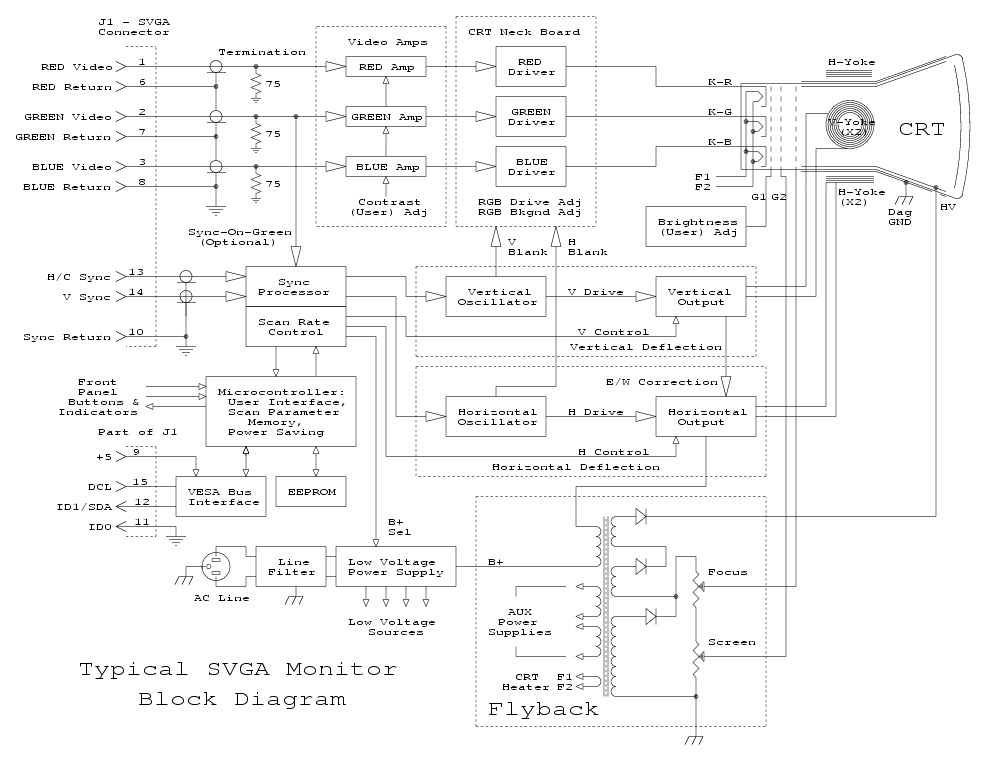
A computer or video monitor includes the following functional blocks:
Degauss operates off of the line whenever power is turned on (after having been off for a few minutes) to demagnetize the CRT. Better monitors will have a degauss button which activates this circuitry as well since even rotating the monitor on its tilt-swivel base can require degauss.
Most problems occur in the horizontal deflection and power supply sections. These run at relatively high power levels and some components run hot. This results in both wear and tear on the components as well as increased likelihood of bad connections developing from repeated thermal cycles. The high voltage section is prone to breakdown and arcing as a result of hairline cracks, humidity, dirt, etc.
The video circuitry is generally quite reliable. However, it seems that even after 15+ years, manufacturers still cannot reliably turn out circuit boards that are free of bad solder connections or that do not develop them with time and use.
Philips/Magnavox used to have a very nice on-line introduction to a variety of consumer electronics technologies. Although their site has disappeared - and even people who work for them have no clue - I have now recovered several of the articles including those on TVs, VCRs, camcorders, satellite reception, and connections. See the Introductory Consumer Electronics Technology Series. These as well as most or all of the other articles, as well a glossary and much more, can be also be accessed via the Internet Archive Wayback Machine. Copy and paste the following URL into the search box:
The earliest (Nov 09, 1996) archive seems to be the most complete.
A tech-tips database is a collection of problems and solutions accumulated by the organization providing the information or other sources based on actual repair experiences and case histories. Since the identical failures often occur at some point in a large percentage of a given model or product line, checking out a tech-tips database may quickly identify your problem and solution.
In that case, you can greatly simplify your troubleshooting or at least confirm a diagnosis before ordering parts. My only reservation with respect to tech-tips databases in general - this has nothing to do with any one in particular - is that symptoms can sometimes be deceiving and a solution that works in one instance may not apply to your specific problem. Therefore, an understanding of the hows and whys of the equipment along with some good old fashioned testing is highly desirable to minimize the risk of replacing parts that turn out not to be bad.
The other disadvantage - at least from one point of view - is that you do not learn much by just following a procedure developed by others. There is no explanation of how the original diagnosis was determined or what may have caused the failure in the first place. Nor is there likely to be any list of other components that may have been affected by overstress and may fail in the future. Replacing Q701 and C725 may get your equipment going again but this will not help you to repair a different model in the future.
Please see the document: On-Line Tech-Tips Databases for the most up to date compilation of these resources for TVs, VCRs, computer monitors, and other consumer electronic equipment.
The shadow mask consists of a thin steel or InVar (a ferrous alloy) with a fine array of holes - one for each trio of phosphor dots - positioned about 1/2 inch behind the surface of the phosphor screen. With some CRTs, the phosphors are arranged in triangular formations called triads with each of the color dots at the apex of the triangle. With many TVs and some monitors, they are arranged as vertical slots with the phosphors for the 3 colors next to one another.
An aperture grille, used exclusively in Sony Trinitrons (and now their clones as well), replaces the shadow mask with an array of finely tensioned vertical wires. Along with other characteristics of the aperture grille approach, this permits a somewhat higher possible brightness to be achieved and is more immune to other problems like line induced moire and purity changes due to local heating causing distortion of the shadow mask.
However, there are some disadvantages of the aperture grille design:
Apparently, there is no known way around the need to keep the fine wires from vibrating or changing position due to mechanical shock in high resolution tubes and thus all Trinitron monitors require 1, 2, or 3 stabilizing wires (depending on tube size) across the screen which can be see as very fine lines on bright images. Some people find these wires to be objectionable and for some critical applications, they may be unacceptable (e.g., medical diagnosis).
Degaussing should be the first thing attempted whenever color purity problems are detected. As noted below, first try the internal degauss circuits of the TV or monitor by power cycling a few times (on for a minute, off for at least 20 minutes, on for a minute, etc.) If this does not help or does not completely cure the problem, then you can try manually degaussing.
Note: Some monitors have a degauss button, and monitors and TVs that are microprocessor controlled may degauss automatically upon power-on (but may require pulling the plug to do a hard reset) regardless of the amount of off time. However, repeated use of these 'features' in rapid succession may result in overheating of the degauss coil or other components. The 20 minutes off/1 minute on precedure is guaranteed to be safe. (Some others may degauss upon power-on as long as the previous degauss was not done within some predetermined amount of time - they keep track with an internal timer.)
Commercial CRT Degaussers are available from parts distributors like MCM Electronics and consist of a hundred or so turns of magnet wire in a 6-12 inch coil. They include a line cord and momentary switch. You flip on the switch, and bring the coil to within several inches of the screen face. Then you slowly draw the center of the coil toward one edge of the screen and trace the perimeter of the screen face. Then return to the original position of the coil being flat against the center of the screen. Next, slowly decrease the field to zero by backing straight up across the room as you hold the coil. When you are farther than 5 feet away you can release the line switch.
The key word here is ** slow **. Go too fast and you will freeze the instantaneous intensity of the 50/60 Hz AC magnetic field variation into the ferrous components of the CRT and may make the problem worse.
WARNING: Don't attempt to degauss inside or in the back of the set (near the CRT neck. This can demagnetize the relatively weak purity and convergence magnets which may turn a simple repair into a feature length extravaganza!
It looks really cool to do this while the CRT is powered. The kids will love the color effects (but then lock your degaussing coil safely away so they don't try it on every TV and monitor in the house!).
Bulk tape erasers, tape head degaussers, open frame transformers, and the "butt-end" of a weller soldering gun can be used as CRT demagnetizers but it just takes a little longer. (Be careful not to scratch the screen face with anything sharp. For the Weller, the tip needs to be in place to get enough magnetic field.) It is imperative to have the CRT running when using these whimpier approaches, so that you can see where there are still impurities. Never release the power switch until you're 4 or 5 feet away from the screen or you'll have to start over.
I've never known of anything being damaged by excess manual degaussing as long as you don't attempt to degauss *inside* or the back of the monitor - it is possible to demagnetize geometry correction, purity, and static converence magnets in the process! However, I would recommend keeping really powerful bulk tape erasers-turned-degaussers a couple of inches from the CRT.
Another alternative which has been known to work is to place another similar size monitor face-to-face with the suspect monitor (take care not to bump or scratch the screens!) and activate degauss function on the working monitor. While not ideal, this may be enough to also degauss the broken one.
If an AC degaussing coil or substitute is unavailable, I have even done degaussed with a permanent magnet but this is not recommended since it is more likely to make the problem worse than better. However, if the display is unusable as is, then using a small magnet can do no harm. (Don't use a 20 pound speaker or magnetron magnet as you may rip the shadow mask right out of the CRT - well at least distort it beyond repair. What I have in mind is something about as powerful as a refrigerator magnet.)
Keep degaussing fields away from magnetic media. It is a good idea to avoid degaussing in a room with floppies or back-up tapes. When removing media from a room remember to check desk drawers and manuals for stray floppies, too.
It is unlikely that you could actually affect magnetic media but better safe than sorry. Of the devices mentioned above, only a bulk eraser or strong permanent magnet are likely to have any effect - and then only when at extremely close range (direct contact with media container).
All color CRTs include a built-in degaussing coil wrapped around the perimeter of the CRT face. These are activated each time the CRT is powered up cold by a 3 terminal thermistor device or other control circuitry. This is why it is often suggested that color purity problems may go away "in a few days". It isn't a matter of time; it's the number of cold power ups that causes it. It takes about 15 minutes of the power being off for each cool down cycle. These built-in coils with thermal control are never as effective as external coils.
Note that while the monochrome CRTs used in B/W and projection TVs and mono monitors don't have anything inside to get magnetized, the chassis or other cabinet parts of the equipment may still need degaussing. While this isn't likely from normal use or even after being moved or reoriented, a powerful magnet (like that from a large speaker) could leave iron, steel, or other ferrous parts with enough residual magnetism to cause a noticeable problem.
See the document: TV and Monitor CRT (Picture Tube) Information for some additional discussion of degaussing tools, techniques, treatments for severe magnetization from lightning strikes, and cautions.
If one or two activations of the degauss button do not clear up the color problems, manual degaussing using an external coil may be needed or the monitor may need internal purity/color adjustments. Or, you may have just installed your megawatt stereo speakers next to the monitor!
You should only need to degauss if you see color purity problems on your CRT. Otherwise it is unnecessary. The reasons it only works the first time is that the degauss timing is controlled by a thermistor which heats up and cuts off the current. If you push the button twice in a row, that thermistor is still hot and so little happens.
One word of clarification: In order for the degauss operation to be effective, the AC current in the coil must approach zero before the circuit cuts out. The circuit to accomplish this often involves a thermistor to gradually decrease the current (over a matter of several seconds), and in better monitors, a relay to totally cut off the current after a certain delay. If the current was turned off suddenly, you would likely be left with a more magnetized CRT. There are time delay elements involved which prevent multiple degauss operations in succession. Whether this is by design or accident, it does prevent the degauss coil - which is usually grossly undersized for continuous operation - to cool.
All Trinitron (or clone) CRTs - tubes that use an aperture grille - require 1, 2, or 3 very fine wires across the screen to stabilize the array of vertical wires in the aperture grille. Without these, the display would be very sensitive to any shock or vibration and result in visible shimmering or rippling. (In fact, even with these stabilizing wires, you can usually see this shimmering if you whack a Trinitron monitor.) The lines you see are the shadows cast by these fine wires.
The number of wires depends on the size of the screen. Below 15" there is usually a single wire; between 15" and 21" there are usually 2 wires; above 21" there may be 3 wires. (Some very small Trinitron CRTs may not need these but they will be present on most of the sizes of interest here.)
Only you can decide if this deficiency is serious enough to avoid the use of a Trinitron based monitor. Some people never get used to the fine lines but many really like the generally high quality of Trinitron based displays and eventually totally ignore them.
Other devices which may cause interference include anything with power transformers including audio equipment, AC or DC wall adapters, and laptop power supplies; fluorescent lamps with magnetic ballasts; and motorized or heavy duty appliances.
(From: Bob Myers (myers@fc.hp.com).)
Your mileage may vary, but (and please take the following for what it is, a very general answer)...
There are basically two potential problems here; one is cooling, and the other is the fact that the monitor has no doubt been set up by the factory assuming standard magnetic conditions, which probably DIDN'T involve the monitor tilting at much of an angle. If you're happy with the image quality when it's installed in the cabinet, that leaves just the first concern. THAT one can be addressed by simply making sure the cabinet provides adequate ventilation (and preferably adding a fan for a bit of forced-air cooling), and making sure that the whole installation isn't going to be exposed to high ambient temperatures. (Most monitors are speced to a 40 deg. C ambient in their normal orientation; adding forced-air cooling will usually let you keep that rating in positions somewhat beyond the normal.) Under no circumstances should you block the cabinet's vents, and - depending on the installation - it may be preferable to remove the rear case parts of the monitor (but NOT the metal covers beneath the plastic skin) in order to improve air circulation.
Your best bet is to simply contact the service/support people of the monitor manufacturer, and get their input on the installation. Failing to get the manufacturer's blessing on something like this most often voids the warranty, and can probably lead to some liability problems. (Note - I'm not a lawyer, and I'm not about to start playing one on the net.)
There is some dispute as to what cleaners are safe for CRTs with antireflective coatings (not the etched or frosted variety). Water, mild detergent, and isopropyl alcohol should be safe. Definitely avoid the use of anything with abrasives for any type of monitor screen. And some warn against products with ammonia (which may include Windex, Top-Job, and other popular cleaners), as this may damage/remove some types of antireflective coatings. To be doubly sure, test a small spot in a corner of the screen.
In really dusty situations, periodically vacuuming inside the case and the use of contact cleaner for the controls might be a good idea but realistically, you will not do this so don't worry about it.
Note that a drop of oil or other contamination might appear like a defect (hole) in the AR coating. Before getting upset, try cleaning the screen.
For LCD TVs, LCD computer monitors, and laptop displays, the cleaning is particularly critical. The front surface of these facing the viewer is generally not made of glass like those in CRT displays, but rather a plastic layer or film. Thus, any cleaning method that uses harsh chemicals can permanently damage the screen, with or without an anti-reflection coating. Some glass cleaners, acetone (nail polish remover), and other strong solvents can attack the plastic very quickly. By the time you realize there is damage, it may be too late. And, of course, NEVER use anything even mildly abrasive.
A damp cloth with soap or detergent and water is safe, as is generally a damp clost with a solution of 70 percent isopropyl (rubbing) alcohol diluted in the ratio 1:1 with water.
And it is even more essential to avoid allowing any liguid to seep inside along the edges as this can short out the circuitry, especially the high voltage back-light driver,which often located behind the trim at the bottom, and possibly ruin the display entirely, or at least requiring a major repair.
(From: Bob Myers (myers@fc.hp.com).)
Windex is perfectly fine for the OCLI HEA coating or equivalents; OCLI's coating is pretty tough and chemical-resistant stuff. There may be alternative (er..cheaper) coatings in use which could be damaged by various commercial cleaners, (For what it's worth, OCLI also sells their own brand of glass cleaner under the name "TFC", for "Thin Film Cleaner".)
I have cleaned monitors of various brands with both Windex and the OCLI-brand cleaner, with no ill results. But then, I'm usually pretty sure what sort of coating I'm dealing with... :-)
Monitor coatings are always changing; besides the basic "OCLI type" quarter-wave coatings and their conductive versions developed to address E-field issues, just about every tube manufacturer has their own brew or three of antiglare/antistatic coatings. There are also still SOME tubes that aren't really coated at all, but instead are using mechanically or chemically etched faceplates as a cheap "anti-glare" (actually, glare-diffusing) treatment.
In general, look in the user guide/owner's manual and see what your monitor's manufacturer recommends in the way of cleaning supplies.
(From: Tom Watson (tsw@johana.com).)
If you are maintaining a site, consider periodic cleaning of the monitors. Depending on the location, they can accumulate quite a bit of dust. In normal operation there is a electrostatic charge on the face of the crt (larger screens have bigger charges) which act as 'dust magnets'. If the operator smokes (thankfully decreasing), it is even worse. At one site I helped out with, most of the operators smoked, and the screens slowly got covered with a film of both dust and smoke particles. A little bit of glass cleaner applied with reasonable caution and the decree of "adjustments" to make the screen better (these were character monochrome terminals), and lo and behold, "what an improvement!". Yes, even in my dusty house, the TVs get a coating of film/goo which needs to be cleaned, and the picture quality (BayWatch viewers beware) improves quite a bit. Try this on your home TV to see what comes off, then show everyone else. You will be surprised what a little bit of cleaning does.
(From: Bob Myers (myers@fc.hp.com).)
And most importantly:
These won't guarantee long life, of course - nothing can do that, as there will always be the possibility of the random component failure. But these are the best that the user can do to make sure the monitor goes as long as it can.
Most manufacturers will quote an MTBF (Mean Time Before Failure) of somewhere in the 30,000 to 60,000 hour range, EXCLUSIVE OF the CRT. The typical CRT, without an extended-life cathode, is usually good for 10,000 to 15,000 hours before it reaches half of its initial brightness. Note that, if you leave your monitor on all the time, a year is just about 8,000 hours.
The only "tuneup" that a monitor should need, exclusive of adjustments needed following replacement of a failed component, would be video amplifier and/or CRT biasing adjustments to compensate for the aging of the tube. These are usually done only if you're using the thing in an application where exact color/brightness matching is important. Regular degaussing of the unit may be needed, of course, but I'm not considering that a "tuneup" or adjustment.
There are two areas which have particularly nasty electrical dangers: the non-isolated line power supply and the CRT high voltage.
Major parts of nearly all modern TVs and many computer monitors are directly connected to the AC line - there is no power transformer to provide the essential barrier for safety and to minimize the risk of equipment damage. In the majority of designs, the live parts of the TV or monitor are limited to the AC input and line filter, degauss circuit, bridge rectifier and main filter capacitor(s), low voltage (B+) regulator (if any), horizontal output transistor and primary side of the flyback (LOPT) transformer, and parts of the startup circuit and standby power supply. The flyback generates most of the other voltages used in the unit and provides an isolation barrier so that the signal circuits are not line connected and safer.
Since a bridge rectifier is generally used in the power supply, both directions of the polarized plug result in dangerous conditions and an isolation transformer really should be used - to protect you, your test equipment, and the TV, from serious damage. Some TVs do not have any isolation barrier whatsoever - the entire chassis is live. These are particularly nasty.
The high voltage to the CRT, while 200 times greater than the line input, is not nearly as dangerous for several reasons. First, it is present in a very limited area of the TV or monitor - from the output of the flyback to the CRT anode via the fat HV wire and suction cup connector. If you don't need to remove the mainboard or replace the flyback or CRT, then leave it alone and it should not bite. Furthermore, while the shock from the HV can be quite painful due to the capacitance of the CRT envelope, it is not nearly as likely to be lethal since the current available from the line connected power supply is much greater.
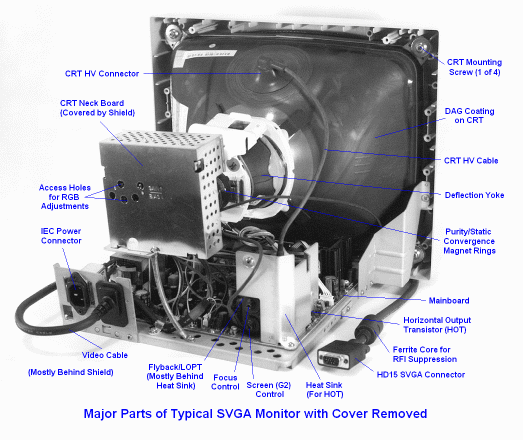
Of particular note in: Major Parts of Typical SVGA Monitor with Cover Removed are the CRT HV cable and connector, flyback or LOPT, and the horizontal output transistor and its heat sink. With many TVs and some monitors, this may be line-connected and electrically hot. However, this monitor uses a separate switchmode power supply and in any case, there is likely an insulator between the transistor and heat sink.
Safety Guidelines: These guidelines are to protect you from potentially deadly electrical shock hazards as well as the equipment from accidental damage.
Note that the danger to you is not only in your body providing a conducting path, particularly through your heart. Any involuntary muscle contractions caused by a shock, while perhaps harmless in themselves, may cause collateral damage - there are many sharp edges inside this type of equipment as well as other electrically live parts you may contact accidentally.
The purpose of this set of guidelines is not to frighten you but rather to make you aware of the appropriate precautions. Repair of TVs, monitors, microwave ovens, and other consumer and industrial equipment can be both rewarding and economical. Just be sure that it is also safe!
This is probably not a problem on small CRTs but for large ones with high high voltages and high deflection angles where the glass of the neck is very thin to allow for maximum deflection sensitivity, the potential does exist for arcing through the glass to the yoke to occur, destroying the CRT.
There is really no way to know which models will self destruct but it should be possible to avoid such a disaster by providing a temporary return path to the DAG ground of the CRT (NOT SIGNAL GROUND!!) via the focus or G2 pins preferably through a high value high voltage rated resistor just in case one of these is shorted.
This probably applies mostly to large direct-view TVs since they use high deflection angle CRTs but it won't hurt to take appropriate precautions with video and computer monitors as well.
If you get stuck, sleep on it. Sometimes, just letting the problem bounce around in your head will lead to a different more successful approach or solution. Don't work when you are really tired - it is both dangerous (especially with respect to monitors) and mostly non-productive (or possibly destructive).
Whenever working on complex equipment, make copious notes and diagrams. You will be eternally grateful when the time comes to reassemble the unit. Most connectors are keyed against incorrect insertion or interchange of cables, but not always. Apparently identical screws may be of differing lengths or have slightly different thread types. Little parts may fit in more than one place or orientation. Etc. Etc.
Pill bottles, film canisters, and plastic ice cube trays come in handy for sorting and storing screws and other small parts after disassembly. This is particularly true if you have repairs on multiple pieces of equipment under way simultaneously.
Select a work area which is wide open, well lighted, and where dropped parts can be located - not on a deep pile shag rug. The best location will also be relatively dust free and allow you to suspend your troubleshooting to eat or sleep or think without having to pile everything into a cardboard box for storage.
Another consideration is ESD - Electro-Static Discharge. Some components (like ICs) in a TV are vulnerable to ESD. There is no need to go overboard but taking reasonable precautions such as getting into the habit of touching a **safe** ground point first.
WARNING: even with an isolation transformer, a live chassis should **not** be considered a safe ground point. When the monitor is unplugged, the shields or other signal ground points should be safe and effective.
A basic set of precision hand tools will be all you need to disassemble a monitor and perform most adjustments. These do not need to be really expensive but poor quality tools are worse than useless and can cause damage. Needed tools include a selection of Philips and straight blade screwdrivers, socket drivers, needlenose pliers, wire cutters, tweezers, and dental picks. For adjustments, a miniature (1/16" blade) screwdriver with a non-metallic tip is desirable both to prevent the presence of metal from altering the electrical properties of the circuit and to minimize the possibility of shorting something from accidental contact with the circuitry. A set of plastic alignment tools will be useful for making adjustments to coils (though you can forgo these until the (rare) need arises.
A low power (e.g., 25 W) fine tip soldering iron and fine rosin core solder will be needed if you should need to disconnect any soldered wires (on purpose or by accident) or replace soldered components. A higher power iron or small soldering gun will be needed for dealing with larger components. Never use acid core solder or the type used for sweating copper pipes!
CAUTION: You can easily turn a simple repair (e.g., bad solder connections) into an expensive mess if you use inappropriate soldering equipment and/or lack the soldering skills to go along with it. If in doubt, find someone else to do the soldering or at least practice, practice, practice, soldering and desoldering on a junk circuit board first! See the document: Troubleshooting and Repair of Consumer Electronic Equipment for additional info on soldering and rework techniques.
For thermal or warmup problems, a can of 'cold spray' or 'circuit chiller' (they are the same) and a heat gun or blow dryer come in handy to identify components whose characteristics may be drifting with temperature. Using the extension tube of the spray can or making a cardboard nozzle for the heat gun can provide very precise control of which components you are affecting.
For info on useful chemicals, adhesives, and lubricants, see "Repair Briefs, an Introduction" as well as other documents available at this site.
However, some test equipment will be needed:
I would recommend a good used Tektronix (Tek) or Hewlett Packard (HP) scope over a new scope of almost any other brand. You will usually get more scope for your money and these things last almost forever. Until recently, my 'good' scope was the militarized version (AN/USM-281A) of the HP180 lab scope. It has a dual channel 50 MHz vertical plugin and a delayed sweep horizontal plugin. I have seen these going for under $300 from surplus outfits. For a little more money, you can get a Tek 465 or 465B (newer version but similar specifications) 100 Mhz scope ($200 to $600, sometimes cheaper on eBay or elsewhere but there is more risk than buying from a reputable dealer). I have now acquired a Tek 465B and that's what I use mostly these days. The HP-180 is still fine but I couldn't pass up a really good deal. :) The Tek 465/B or other similar model will suffice for all but the most demanding (read: RF or high speed digital) repairs.
Computer Monitors - a test PC is useful as a video source. Of course, it will need to support whatever scan rates and video types the monitor is designed to accept. Software programs are available to display purity, convergence, focus, color, and other test patterns. Or create your own test patterns using a program like Windows Paint. See the section: Using a PC as a monitor test pattern generator.
Studio monitors - a baseband video source like a VCR or camcorder is useful in lieu of a test pattern generator. These will allow you to you to control the program material. In fact, making some test tapes using a camcorder or video camera to record static test patterns will allow you full control of what is being displayed and for how long.
Sophisticated (and expensive) universal test pattern generators are available that will handle any possible monitor scan rate.
CAUTION: Keep any large transformer of this type well away from your monitor or TV. The magnetic field it produces may cause the picture to wiggle or the colors to become messed up - and you to think there is an additional problem!
This doesn't mean that every one of the 250 capacitors in your TV need to be discharged every time you power off and want to make a measurement. However, the large main filter capacitors and other capacitors in the power supplies should be checked and discharged if any significant voltage is found after powering off (or before any testing - the CRT capacitance in a TV or video monitor, for example, can retain a dangerous or at least painful charge for days or longer!)
The technique I recommend is to use a high wattage resistor of about 100 ohms/V of the working voltage of the capacitor. This will prevent the arc-welding associated with screwdriver discharge but will have a short enough time constant so that the capacitor will drop to a low voltage in at most a few seconds (dependent of course on the RC time constant and its original voltage).
Then check with a voltmeter to be double sure. Better yet, monitor while discharging (not needed for the CRT - discharge is nearly instantaneous even with multi-M ohm resistor).
Obviously, make sure that you are well insulated!
Note that if you are touching the little board on the neck of the CRT, you may want to discharge the HV even if you are not disconnecting the fat red wire - the focus and screen (G2) voltages on that board are derived from the CRT HV.
WARNING: Most common resistors - even 5 W jobs - are rated for only a few hundred volts and are not suitable for the 25 kV or more found in modern TVs and monitors. Alternatives to a long string of regular resistors are a high voltage probe or a known good focus/screen divider network. However, note that the discharge time constant with these may be a few seconds. Also see the section: Additional information on discharging CRTs.
If you are not going to be removing the CRT anode connection, replacing the flyback, or going near the components on the little board on the neck of the CRT, I would just stay away from the fat red wire and what it is connected to including the focus and screen wires. Repeatedly shoving a screwdriver under the anode cap risks scratching the CRT envelope which is something you really do not want to do.
Again, always double check with a reliable voltmeter!
Reasons to use a resistor and not a screwdriver to discharge capacitors:
(From: Asimov (mike.ross@juxta.mnet.pubnix.ten).)
'Dag' is short for Aquadag. It is a type of paint made of a graphite pigment which is conductive. It is painted onto the inside and outside of picture tubes to form the 2 plates of a high voltage filter capacitor using the glass in between as dielectric. This capacitor is between .005uF and .01uF in value. This seems like very little capacity but it can store a substantial charge with 25,000 volts applied.
The outside "Dag" is always connected to the circuit chassis ground via a series of springs, clips, and wires around the picture tube. The high voltage or "Ultor" terminal must be discharged to chassis ground before working on the circuit especially with older TV's which didn't use a voltage divider to derive the focus potential or newer TV's with a defective open divider.
(From: Sam)
CAUTION: The Dag coating/springs/clips/etc. may not be the same as signal ground on the mainboard. Discharging to that instead could result in all sorts of expensive blown components. Discharging between the CRT anode cap and Dag should be low risk though it is best to use a HV probe or properly rated high value resistor.
For more details, see the document: TV and Monitor CRT (Picture Tube) Information.
The rubber part is usually not glued down so it can be lifted rather easily. However, there may be some silicone type grease between the rubber boot (that looks like a suction cup) and the CRT glass to seal out dust.
A metal clip with a spring keeping it spread out attaches inside the button.
While there are a variety of types of clips actually used, pushing the connector to one side and/or squeezing it in the appropriate direction (peel up one side of the rubber to inspect) while gently lifting up should free it. Probably :-).
The clip (when removed) and CRT button look sort of like this:
                       ||======= HV Cable
                       /\
               Clip   |  |
          (Removed)  _|  |_
                               (No DAG coating in vicinity of HV connector)
        ____________.-    -.___________
   CRT  ____________|______|___________ Glass
                  Metal Button
Replacement is done in reverse order!
This isn't rocket science and excessive force should not be needed! :-)
Actually using a series load - a light bulb is just a readily available cheap load - is better than a Variac (well both might be better still) since it will limit current to (hopefully) non-destructive levels.
What you want to do is limit current to the critical parts - usually the horizontal output transistor (HOT). Most of the time you will get away with putting it in series with the AC line. However, sometimes, putting a light bulb directly in the B+ circuit will be needed to provide adequate protection. In that location, it will limit the current to the HOT from the main filter capacitors of line connected power supplies. This may also be required with some switchmode power supplies as they can still supply bursts of full (or excessive) current even if there is a light bulb in series with the AC line.
Actually, an actual power resistor is probably better as its resistance is constant as opposed to a light bulb which will vary by 1:10 from cold to hot. The light bulb, however, provides a nice visual indication of the current drawn by the circuit under test. For example:
Note: for a TV or monitor, it may be necessary (and desirable) to unplug the degauss coil as this represents a heavy initial load which may prevent the unit from starting up with the light bulb in the circuit.
The following are suggested starting wattages:
A 50/100/150 W (or similar) 3-way bulb in an appropriate socket comes in handy for this but mark the switch so that you know which setting is which!
Depending on the power rating of the equipment, these wattages may need to be increased. I have had to go to a 300 W light bulb for some computer monitors. However, start low. If the bulb lights at full brightness, you know there is still a major fault. If it flickers or the TV (or other device) does not quite come fully up, then it should be safe to go to a larger bulb. Resist the temptation to immediately remove the bulb at this point - I have been screwed by doing this. Try a larger one first. The behavior should improve. If it does not, there is still a fault present.
Note that some TVs and monitors simply will not power up at all with any kind of series load - at least not with one small enough (in terms of wattage) to provide any real protection. The microcontroller apparently senses the drop in voltage and shuts the unit down or continuously cycles power. Fortunately, these seem to be the exceptions.
Getting into a monitor is usually quite simple requiring the removal of 2-10 Philips or 1/4" hex head screws - most around the edge of the cabinet or underneath, a couple perhaps in the rear. Disconnect the input and power cables first as it they stay with catch on the rear cover you are detaching. Reconnect whatever is needed for testing after the cover is removed. Set the screws aside and make notes if they are not all of the same length and thread type - putting a too long screw in the wrong place can short out a circuit board or break something else, for example. A screw that is too short may not be secure.
Once all visible screws are out, try to remove the cover. There still may be hidden catches or snaps around the edges or seam or hidden beneath little plastic or rubber cosmetic covers. Sometimes, the tilt-swivel base will need to be removed first. If no snaps or catches are in evidence, the cover may just need a bit of persuasion in the form of a carefully placed screwdriver blade (but be careful not to damage the soft plastic). A 'splitting' tool is actually sold for this purpose.
As you pull the cover straight back (usually) and off, make sure that no other wires are still attached. Often, the main circuit board rests on the bottom of the cover in some slots. Go slow as this circuit board may try to come along with the back. Once the back is off, you may need to prop the circuit board up with a block of wood to prevent stress damage and contact with the work surface.
Most - but not all - monitors can be safely and stably positioned either still on the tilt-swivel base or on the bottom of the frame. However, some will require care as the circuit board will be vulnerable.
Larger monitors are quite heavy and bulky. Get someone to help and take precautions if yours is one of the unstable variety. If need be, the monitor can usually safely be positioned on the CRT face if it is supported by foam or a folded blanket.
Once the cover is off, you will find anywhere from none to a frustratingly large number of sheetmetal (perforated or solid) shields. Depending on which circuit boards need to be accessed, one or more of these shields may need to be removed. Make notes of which screws go where and store in a safe place. However, manufacturers often place holes at strategic locations in order to access adjustments - check for these before going to a lot of unnecessary bother. Note: sheetmetal usually has sharp edges. Take care.
See Major Parts of Typical SVGA Monitor with Cover Removed for what will greet you. This particular sample has a shield only covering the video driver board on the neck of the CRT.
Reassemble in reverse order. Getting the circuit board to slide smoothly into its slots may take a couple of attempts but otherwise there should be no surprises.
However, you should check across this capacitor - usually only one and by far the largest in the unit - with a voltmeter and discharge as suggested in the section: Safe discharging of capacitors in TVs and video monitors if it holds more than a few volts (or wait longer) before touching anything.
Some of these are as large as 1,000 uF charged to 160 V - about 13 w-s or a similar amount of energy as that stored in an electronic flash. This is enough to be potentially lethal under the wrong circumstances.
If you want to be doubly sure, discharge this also. However, unless you are going to be removing the HV connector/flyback, it should not bother you.
The energy stored is about 1 w-s but if you touch it or come near to an exposed terminal, due to the high voltage, you will likely be handed *all* the energy and you *will* feel it. The danger is probably more in the collateral damage when you jump ripping flesh and smashing your head against the ceiling.
Some people calibrate their jump based on voltage - about 1 inch/V. :-).
There will be some HV on the back of the circuit board on the neck of the CRT but although you might receive a tingle but accidentally touching the focus or screen (G2) pins, it is not likely to be dangerous.
Use a soft brush (like a new paintbrush) and a vacuum cleaner to carefully remove the built up dust. Blowing off the dust will likely not hurt the unit unless it gets redeposited inside various controls or switches but will be bad for your lungs - and will spread dirt all over the room. Don't turn anything - many critical adjustments masquerade as screws that just beg to be tightened. Resist the impulse for being neat and tidy until you know exactly what you are doing. Be especially careful around the components on the neck of the CRT - picture tube - as some of these are easily shifted in position and control the most dreaded of adjustments - for color purity and convergence. In particular, there will be a series of adjustable ring magnets. It is a good idea to mark their position in any case with some white paint, 'white out', or a Magic Marker so that if they do get moved - or you move them deliberately, you will know where you started.
My approach is usually to do as much work as possible without removing the main board and not attempt to power it up when disconnected since there are too many unknowns. Professionals will plug the chassis into a piece of equipment which will simulate the critical functions but this is rarely an option for the doit-yourselfer.
Note that if you have a failure of the power supply - blown fuse, startup, etc., then it should be fine to disconnect the CRT since these problems are usually totally unrelated. Tests should be valid.
However, if you really want to do live testing with the main board removed, here are some considerations. There are usually several connections to the CRT and cabinet:
If you do disconnect everything, make sure to label any connectors whose location or orientation may be ambiguous. Most of the time, these will only fit one way but not always.
Without even taking into consideration all of the other features of most late model (15" or larger) monitors, such as the multisync and multi-resolution circuitry, many of these units are very complex. They combine almost every example of present circuit design technology. A vacuum display tube, digital data, HF switching, all types of regulators and sense circuits and linear power devices. Funny too, that the end result is just dots of light.
A good (perhaps the best) first action is to search the USENET newsgroup sci.electronics.repair via an archive like Google Groups for previous postings of questions on the same model with related symptoms and replies. Solder in the replacement part, and BINGO, it's repaired. Rest assured that it's always something simple. Yeah, right. :) Time to check some archive repair sites with tech-tips databases.
Typically, for a dead unit, I get a DMM, pencil and paper....
After a fairly thorough overall inspection, i generally resort to a section-by-section investigation for shorted/open power devices, followed by PN junction checks, then an overall ESR check SxS. In circuit ESR checking will nearly always convince me to replace at least a couple of caps. But if ya don't replace 'em, ya just never know. Hehehe.
By now, I'm at least an hour into this potential research project, if the unit's operation hasn't yet been restored. The next phase is usually determined by whatever i feel like doing next.. i might get a couple of datasheets, try a series lamp technique, or test the major parts.. flyback/IHVT, CRT or yokes. If one of these are faulty, it will help determine the cost effectiveness of proceeding. If it's not my monitor, i contact the owner.
Barring any major parts failure, there are several more options for a direction to proceed in.. making sense of any of the available voltages or waveforms, checking the HV semis for leakage, or as a last (but maybe not final) resort.. making circuit diagrams of specific sections. If there hasn't been any sign of progress by this point, the unit usually finds it's way to a shelf until more inspiration arrives.. that reminds me, when did i place that order?
Note that monitor (software) drivers often have the capability to provide some control of picture size, position, color balance, and other parameters via the video card. There is also third-party software for this purpose. So, before blaming the monitor, make sure your software settings (and monitor user controls) have been reset to their defaults. Then see if the monitor controls and/or the driver adjustments have enough range with the procedures described below. However, where a sudden change in behavior occurred without anything being done in either hardware or software (e.g., a new video card or OS/revision), trying to adjust out such a fault is like putting a Band-Aid on a broken bone. There is likely to be a hardware fault in the monitor which will need to be identified and repaired.
Display an image with a variety of colors and the full range of brightness from deep shadows to strong highlights. For PCs, a Windows desktop is generally satisfactory. An outdoor scene on a sunny day is excellent for studio monitors. Alternatively, use a test pattern specially designed for this purpose.
Turn the BRIGHTNESS and CONTRAST controls (or use the buttons) all the way down.
Increase the BRIGHTNESS until a raster is just visible in the darkest (shadow) areas of the picture and then back off until it **just** disappears.
Increase the CONTRAST until the desired intensity of highlights is obtained.
Since BRIGHTNESS and CONTRAST are not always independent, go back and forth until you get the best picture.
On monitors with a color balance adjustment, you may want to set this but unless you are doing photorealistic work, using the manufacturer's defaults will be fine unless you need to match the characteristics of multiple monitors located side-by-side.
Assuming that the focus has just been gradually getting worse over time, tweaking the internal focus control may be all that is needed.
Some monitors have the focus adjustment accessible through a (possibly unmarked) hole in the side or rear of the case. If there is a single hole, it is almost certainly for overall focus. If there are two holes, one may be the screen (G2 - master brightness) or the two adjustments may be for different aspects of focus (e.g., horizontal and vertical). Just carefully observe what happens when each adjustment is moved a little so that you can return it to its original setting if you turned the wrong one. Use a thin insulated screwdriver - preferably with a plastic blade. As a extra precaution, determine of the screwdriver will mate easily with the adjustment with the monitor **off** (don't turn anything, however).
Where there are two adjustment knobs on the flyback transformer, the top one is generally for focus and the bottom one is for G2.
Most inexpensive monitors have only what is known as static focus - a constant voltage derived from the HV power supply is applied to the focus grid of the CRT. This does not allow for optimal focus across the screen and any setting is just a compromise between central and edge sharpness.
Better monitors will have separate H and V focus controls as well as dynamic focus circuitry which generates focus correction signals that are a function of screen position to compensate for changing distance to electron guns at the edges and corners of the screen. There may be some interaction between the static and dynamic adjustments. If either of these controls has no effect or insufficient range, then there may be a fault in the circuitry for that particular adjustment - a fault with the driver, waveform source, power supply, etc.
The most sophisticated schemes use a microprocessor (or at least digital logic) to specify the waveform for each section of the screen with a map of correction values stored in non-volatile memory. It would be virtually impossible to troubleshoot these systems without detailed service information and an oscilloscope - and even then you might need a custom adapter cable and PC software to adjust values!
Also see the section: About the quality of monitor focus.
If you need to go inside to tweak focus pots:
SAFETY: as long as you do not go near anything else inside the monitor while it is on AND keep one hand in you pocket, you should be able to do this without a shocking experience.
Plug it in, turn it on and let it warm up for a half hour or so. Set your PC (or other video source) to display in the resolution you use most often. First turn the user brightness and contrast fully counterclockwise. Turn brightness up until the raster lines in a totally black area appear, then back a hair until they disappear. Then, turn the contrast control up until you get a fairly bright picture. Fullly clockwise is probably ok. Adjust FOCUS for generally best focus. You will not be able to get it razor sharp all over the screen - start at the center and then try to get the edges and corners as good as you can without messing up the center too much. Double check that the focus is OK at your normal settings of brightness and contrast and at other resolutions that you normally use.
The focus pot is usually located on the flyback transformer or on an auxiliary panel nearby. The focus wire usually comes from the flyback or the general area or from a terminal on a voltage the multiplier module (if used). It is usually a wire by itself going to the little board on the neck of the CRT.
The SCREEN control adjusts background brightness. If the two controls are not marked, you will not do any damage by turning the wrong one - it will be immediately obvious as the brightness will change rather than focus and you can then return it to its original position (or refer to the section on brightness adjustments to optimize its setting).
On a decent monitor, you should be able to make out the individual scanning lines at all resolutions though it will be toughest at the highest scan rates. If they lines are fuzzy, especially in bright areas, then focus may need to be adjusted or there may be an actual fault in the focus circuitry or a defective or just marginal CRT.
I'm sure there is an official procedure, but this always works for me.
First, figure out which control is which. One will appear affect the overall focus. This is the vertical focus control.
The other will mostly affect the width of vertical lines and has the most effect at the left and right edges of the screen. This is the horizontal focus.
Start with both controls near the middle of their range. You need to display something with sharp vertical lines at the edges and sharp horizontal lines in the center (a cross hatch is best).
First, adjust the horizontal focus for the sharpest vertical lines at the edges. Ignore the thickness of the scan lines for now, just make the vertical lines are as thin as possible.
Next, adjust the vertical focus for the thinnest horizontal scan lines in the dead center of the screen. Alternate between the two several times because they interact with each other heavily.
If you don't have any way to display a cross hatch, you can use a computer if it has a TV output, or even the on screen menus of a VCR.
(From: RonKZ650 (RonKZ650@aol.com).)
The old Zeniths with dual focus had a procedure of putting a crosshatch pattern on the screen, adjust one focus for the thinnest vertical line, the other for the thinnest horiz line. This works for me on all dual focus sets. Once you have a crosshatch pattern on the screen it is easy to see which control effects horiz and which effects vertical. From there you have to go back and forth between the two a few times to eventually get both at optimum. I don't like um, but part of the business.
Note that circuit problems can also cause similar symptoms. These are particularly likely if the brightness descresed suddenly - CRT emission problems will result in a gradual decrease in brightness over time.
In most cases, the cover will need to be removed. The controls we are looking for may be located in various places. Rarely, there will be access holes on the back or side. However, if there are unmarked holes, then the FOCUS and SCREEN controls are the most likely possibilities.
The controls may be located on the:
Display a black and white picture at the video resolution you consider most important. Select one that has both full blacks and full whites - an nice sunny outdoor scene that has been converted from a color image, for example.
Set the user brightness control to its midpoint and the user contrast control as low as it will go - counterclockwise.
Let the monitor warm up for at least 15 minutes so that components can stabilize.
If there is a MASTER BRIGHTNESS or BACKGROUND level control, use this to make the black areas of the picture just barely disappear. Them, increase it until the raster lines just appear. (They should be a neutral gray. If there is a color tint present, then the individual color background controls will need to be adjusted to obtain a neutral gray.) If there is no such control, use the master screen control on the flyback. If it is unmarked, then try both of the controls on the flyback - one will be the screen control and the other will be focus - the effects will be obvious. If you did touch focus, set it for best overall focus and then get back to the section on focus once you are done here.
If there are individual controls for each color, you may use these but be careful as you will be effecting the color balance. Adjust so that the raster lines in a black area are just visible and dark neutral gray.
If there is a 'service switch' you may prefer to make the adjustment with this in the service position. The raster will collapse to a single horizontal line and the video input will be disabled and forced to black. The BACKGROUND or SCREEN control can then be adjusted as above.
Now for the gain controls. On the little board on the neck of the CRT or on the video or main board there will be controls for R, G, and B DRIVE (also may be called GAIN, or CONTRAST - they are the same). The knobs or slots may even be color coded as to which primary (R,G,B) it affects.
If there are only two then the third color is fixed and if the color balance in the highlights of the picture was ok, then there is nothing more you can do here.
Set the user contrast control as high as it will go - clockwise.
Now adjust each internal color DRIVE control as high as you can without that particular color 'blooming' at very bright vertical edges. Blooming means that the focus deteriorates for that color and you get a big blotch of color trailing off to the right of the edge. You may need to go back and forth among the 3 DRIVE controls since the color that blooms first will limit the amount that you can increase the contrast settings. Set them so that you get the brightest neutral whites possible without any single color blooming.
Note that this is ignoring the effects of any beam current or brightness limiter circuitry. Any recommendations in the service manual should be followed to minimize the chance of excess X-ray emissions as well as to avoid burn-in of the phosphor screen.
Now check out the range of the user controls and adjust the appropriate internal controls where necessary. You may need to touch up the background levels or other settings. Check at the other resolutions and refresh rates that you normally use.
If none of this provides acceptable brightness, then either your CRT is in its twilight years or there is something actually broken in the monitor. If the decrease in brightness has been a gradual process over the course of years, then it is most likely the CRT. As a last resort you can try increasing the filament current to the CRT the way CRT boosters that used to be sold for TVs worked. See the section: Brightening an old CRT.
The typical user controls - brightness and contrast can, of course, be set arbitrarily, depending on video content and ambient lighting conditions.
Set the user brightness and contrast controls in the middle for the following adjustments and let the monitor warm up for 20 minutes or so.
(From: Jeroen Stessen (Jeroen.Stessen@philips.com).)
Now the screen control, that's another matter. It sets the voltage on the second grid of the electron guns, typically between +500 and +1000 V. You will want to use a well-isolated screwdriver for that if it is a naked potentiometer. In the old days there used to be 3 separate potentiometers for 3 G2s, now there is generally only one.
Its purpose is to set the cutoff voltage for the guns, i.e. the voltage between K and G1 at which the beam is just off. The higher you set the VG2, the higher VK - VG1 must be to cut off the beam.
If you set VG2 too low then your picture will be dark. You can compensate for that with the brightness control, which in effect will lower the VKs. A disadvantage is that you will not get optimum sharpness and peak brightness from your picture tube.
If you set VG2 too high then your picture will be bright. You can compensate for that with the brightness control, which in effect will raise the VKs. You might even get retrace lines which can usually not be made to disappear with the brightness control. Another disadvantage is that you will not get optimum LIFETIME from your picture tube. With a too high cutoff voltage the cathode (electron emitting surface) will wear out too soon.
You will need to see the picture tube specifications (or possibly the service manual for the monitor --- sam) in order to find the correct setting for the cutoff voltage. This is measured as VK - VG1 (for each channel RGB) and is typically 130-160 V max. There will be spread between the 3 channels, typically the highest of the 3 measured values will be set against the upper limit.
The usual adjustment procedure is as follows:
There may also be an adjustment called 'horizontal phase' which controls the relative timing of the horizontal sync pulse with respect to retrace. Its effect is subtly different than horizontal position which actually moves the raster. If possible, center the raster and then use H Phase to center the picture.
In monochrome monitors (mostly), position may be set via a pair of rings on the neck of the CRT.
Size can be set to your preference for each scan rate (if they are independent). For computer work, slight underscan is often preferred as all of the frame buffer is visible. However, any slight geometric problems with the raster will be all too visible when compared with the straight sides of the CRT bezel.
Note that resolutions like 640 x 480, 800 x 600, and 1024 x 768 all have a 4:3 aspect ratio. The edge of the image will line up with the bezel on most if not all monitors since CRTs are made to a 4:3 aspect ratio. However, resolutions like 1280 x 1024 and 1600 x 1280 have a 5:4 aspect ratio. With these, in order to get (highly desirable) square pixels, the horizontal size must be adjusted slightly smaller than that required to fill the screen.
For normal viewing of video (television) monitors, raster size should be set so that there is about 10-15 percent overscan all around. This will allow ample margin for power line voltage fluctuations, component aging, and the reduction in raster size that may occur with some VCR special effects (CUE and REV) modes. However, for studio use, underscan is often preferred or at least an option to permit the entire raster to be inspected.
Modern color monitors may not have any horizontal linearity control but you may find this on older models. There may be an internal vertical linearity adjustment. I am not aware of any that have user accessible linearity controls. If there are internal pots or coils, you will need to go back and forth between size and linearity as these adjustments are usually not independent.
Of course, parameters controlling your video card also affect position and size. There is no best approach to reconciling the effects of monitor and video card position adjustments. But, in general, start with the monitor controls centered within their range or use the memory defaults as appropriate. Then, use the video card setup program to optimize the settings. Only if these do not have enough range should you use the monitor controls.
If you can get a grating test generator this would be the proper way to test for non-linearity. Using a camera or device other than that would not be an acceptable reference if you call any engineer from the manufacture. If you mention a grating generator, he will certainly listen.
You would need the service manual for the model to know the specs. Some of these sets can have a non-linearity of up to about 2% near to the edges. Only professional broadcast monitors will be down to the 0.5% and less error factor near to the corners.
On a 27 inch screen 2% can mean an error of can give a visible non-linearity of 0.5 inches. Convergence errors can be as much as 0.25 or 1/4 inch at the corners. Generally they are more accurate than these figures. This is the worse case that is generally accepted on a consumer TV by the manufactures.
I have found that on flat screen consumer TV sets, the linearity sort of gets a bit stretched towards the ends of the scan. This is because of the beam angle. There is compensation for azimuth of beam focus (dynamic focus) and for the scans to a degree that keeps the price of the TV within consumer range.
The screens that are a bit more spherical or rounded will have less of this effect because it is lower in cost to compensate for these errors. A true accurate screen would be one that is spherical following exactly to the beam angle. But, for viewing this would not be very desirable.
If the controls have no effect, there is probably a fault in the pincushion correction circuitry.
It is best to make these adjustments with a crosshatch or dot test pattern
The specifications for misconvergence have two parts: a center error and a corner error. The acceptable center error is always the smaller of the two - possibly .1-.2 mm. compared to .3-.5 mm in the corners. Very often, you will find that what you are complaining about is well within this specification.
Convergence refers to the control of the instantaneous positions of the red, green, and blue spots as they scan across the face of the CRT so that they are as nearly coincident as possible. Symptoms of poor convergence are colored borders on solid objects or visible separate R, G, and B images of fine lines or images,
Note: It is probably best to face the monitor East-West (front-to-back) when performing any purity and convergence adjustments. Since you probably do not know what orientation will eventually be used, this is the best compromise as the earth's magnetic field will be aligned mostly across the CRT. This will minimize the possible rotation of the picture when the unit is moved to its final position but there may be a position shift. Neither of these is that significant so it probably doesn't really matter that much unless you are super fussy. Of course, if you know the final orientation of the monitor use that instead. Or, plan to do the final tilt and position adjustments after the monitor is in position - but this will probably require access to the inside!
First, make sure no sources of strong magnetic fields are in the vicinity of the monitor - loudspeakers, refrigerator magnets, MRI scanners, etc. A nearby lightning strike or EMP from a nuclear explosion can also affect purity so try to avoid these.
Cycle power a couple of times to degauss the CRT (1 minute on, 20 minutes off) - see the section: Degaussing (demagnetizing) a CRT. If the built in degaussing circuits have no effect, use an external manual degaussing coil to be sure that your problems are not simply due to residual magnetism.
Assuming this doesn't help, you will need to set the internal purity and/or convergence adjustments on the CRT.
First, mark the positions of all adjustments - use white paint, 'White out', or a Magic Marker on the ring magnets on the neck of the CRT, the position and tilt of the deflection yoke, and any other controls that you may touch deliberately or by accident.
Note: if your monitor is still of the type with a drawer or panel of knobs for these adjustments, don't even think about doing anything without a service manual and follow it to the letter unless the functions of all the knobs is clearly marked (some manufacturers actually do a pretty good job of this).
Use the following purity adjustment procedure as a general guide only. Depending on the particular model monitor, your procedure may substitute green for red depending on the arrangement of guns in the CRT. The procedures for dot-mask, slot mask, and Trinitron (aperture grille) CRTs will vary slightly. See you service manual!
Obtain a white raster (sometimes there is a test point that can be grounded to force this). Then, turn down the bias controls for blue and green so that you have a pure red raster. Let the monitor warm up for a minimum of 15 minutes.
Loosen the deflection yoke clamp and move the yoke as far back as it will go,
Adjust the purity magnets to center the red vertical raster on the screen.
Now, move the yoke forward until you have the best overall red purity. Tighten the clamp securely and reinstall the rubber wedges (if your CRT has these) to stabilize the yoke position. Reset the video adjustments you touched to get a red raster.
Unless you want a lot of frustration, I would recommend not messing with convergence. You could end up a lot worse. I have no idea what is used for convergence on your set but convergence adjustments are never quite independent of one another. You could find an adjustment that fixes the problem you think you have only to discover some other area of the screen is totally screwed. In addition, there are adjustments for geometry and purity and maybe others that you may accidentally move without even knowing it until you have buttoned up the set.
Warning: Accurately mark the original positions - sometimes you will change something that will not have an obvious effect but will be noticeable later on. So it is extremely important to be able to get back to where you started. If only red/green vertical lines are offset, then it is likely that only a single ring needs to be moved - and by just a hair. But, you may accidentally move something else!
If you really cannot live with it, make sure you mark everything very carefully so you can get back to your current state. A service manual is essential!
Convergence is set using a white crosshatch or dot test pattern. For PCs (a similar approach applies to workstations) If you do not have a test pattern generator, use a program like Windows Paint to create a facsimile of a crosshatch pattern and use this for your convergence adjustments. For a studio video monitor, any static scene (from a camcorder or previously recorded tape, for example) with a lot of fine detail will suffice.
Static convergence sets the beams to be coincident in the exact center of the screen. This is done using a set of ring magnets behind the purity magnets on the CRT neck. (Set any user convergence controls to their center position).
Adjust the center set of magnets on the CRT neck to converge blue to green at the center of the screen. Adjust the rear set of magnets to converge red to green at the center of the screen." Your monitor may have a slightly different procedure.
Dynamic convergence adjusts for coincidence at the edges and corners.
On old tube, hybrid, and early solid state monitors, dynamic convergence was accomplished with electronic adjustments of which there may have been a dozen or more that were not independent. With modern monitors, convergence is done with magnet rings on the neck of the CRT, magnets glued to the CRT, and by tilting the deflection yoke. The clamp in conjunction with rubber wedges or set screws assures that the yoke remains in position.
Remove the rubber wedges.
Loosen the deflection yoke clamp just enough so that it can be tilted but will remain in the position you leave it. Rock the yoke up and down to converge the right and left sides of the screen. Rock the yoke from side to side to converge the top and bottom of the screen. The rubber wedges can be used as pivots to minimize the interaction between the two axes but you may need to go back and forth to optimize convergence on all sides. Reinstall the wedges firmly and tape them to the CRT securely. Tighten the yoke clamp enough to prevent accidental movement.
Some monitors may use a plastic frame and set screws instead of just a clamp and rubber wedges but the procedure is similar.
Refer to your service manual. (Is this beginning to sound repetitious?)
For additional comments on convergence adjustments, see the section: Tony's notes on setting convergence on older delta gun CRTs.
This is probably one reason why older monitors tended not to be able to expand the picture to totally fill the screen - it is easier to overlook imperfect picture geometry if there is black space between the edges of the picture and the bezel!
There are several possible causes for a tilted picture:
For example, on the Sony CPD1730, you press the left arrow button and blue '+' button at the same time. Then adjust the tilt with the red buttons.
If the monitor was recently bumped or handled roughly, the yoke may have been knocked out of position. But in most cases, the amount of abuse required to do this with the yoke firmly clamped and/or glued would have totally destroyed it in the process.
There is a risk (in addition to the risk of frying yourself on the various voltages present inside an operating monitor) of messing up the convergence or purity when fiddling with the yoke or anything around it since the yoke position on the neck of the tube and its tilt may affect purity and convergence. Tape any rubber wedges under the yoke securely in place as these will maintain the proper position and tilt of the yoke while you are messing with it. (Don't assume the existing tape will hold - the adhesive is probably dry and brittle).
On a monochrome (B/W) monitor you will probably see some of the following adjustments:
Check at extremes of brightness/contrast as there may be some slight changes in size and position due to imperfect HV regulation.
There may be others as well but without a service manual, there is no way of knowing for sure.
Just mark everything carefully before changing - then you will be able to get back where you started.
Note: we will often use the term 'B+' to denote the main DC voltage that powers the horizontal deflection system of most monitors.
Typical Switchmode Power Supply for Small SVGA Color Monitor shows the complete schematic for the SMPS from a "I guarantee you never heard of the brand name" monitor.
The AC line input and degauss components are at the upper left, the SMPS chopper, its controller, and feedback opto-isolator are lower left/middle, and the secondaries - some with additional regulation components - occupy the entire right side of this diagram. Even for relatively basic application such as this, the circuitry is quite complex. There are more than a half dozen separate outputs regulated in at least 3 different ways!
For large high performance auto-scan monitors, it becomes even worse as highly stable voltages need to be programmed based on a wide range of scan rates. Several common design approaches are used to generate the required variable regulated B+ voltage:
Technique (2) is used by the power supply is the diagram, above. Can you locate the circuitry? Hint: Look in the upper right hand corner of the schematic.
The need for a variable B+ is one area where a typical PC monitor departs significantly in design compared to a TV or fixed scan rate studio or workstation monitor. Nearly everything is made more complex as a result of this requirement.
Many monitors permit the input voltage to be either 115 or 230 VAC depending on a switch or jumper, or automatically adapt to these or a range of input voltages - usually 100 to 240 VAC or DC. The latter are termed 'universal' power supplies.
Items (1) to (6) may be part of a separate low voltage power supply module or located on the mainboard.
Most likely causes: No power at AC outlet or outlet strip, bad or loose line cord, bad power switch, blown fuse due to internal short or overload.
Most likely causes: Excessive load or short on output of power supply (shutdown or cycling due to overcurrent) or loss of horizontal drive (cycling from overvoltage due to lack of load).
Most likely causes: Failed parts in low voltage power supply, deflection, or high voltage sections.
Actually, while burning smells and even smoke aren't that unusual when parts overheat as a result of a short circuit, actual fire is quite unlikely due to regulatory design requirements for materials and protection devices UNLESS safety systems have been tampered with or the monitor has been operated in an environment where there is lots of flammable dust.
Most likely causes: External magnetic interference or power line noise, hum in various power supply voltages resulting from dried up main filter capacitor(s) or other capacitors, resistors out of tolerance - all affecting power supply regulation.
Most likely causes: Failure of one or more power supply voltages, selection circuitry not selecting properly (autoscan monitors), bad connections.
Most likely causes: Dried up electrolytic capacitors in power supply or bad connections.
Most likely causes: Poor power supply regulation due to bad capacitor, resistor, regulator, or other component - or bad connections.
Note that the underlying cause may not be in the low voltage power supply itself but may actually be elsewhere - a shorted horizontal output transistor or deflection yoke, for example. This results in either the power supply shutting down, becoming extremely unhappy, blowing a fuse, or just plain dying. Thus, we cannot really limit our investigation to only the power supply! In fact, with so many interconnected systems in a monitor, particularly a high performance SVGA model - it can require the services of a master sleuth Sherlock Holmes type to identify the perpetrator!
However, before you break out the socket wrenches and DMM (or 10 pound hammer!) or call Scotland Yard, double check that:
If possible, try the monitor with another known good video input that is compatible with its scan rates and signal levels or substitute a known good monitor for the suspect unit. In other words, try to rule out external problems and 'cockpit error'.
The following can cause symptoms of a dead or mostly dead monitor:
These (primary shorts in particular) may cause the horizontal output transistor to fail as well. This is a common problem with older MacIntosh computers and video terminals. Some secondary faults may not be instantly destructive but result in little or no high voltage and eventual overheating.
If there is B+ (typically 60 to 150 VDC depending on the scan rate) at the output of the power supply but nothing on the HOT collector, an open fusable resistor, blown fuse, or bad connection, is likely.
If there is voltage on the HOT collector, there is probably a drive problem.
The most common failures in monitor SMPSs are:
See the document: Notes on the Troubleshooting and Repair of Small Switchmode Power Supplies for more information.
The most like causes are:
Note that it *may be* useful to replace a fuse the *first* time it blows (though it would be better to do some basic checks for shorted components first as there is a small chance that having a fuse blow the second time could result in additional damage which would further complicate the troubleshooting process). However, if the new one blows, there is a real problem and the only use in feeding the TV fuses will be to keep the fuse manufacturer in business!
Sometimes, a fuse will just die of old age or be zapped by a power surge that caused no damage to the rest of the monitor. However, it must be an EXACT replacement (including slo-blow if that is what was there originally). Else, there could be safety issues (e.g., fire hazard or equipment damage from too large a current rating) or you could be chasing a non-existent problem (e.g., if the new fuse is not slo-blow and is blown by the degauss circuit inrush current but nothing is actually wrong).
If the fuse blows absolutely instantly with no indication that the circuits are functioning (no high pitched horizontal deflection whine (if your dog hides under the couch whenever the monitor is turned on, something is probably working).) then this points to a short somewhere quite near the AC power input. However, if there is indication of life - for a second or two, or longer, and then the fuse blows, the cause is likely an overload on the power supply. See the section: Dead monitor with audible whine, periodic tweet or flub, and low-low voltage since similar causes apply.
For the instantly blown fuse case, the most common places to look would be:
You should be able to eliminate these one by one using a multimeter to check for short circuits/low resistance. It is best to remove at least one side of each component while testing to avoid sneak paths which can fool your meter.
WARNING: Make sure to unplug the monitor and discharge the main filter capacitor(s) before attempting any of the following measuremente!
Unplug the degauss coil as this will show up as a low resistance.
For everything but the HOT or chopper, replacing the bad parts should be all that is needed - these rarely fail due to OTHER parts going bad.
However, if the HOT or chopper tests bad, it is possible (though not always the case) that something downstream is causing an excessive load which caused the part to fail. Therefore, don't put the cover back on just yet!
With the HOT or chopper removed, it should be possible to power the monitor with your series light bulb. Of course, not much will work - surprise, surprise. :-) With the deguass coil unplugged, the light should flash once as the main filter caps charge and then remain dark.
WARNING: Unplug the monitor and discharge the main filter caps after trying this experiment!
Install a new transistor and power the monitor using your series light bulb.
See if you can locate any other large power transistors in metal (TO3) cans or large plastic (TOP3) cases. There may be a separate power transistor that does the low voltage regulation or a separate regulator IC or hybrid. As noted, some monitors have a switchmode power supply that runs off a different transistor than the HOT. There is a chance that one of these may be bad.
If it is a simple transistor, the same ohmmeter check should be performed.
If none of this proves fruitful, it may be time to try to locate a schematic or a service center.
Ideally, electronic equipment should be unplugged (both AC line and phone line!) during electrical storms if possible. Modern TVs, VCRs, microwave ovens, and even stereo equipment is particularly susceptible to lightning and surge damage because some parts of the circuitry are always alive and therefore have a connection to the AC line. Telephones, modems, and faxes are directly connected to the phone lines. Better designs include filtering and surge suppression components built in. With a near-miss, the only thing that may happen is for the internal fuse to blow or for the microcontroller to go bonkers and just require power cycling. There is no possible protection against a direct strike. However, devices with power switches that totally break the line connection are more robust since it takes much more voltage to jump the gap in the switch than to fry electronic parts. Monitors and TVs may also have their CRTs magnetized due to the electromagnetic fields associated with a lightning strike - similar but on a smaller scale to the EMP of a nuclear detonation.
Was the monitor operating or on standby at the time? If it was switched off using an actual power switch (not a logic pushbutton), then either a component in front of the switch has blown, the surge was enough to jump the gap between the switch contacts, or it was just a coincidence (yeh, right).
If it was operating or on standby or has no actual power switch, then a number of parts could be fried.
Monitors usually have their own internal surge protection devices like MOVs (Metal Oxide Varistors) after the fuse. So it is possible that all that is wrong is that the line fuse has blown. Remove the case (unplug it first!) and start at the line connector. If you find a blown fuse, remove it and measure across the in-board side of fuse holder and the other (should be the neutral) side of the line. The ohmmeter reading should be fairly high - more than 100 ohms in at least one direction. You may need to unplug the degaussing coil to get a reasonable reading as its resistance may be less than 30 ohms. If the reading is really low, there are other problems. If the resistance checks out, replace the fuse and try powering the monitor. There will be three possibilities:
If the reading is very low or the fuse blows again, see the section: Monitor blows fuse.
Since the fuse doesn't blow now (you did replace it with one of the same ratings, right?), you need to check for:
If any of these test open, they will need to be replaced with flameproof resistors of the same ratings. However, you can substitute an ordinary resistor for testing purposes ONLY as long as you don't leave the monitor unattended.
If you find one bad part, still check other power components for shorts or opens as more than one part may fail and just replacing that one may cause it to fail again. These include (depending on your monitor): Rectifier diodes, main filter capacitor(s), fuses and fusable resistors, horizontal output transistor, regulator pass or chopper transistor.
Assuming nothing tests faulty so far, clip a voltmeter set on its 500 V or higher scale across the horizontal output transistor and turn the power on. Warning - never measure this point if the horizontal deflection is operating. It is OK now since the monitor is dead. If the voltage here is 60 to 150 V, then there is a problem in the drive to the horizontal output circuit. If it is low or 0, then there are still problems in the power supply.
Assuming there is no deflection and no HV, you either have a low voltage power supply problem, bad startup circuit, or bad horizontal output transistor (HOT)/bad parts in the horizontal deflection.
Check for bad fuses.
(If you have HV as indicated by static electricity on the front of the screen and you hear the high pitched whine of the horizontal deflection when it is turned on, then the following does not apply).
Look for pulses at the HOT base. If there are none, trace back to the driver and oscillator. Most likely: the power for startup is missing.
Test the transistors if it is that type with an ohmmeter. If one is shorted, you have a problem. The usual way a TV service person would test for startup problems is to inject a signal to the base of the HOT of about 15.75 kHz. If the TV then starts and runs once this signal is removed, the diagnosis is confirmed. This is very risky for monitors and I would not recommend it - you can all too easily blow things up if not careful (including yourself).
If you hear the high pitched whine of the deflection (probably not for workstation or SVGA computer monitors unless you are a bat) and/or feel some static on the scree, confirm that the horizontal deflection and high voltage are working by adjusting the SCREEN control (probably on the flyback). If you can get a raster then your problem is probably in the video (or chroma) circuits, not the deflection or high voltage.
The following are common areas of failure:
Without a schematic, I would attempt to trace the circuit from the main filter cap or output of the line operated switchmode power supply assuming that has the proper (approx. 60-120 VDC depending on scan range) voltage.
If you can locate the horizontal output transistor, see if there is voltage on its collector, should be the same. If there is, then there is probably a drive problem. If you have an ECG or similar semi cross reference, that will help you identify the ICs and transistors and locate the relevant portions of the circuitry.
If there is no voltage at the horizontal output transistor, then there is probably a blown fuse or bad connection somewhere or a fault in the line operated SMPS if there is one. However, the fuse may have blown due to a fault in the SMPS or horizontal deflection.
If you have a Variac, vary the line voltage and observe the monitor's behavior. It may work fine at one extreme (usually low) or the other. This might give clues as to what is wrong.
Note: using too small a series light bulb while testing for the size of the monitor may also result in this condition. If you have found and replaced a bad part, it increase the wattage of the light bulb and try again. If the frequency of the cycling decreases - i.e., it stays up longer, it may be safe to remove the light bulb entirely.
Summary of possible causes:
Note that a whine may be perfectly normal for your monitor if there is no video input - confirm that there is a signal that is compatible with the monitor's scan rate(s) and type of sync (e.g., separate, composite, or sync-on-green).
However, where a confirmed good video input is present, this may indicate an overloaded low voltage switching power supply.
The whine is caused by the switching power supply's chopper frequency dropping down due to the overload. The periodic tweet or flub is caused by the SMPS attempting to come up, sensing the excessive load, and restarting.
Test the B+ input to the flyback.
If it is near zero, test the HOT for shorts and replace if defective, but continue testing with a series light bulb and/or Variac. There may be something causing the HOT to go bad like a shorted flyback or bad damper diode or snubber cap.
If the voltage is not zero but is low (e.g., it should be 120 V but is only 60 V) or fluctuating in time with the tweet or flub, there may be a problem with:
One common type of failure are shorted rectifiers in the switching supply or secondary supplies running off the flyback. The HFR854s (one popular type in monitors) or other high speed high efficiency rectifiers in the output side of the switching power supply or flyback seem to like to turn into short circuits. (I had a couple of DOA monitors where this was the problem. so much for quality control!)
WARNING: Unplug the monitor and discharge the main filter caps before attempting the following tests!
Use an ohmmeter to check the various diodes in the power supply. The higher power diodes appear commonly as black cylinders about 3/8" long by 1/4 diameter - kind of like 1N400Xs on steroids. The resistance of the diodes in at least one direction should be greater than 50 ohms in-circuit. If you find one that is much less (like 0 or 5 ohms), then it is probably bad. Unsolder and check again - it should test infinite (greater than 1M ohms) in one direction. If it now tests good, there may be something else that is shorted.
Replacements are available for about $0.25 from places like MCM Electronics.
If there is a low voltage regulator or separate switching supply, it could be cycling on and off if the horizontal output, flyback, or one of its secondary loads were defective.
These symptoms are slightly different than those discussed in the section: Dead monitor with audible whine, periodic tweet or flub, and low-low voltage in that a picture may actually appear for an instant.
Verify that the main filter capacitor is doing its job. Excessive ripple on the rectified line voltage bus can cause various forms of shutdown behavior. An easy test is to jumper across the capacitor with one of at least equal voltage rating and similar capacitance (make connections with power off!).
Use a Variac, if possible, to bring up the input voltage slowly and see if the monitor works at any point without shutting down. If it does, this could be an indication of X-ray protection circuit kicking in, though this will usually latch and keep the set shut off if excessive HV were detected.
Something could be breaking down like a capacitor or the flyback as the voltage builds up to normal values
There are two typical kinds of symptoms: power on click but nothing else happens or a tick-tick-tick sound indicating cycling of the low voltage (line regulator) but lack of startup horizontal drive.
Check the voltage on the horizontal output transistor (HOT). If no voltage is present, there may be a blown fuse or open fusable resistor - and probably a shorted HOT.
However, if the voltage is normal (or high) - usually 60-150 V depending on scan rate (for an auto-scan monitor), then there is likely a problem with the startup circuit not providing initial base drive to the HOT.
The startup circuits may take several forms:
The startup circuit may operate off of the standby power supply or voltage derived from non-isolated input. Be careful - of course, use an isolation transformer whenever working on TVs and especially for power supply problems.
Note that one common way of verifying that this is a startup problem is to inject a 15 kHz signal directly into the HOT base or driver circuit (just for a second or two). If the TV then starts up and continues to run, you know that it is a startup problem.
Caution: be careful if you do this. The HOT circuit may be line-connected and it is possible to destroy the HOT and related components if this is not done properly. I once managed to kill not only the HOT but the chopper transistor as well while working in this area. An expensive lesson.
I have also seen startup circuits that were designed to fail. Turning the TV on and off multiple times would exceed the power ratings of the components in the startup circuit. Some Zenith models have this 'feature'.
When this situation exists, it could be that the circuit is not providing the proper drive or that due to some other circuit condition, the drive is not always sufficient to get the secondary supplies going to the point that the normal circuits take over.
I would still check for bad connections - prod the circuit board with an insulated stick when the problem reoccurs.
Another likely cause of similar symptoms is a defective low voltage regulator allowing excessive ripple. The regulator IC could be bad or filter capacitor following the IC could be dried up.
Either of these faults may cause:
For high scan rate computer monitors, the this may result in horizontal hum bars, wiggles, or other distortions that will drift up or down the screen based on the difference frequency between the power line and video refresh rate being supplied by the PC or workstation. A confirmation can be obtained by varying the scan rate and seeing if the rate of drift changes predictably.
The best approach to testing the capacitors is to clip a good capacitor of approximately the same uF rating and at least the same voltage rating across the suspect capacitor (with the power off). A capacitor meter can also be used but the capacitor may need to be removed from the circuit.
Once the capacitors have been confirmed to be good, voltage measurements on the regulator should be able to narrow down the problem to a bad IC or other component.
When the vertical scan rate is set close to the local power line frequency, effects resulting from power line interference or bad filter capacitors will produce 1 or 2 wiggles or bars, and these will remain almost stationary on the screen. Those caused by internal power supply stability problems may or may not do this.
First, eliminate the possibility of external magnetic interference, power line noise, or a video card/computer problem. Try the monitor in another location and on another computer if possible. Or, try another similar monitor in its place.
Once these causes have been ruled out, the most likely ones are:
For example, one very common monitor - the Gateway CS1572FS - uses a 91K, 1W resistor (R331) to set its 180 V B+ output. Invariably with use and age, its resistance increases in value leading to a vibrating raster and eventual failure of other parts.
A couple of possibilities:
Try powering the monitor on a Variac when cold. Bring up the voltage slowly and see if there is some point at which it would stay on. If there is, then a regulation problem is likely. If the picture has serious hum bars in it, check the main filter capacitor(s) first.
Inspect the solder side of the mainboard for cracked solder connections. Some gentle poking and prodding with a well insulated stick may reveal the location though a problem that goes away once the unit heats up can be tough to identify!. The use of 'cold spray' may help. Also, clean and reseat internal connectors.
Also see the section: Old monitor requires warmup period.
If it just takes a while for the picture to become as bright as you like, this is probably just a result of an old tired CRT (see the section: Monitor Monitor life, energy conservation, and laziness and Brightening an old CRT. If, however, nothing happens for a few minutes, then some component needs to be powered for a while before it starts cooperatings. This is probably a dried up capacitor in the power supply since that is drifting with temperature and needs to be located with cold spray or a heat gun.
These may be caused by poor regulation in one or more low voltage power supplies or and interaction between the high voltage and low voltage power supplies - possibly a dried up capacitor if it is relatively old, bad connections, or another faulty component. Measure the B+ to the horizontal deflection (to the flyback, not the horizontal output transistor). If it is changing with the problem, then a regulation problem is confirmed. If this voltage is solid, you will need to check the others to see which one is actually changing.
Look for blown fuses and test for open fusable resistors in the power circuits. If you find one, then test the HOT and/or switchmode transistor for shorts.
Other possibilities: rectifier diodes or main filter capacitor.
While you are at it, check for bad connections - prod the circuit board with an insulated stick when the problem reoccurs - as these can cause parts to fail.
When it shuts off, do you need to push the power button once or twice to get it back on? Also, does anything else about the picture or sound change as it warms up?
If it uses a hard on/off switch, then this may be like pulling the plug and would reset any abnormal condition.
The detection circuit could be in the power supply or horizontal deflection output circuit. It may be defective or the current may be too high for some other reason. A couple of tests can be performed to confirm that it is due to beam current:
On a TV, the usual reason for a relay instead of a knob switch is to permit a remote control to turn power on and off. If your TV does not have a remote, then it is simply the same chassis minus 24 cents worth of circuitry to do the remote function. Isn't marketing wonderful?
On a monitor without any remote control, there can be two likely reasons:
When replacing a relay, only unknown is the coil voltage. It is probably somewhere in the 6-12 volt range. You should be able to measure this on the coil terminals in operation. It will be a DC coil.
However, the relay controls the 125 VAC (or 220) which you should treat with respect - it is a lot more dangerous than the 25kV+ on the CRT!
Almost certainly, the relay will have 4 connections - 2 for power and 2 for the coil. If it is not marked then, it should be pretty easy to locate the power connection. One end will go to stuff near the AC line and the other end will go to the rectifier or maybe a fusable resistor or something like that. These will likely be beefier than the coil connections which will go between a transistor and GND or some low voltage, or maybe directly into a big microcontroller chip.
Of course, the best thing would be to get the schematic but with monitors this may not be easy.
Once you are sure of the AC connections - measure across them while it is off and also while it is on. While off, you should get 110-125 VAC. While on and working - 0. While on and not working either 110-125 VAC if the relay is not pulling in or 0 if it is and the problem is elsewhere. We can deal with the latter case if needed later on. Note the even if the relay contacts are not working, the problem could still be in the control circuitry not providing the correct coil voltage/current, though not likely.
It may be expensive and/or difficult to obtain an exact replacement, but these are pretty vanilla flavored as relays go. Any good electronics distributor should be able to supply a suitable electrical replacement though you may need to be creative in mounting it.
The most common failure mode is for the part to short across the line.
Its function is to control degauss, so the only thing you lose when you remove one of these is the degauss function on power-on. When you turn the TV or monitor on, the PTC resistor is cold and low resistance. When heated, it becomes very high resistance and turns off the degauss coil but gradually - the current ramps down to zero rather than being abruptly cut off..
Computer Component Source stocks a wide variety, I believe but it may be cheaper to go direct to the manufacturer if they will sell you one.
You may see these in the switchmode power supplies used in TVs and monitors. They will look like power resistors but will be colored blue or gray, or may be rectangular ceramic blocks. They should only be replaced with flameproof resistors with identical ratings. They serve a very important safety function.
These usually serve as fuses in addition to any other fuses that may be present (and in addition to their function as a resistor, though this isn't always needed). Since your FR has blown, you probably have shorted semiconductors that will need to be replaced as well. I would check all the transistors and diodes in the power supply with an ohmmeter. You may find that the main switch mode transistor has decided to turn into a blob of solder - dead short. Check everything out even if you find one bad part - many components can fail or cause other components to fail if you don't locate them all. Check resistors as well, even if they look ok.
Since they function as fuses, flameproof resistors should not be replaced with higher wattage types unless specifically allowed by the manufacturer. These would not blow at the same level of overload possibly resulting in damage to other parts of the circuitry and increasing the risk of fire.
Then, with a load on the output of the power supply use a Variac to bring up the voltage slowly and observe what happens. At 50 VAC or less, the switcher should kick in and produce some output though correct regulation may not occur until 80 VAC or more. The outputs voltages may even be greater than spec'd with a small load before regulation is correct.
The electron beams in the CRT need to be scanned horizontally and vertically in a very precise manner to produce a raster - and a picture.
For NTSC and PAL, the horizontal scan rates are 15,734 and 15,625 Hz respectively, the vertical scan rates are 60 and 50 Hz (approximately) respectively.
For PCs and workstation monitors, a wide range of scan rates are used.
For example:
      Standard      Horizontal, kHz  Vertical, Hz
    ------------------------------------------------
	MDA               18.43           50
	CGA               15.75           60
	EGA               15.75-21.85     60
	VGA               31.4            60-70
	SVGA (800x600)    35-40           50-75+
	SVGA (1024x768)   43-52+          43-75+
	SVGA (1280x1024)  64-72+          60-75+
	Workstations      64-102+         60-76+
Even in high resolution fixed frequency monitors, these high horizontal (in particular) scan rates necessitate some fancy circuit design. All components are running under stressful conditions and it is amazing that failures are not more common.
With auto-scan monitors, the complexity of the circuits increases dramatically to accommodate the wide range of horizontal scan rates. Relays or electronic switches are used to select power supply voltages, tuning components, and to make other alternations in the deflection circuits to handle DOS VGA one minute and Autocad 1280x1024 the next. It comes as no surprise that the most stressful time for a monitor may be when switching scan rates.
Unfortunately, successfully diagnosing problems dealing with the scan switching logic and circuitry is virtually impossible without a schematic.
The deflection yoke includes sets of coils for horizontal and vertical scanning oriented at 90 degrees with respect to each other. Additional coils are needed to correct for pincushion and other geometric defects.
The deflection circuits must be synchronized and phase locked to the incoming video signal.
Therefore, we have the following functions:
See Symptoms of Some Common Deflection Problems when referring to the specific descriptions below.
If you have a setup program for your video card:
Also make sure your cables are secure. While a bad connection would likely messed things up worse, it won't hurt to check. Assuming none of this helps, your monitor may have a problem though it is not likely to be major (in a relative way). If you still like the monitor, repair may be worth the money.
Assuming you are not violating the scan rate specifications but have a picture that is twice the height of the screen and one half the width, for example, this could indicate a failure in the scan rate switching circuitry of an auto-scan monitor. Either the logic is faulty and ordering the wrong selections for power supply voltage and tuning components or the relays or the relevant parts are faulty. This could be due to bad connections as well - quite likely in fact. Also, try to reset the afflicted parameters using the digital controls (if relevant) and confirm that your video card is putting out the correct scan rate - try another monitor or examine the video signals with an oscilloscope.
Try prodding the circuit boards with an insulated stick - this may identify bad connections or unstick a sticky relay.
A schematics will likely be needed to proceed further with these sorts of problems.
However, if this problem just happened with no changes to your computer system (video card, scan rates, O/S), then the following are possibilities:
Mostly, there are problems at scan rates which exceed the monitor's specifications (low or high). However, some poorly designed monitors or just a particular combination of events can blow a monitor with too low a scan rate or an absent or corrupted signal input. There was one case where a very expensive high performance monitor would consistently blow its horizontal deflection circuits when driven by a particular ATI video card. It turned out that during the power-on self test of the ATI BIOS, just the wrong video timing was being generated for a fraction of a second - but that was enough.
As far as scan rate limits, there is no way of knowing - it really all depends on the quality of the design of your monitor. Some will happily run continuously at 25% above specifications. Other will blow out totally at the first excuse.
The specification that is likely to be more critical is the horizontal rate as it probably puts more stress on the components than the vertical rate. I have found that as you approach the upper limits, there is a good chance that the geometric accuracy of the raster near the top of the screen may start to deteriorate due to lock in problems as well. However, it would be foolhardy to depend on this sort of behavior as an indication of going over the edge.
It will be much too late when you find out. If the manual says 75 Hz V and 64 kHz H, stay below **both** of these. If you exceed the safe ratings and the design isn't really good, there is the possibility of blowing components in the horizontal deflection and high voltage sections which will result in expensive repair bills. You will likely get no warning of impending failure. In addition, even if the monitor does not immediately turn into a pile of smoking silicon and plastic, components may be under more stress and running at higher levels of power dissipation. Total failure may be just around the corner. More subtle degradation in performance may occur over time as well.
You won't see the difference anyhow beyond 75 Hz and your programs may run slightly faster at lower refresh rates since the video is not using as much bandwidth (however, the difference here may be very slight or non-existent depending on your board, computer, applications, etc.).
No, it's not dead, at least it certainly is not the picture tube.
You probably shot the monitor instead of the bad guys!
Is there any indication of light on the screen? Any indication of the horizontal deflection running at all as evidenced by static on the screen?
In any case, there is a problem in the horizontal deflection and you probably have no high voltage as well assuming no light on the screen.
The fact that it squeezed in first indicates that a partial short or other fault may have developed in the horizontal deflection circuits - possibly the deflection yoke or flyback transformer. It could also have been a bad connection letting loose. Once it failed completely, the horizontal output transistor may have bought the farm or blown a fuse.
If the problem comes and goes erratically it sounds like a bad connection, especially if whacking has an effect. If it comes and goes periodically, then a component could be heating up and failing, then cooling, etc.
If the size is erratic and/or gently whacking the monitor makes the width change, bad connections are likely. See the section: Monitor manufacturing quality and cold solder joints.
Confirm that your video card is running at the proper scan rate - particularly that it is not violating the monitor's specifications. An excessive horizontal scan rate is a common cause of a reduced width raster. Try its software setup adjustments as these may have been lost.
Beyond this, a schematic will probably be needed to isolate the fault.
A sudden change in linearity or a monitor that requires a warmup period before linearity becomes acceptable may have a bad component - probably a capacitor in the horizontal deflection circuits. For the latter, try some cold spray or a heatgun to see if you can locate the bad part.
(From: helio (mmccann@usa.pipeline.com).)
You should likely begin in the area immediately around the HOT, perhaps there might be a high frequency NP (non polarized) electrolytic just starting to go. Some larger monochrome monitors actually have working H-lin adjustment coils (believe it or not) especially if they are older ones. But most are glued/potted down or fixed value. If you locate it (the coil) the problem should be nearby.
"I'm trying to repair a Target DN-1564 monitor with a problem in the horizontal deflection: on both the left and right side of the screen the picture gets squeezed together, regardless of H-width and other settings. I've checked most semiconductors in this part, but I can't find anything wrong there."
This sounds like an S-correction capacitor may have too small a value or failed open. Check the capacitors in the vicinity of the deflection yoke connector and HOT. It could be due to bad connections as well.
S-correction is needed to linearize the horizontal scan (and vertical as well scan but that is a separate circuit). Without S-correction, the scan current would be nearly linear. This would result in greater coverage in a given time near the edges of high deflection angle CRTs. The picture would appear stretched near the edges In this case, the correction appears excessive.
(From: David Henniker (david.henniker@cableinet.co.uk).)
I had a similar problem with a monitor (here in Edinburgh Scotland). The S-correction cap was open-circuit altogether. Other caps in parallel allowed the distorted scan. If it had been a TV there wouldn't have been other caps in parallel and the result would have been no line scan, maybe a vertical line (line collapse) or nothing at all.
Before attacking the circuitry, make sure your vertical scan rate is within the monitor's capabilities and that the user vertical size control is adjusted properly. If there is no distortion, this is likely as many (but not all) circuit problems would result in non-linearity or cutoff of the top or bottom portions of the picture. All you may need to do is change your computer's video settings! Swap the monitor or computer to be sure it is not a problem with the video card.
However, if failure happened suddenly and the vertical is squashed at all scan rates, this is likely a vertical deflection problem - possibly a bad capacitor, bad connection, bad flyback/pumpup diode, or other component. None of these should be very expensive (in a relative sort of way).
If the symptoms change - particularly if they become less severe - as the unit warms up, a dried up electrolytic capacitor is most likely. If they get worse, it could be a bad semiconductor. Freeze spray or a heat gun may be useful in identifying the defective component.
It is often easiest to substitute a good capacitor for each electrolytic in the vertical output circuit. Look for bad connections (particularly to the deflection yoke), then consider replacing the vertical output IC or transistor(s).
A defective deflection yoke is also possible or in rare cases, a bad yoke damping resistor (e.g., 500 ohms, may be mounted on the yoke assembly itself).
Where the entire top half or botton half of the picture is squashed into into the center (i.g., only half the picture shows), a missing power supply voltage, defective vertical output IC, or a component associated with it is likely bad. A bad connection or blown fusable resistor may be the cause of a missing power supply voltage.
The following are NOT possible: CRT or flyback (except possibly where it is the source for a missing power supply voltage but this is more likely just a bad solder connection at a flyback pin ). I am just trying to think of really expensive parts that cannot possibly be at fault. :-)
However, a sudden increase may indicate a problem with the deflection yoke.
An open or short in a winding (or any associated components mounted on the yoke assembly) will result in the beam being deflected less strongly on the side where that winding is located. However, with a high scan rate monitor, there may be many individual windings connected in parallel in the yoke so the effect of only one opening up may not be as dramatic as with a TV where there may only be a single pair of windings for the horizontal and another for the vertical.
A simple test of the yoke in this case can be performed by simply swapping the connections to the yoke for the affected direction (i.e., if the width changes from top to bottom, interchange the connections to the vertical windings).
See the section: Deflection yoke testing.
If the monitor has been dropped off a 20 story building, the yoke may have shifted its position on the neck, of the CRT resulting in all sorts of geometry and convergence problems (at the very least).
(From: James Poore (aw133@lafn.org).)
I have seen the 'reverse keystoning' in several monitors and the fix is usually the same. In the horizontal leg of the pincushion transformer are 1 or more electrolytics to ground. The caps have + going to transformer and - to ground. Anyway when they start loosing capacitance and/or become leaky the reverse keystoning effects become more pronounced.
Note that if the change is very small - say, less than 1 or 2%, then it may simply be normal for your monitor due to poor design or the use of inferior components - some parts associated with power supply regulation may be changing value as the monitors warms up.
A way to confirm that something is drifting due to thermal problems would be the monitor from another computer and see if the same thing happens. Just powering the monitor by itself (but not in any power saving mode) might also work for this test.
One possible cause could be that the high voltage is drifting gradually due to a faulty component - increasing and making the beam 'stiffer' or vice-versa. If this is the case there might also be a gradual change in brightness as well (decreasing image size -> increase in brightness). Alternatively, the HV may be stable but the power to both H and V deflection is gradually changing.
Excess high voltage can increase the X-ray emissions and any kind of power supply problems may ultimately result in total failure and an expensive repair. Therefore, these symptoms should not be ignored. See the sections on low voltage and high voltage power supply problems.
For monitors using BNC cables, first make sure that the cable connections are correct - interchange of H and V sync or G with one of the other video signals (sync-on-gree setups) can result in all kinds of weird sync problems.
There are a wide variety of causes for a monitor that will not display a stable or properly configured image. Among the symptoms are:
This may mean that the horizontal sync signal is missing due to a bent, pushed in, or broken connector pin (pin 13) or other bad connection or a fault in the sync processing circuitry.
Additional comments on some of these problems follow in the next few sections.
Note that the characteristics of this are distinctly different than for total loss of sync. In the latter case, the picture will drift sideways and/or up and down while with an off frequency oscillator, the torn up picture will try at least to remain stationary.
Assuming you are have your video card set up properly - double check anyhow - this could be a capacitor or other similar part. Or, the oscillator frequency may just need to be tweaked (particularly with older monitors). There may be an internal horizontal frequency adjustment - either a pot or a coil - which may need a slight tweak. If a coil, use a plastic alignment tool, not metal to avoid cracking the fragile core. There may be several adjustments for auto-scan monitors - one for each major scan range.
A schematic will be useful to locate the adjustment if any or to identify possible defective parts. If it is a heat related problem try cold spray or a heat gun in an effort localize the offending part.
If both width and height are affected, the cause is likely something common: low, low voltage power supply voltages or excessive high voltage (resulting in a 'stiffer' beam).
(From: Jerry G. (jerryg@total.net).)
Lack of width is usually caused by defective power supply, low horizontal drive to the yoke and flyback, defective circuits in the pincushioning amplifier section, excessive high-voltage caused by defective voltage regulation, and or excessive loading on the secondary side of the flyback.
(From: Randy Fromme.)
An additional cause of loss of h. sync can be bad filter cap(s) in the 6.3 VDC SMPS output. This 6.3 is dropped and pegged at +5 vdc by a zener diode and powers the 7486 that is a common sync input circuit (allows either polarity sync). Interestingly, it doesn't affect the vertical sync (even though the same 7486 is used for both H & V) because the SMPS itself is synchronised to the horizontal frequency and thus the ripple is at horizontal frequency as well. It's an interesting failure from that standpoint.
A situation where successive sweeps alternate position slightly resulting in double or triple images may be caused by a incorrect or out of range video timing, a bad component, or improper sync signals.
Check the settings of the video card and any sync termination or selection on the monitor. Beyond this, a schematic will be required.
Wow! That's an interesting one, more so than the typical run-of-the-mill "my TV just up and died on me". Or, "my pet orangutan just put a hole in the CRT, what should I do"?
With a monitor, this is more likely than a TV. But the cause is probably not in the monitor (though not impossible). Check that your video parameters are set up correctly (particularly if you have full control of them as with Linux). You may have set the active too short or blanking too long.
If your video is confirmed to be OK (looking at it with an oscilloscope would be best), then with the size of the picture fragment correct but 85% missing, check waveforms going into the vertical output stage. The supply voltage is probably correct since that often determines the size. It almost sounds like the waveform rather than being mostly on (active video) and off for the short blanking period is somehow only on during the last part of the active video thus giving you just the bottom of the picture. If there is a vertical output IC, it may be defective or the blanking input to it may be corrupted. The problem may be as far back as the sync separator. Then again who knows, schematics would be really handy.
You may be seeing part of the active video during retrace or as the beam reverses direction at the start or end of retrace. Horizontal timing problems would produce vertical bars on the right or left edge; vertical timing problems would produce horizontal bars at the top or bottom edge.
An oscilloscope would help greatly in identifying the source of the problem.
Since you have high voltage, the horizontal deflection circuits are almost certainly working (unless there is a separate high voltage power supply - almost unheard of in modern TVs but possible in some higher performance monitors).
Check for bad solder connections between the main board and the deflection yoke. Could also be a bad horizontal coil in the yoke, linearity coil, etc. There is not that much to go bad based on these symptoms assuming the high voltage and the horizontal deflection use the same flyback. It is almost certainly not an IC or transistor that is bad.
A single horizontal line means that you have lost vertical deflection. High voltage is most likely fine since there is something on the screen.
This could be due to:
The most likely possibilities are in the deflection output stage or bad connections to the yoke. To locate the vertical output circuitry without a service manual, trace back from the deflection yoke connector. The vertical coils will be the ones with the higher resistance if they are not marked.
The following is not very scientific, but it works: Have you tried whacking the monitor when this happened and did it have any effect? If yes, this would be further confirmation of loose connections.
What you need to do is examine the solder connections on the PCBs in the monitor, particularly in the area of the deflection circuits and power supply. Look for hairline cracks between the solder and the component pins - mostly the fat pins of transformers, connectors, and high wattage resistors. Any that are found will need to be reflowed with a medium wattage (like 40W) or temperature controlled soldering iron.
It could also be a component momentarily breaking down in the power supply or deflection circuits.
Another possibility is that there is arcing or corona as a result of humid weather. This could trigger the power supply to shut down perhaps with a squeak, but there would probably be additional symptoms including possibly partial loss of brightness or focus before it shut down. You may also hear a sizzling sound accompanied by noise or snow in the picture, static in the sounds, and/or a smell of ozone.
If your AC power fluctuates, an inexpensive monitor may not be well enough regulated and may pass the fluctuations on as jitter. The video card is unlikely to be the cause of this jitter unless it correlates with computer (software) activity.
You have just replaced an obviously blown (shorted) horizontal output transistor (HOT) and an hour (or a minute) later the same symptoms appear. Or, you notice that the new HOT is hotter than expected:
Would the next logical step be a new flyback (LOPT)? Not necessarily.
If the monitor performed normally until it died, there are other possible causes. However, it could be the flyback failing under load or when it warms up. I would expect some warning though - like the picture shrinks for a few seconds before the poof.
Other possible causes:
The HOT should not run hot if properly mounted to the heat sink (using heatsink compound). It should not be too hot to touch (CAREFUL - don't touch with power on - it is at over a hundred volts with nasty multihundred volt spikes and line connected - discharge power supply filter caps first after unplugging). If it is scorching hot after a few minutes, then you need to check the other possibilities.
However, it is possible that the deflection circuit is just poorly designed in the first place and it has always run hot (though it is unlikely to have always been scorching hot). There is no way to know for sure without a complete analysis of the circuit - not something that is a realistic possibility. In this case, the addition of a small fan may make a big difference in HOT survival. If you have it mounted on the case blowing on the HOT, add a filter to minimize dust infiltration.
It is also possible that a defective flyback - perhaps one shorted turn - would not cause an immediate failure and only affect the picture slightly. This would be unusual, however. See the section: Testing of flyback (LOPT) transformers.
Note that running the monitor with a series light bulb may allow the HOT to survive long enough for you to gather some of the information needed to identify the bad component.
These are among the hardest problems to locate. It could even be some peculiar combination of user cockpit error - customer abuse - that you will never identify. Yes, this should not happen with a properly designed monitor.
However, a combination of mode switching, loss of sync during bootup, running on the edge of acceptable scan rates, and frequent power cycles, could test the monitor in ways never dreamed of by the designers. It may take only one scan line that is too long to blow the HOT. Newer horizontal processor chips are quite smart about preventing HOT killing signals from reaching the horizontal driver but they may not be perfect.
On the other hand, the cause may be along the lines of those listed in the section: Horizontal output transistors keep blowing (or excessively hot) and just not as obvious - blowing in a few days or weeks instead of a few seconds but in this case, the HOT will likely be running very hot even after only a few minutes.
Another possible cause for random failures of the HOT are bad solder connections in the vicinity of the flyback and HOT (very common due to the large hot high power components) as well as the horizontal driver and even possibly the sync and horizontal oscillator circuits, power supply, or elsewhere.
A HOT can fail on its own, but to save possibly having to change it again, I always check the following:
If there is an electrolytic capacitor in the base circuit, check it with an ESR meter. If you don't have one, change it, they are cheap. Check the tuning capacitor on the HOT collector for low value or open circuit. These are low value and fairly critical, a capacitance meter is ideal. If you don't have one, a crude way to check is to use an analogue meter on x100 ohms and watch the needle kick as the cap charges and compare to another cap same value. Follow the HOT collector to the FBT, then from the FBT to a B+ regulator circuit if used. These often use a T0220 style FET or power transistor, check for shorts. Locate the B+ filter cap on the feed from the regulate to the FBT. Look for bulges and check with ESR meter. These caps are typically 22 - 100 uF, 160 or 200V. Also visibly check the FBT for bulges or splits. The only way to be sure the FBT is OK is to check with a FBT tester/ringer or similar test equipment. Generally FBT's in monitors are quite reliable. This might sound like a lot to do, but when familiar with the circuitry it doesn't take long.
You could of course just change the HOT and all will be OK.
This usually indicates a fault in the vertical output circuit. If it uses an IC for this, then the chip could be bad. It could also be a bad capacitor or other component in this circuit. It is probably caused by a fault in the flyback portion of the vertical deflection circuit - a charge pump that generates a high voltage spike to return the beam to the top of the screen.
Test components in the vertical output stage or substitute for good ones.
I recently fixed two CRT display devices that both developed a very similar problem: The vertical deflection was severely "jagged" with uneven line spacing and partial vertical foldover. One patient was a nameless el-cheapo 28-inch TV (1988 made), the other one a 14 inch ADI SVGA monitor (1991 vintage).
My first suspicions were bad contacts on the PCB or yoke connectors or isolation / connectivity problems inside the yoke. However, as the picture didn't change with warmup or tapping, those causes could be ruled out. Examining the vertical deflection waveform with the scope showed the problem being a parasitic high frequency oscillation around the vertical output ic. On the TV, the oscillation extended over the entire scan period, while the monitor exhibited the problem only near the vertical current zero cross.
In both cases I found the capacitor of the RC damping network on the amp output to be at fault. Replacing it fixed the problem in both sets. This is not the well-known dried-up-electrolytic problem described in the FAQ. The culprits were mylar caps (.1 and .47 uF) looking completely unsuspicious. They were probably a bit underrated voltage-wise (40 volts) so I replaced them with 100 volts rated ones. The 2.2 ohms resistor in series with the cap was fine in both cases.
However, the obvious symptoms may just be excess width as the curved sides may be cut off by the CRT bezel.
 ============================================
 \                                          /
  \                                        /
   \                                      /
    \                                    /
     \                                  /
      \                               /
       |                              |
       |                              |
       |                              |
      /                                \
     /                                  \
    /                                    \
   /                                      \
  /                                        \
 /                                          \
==============================================
This geometry is the natural state of affairs with linear scan waveforms if there were no correction. Normally, a signal from the vertical deflection that looks something like a rectified sinewave is used to modify width based on vertical position. There is usually a control to adjust the magnitude of this signal and also often, its phase. It would seem that this circuit has ceased to function.
If you have the schematics, check them for 'pincushion' adjustments and check signals and voltages. If not, try to find the 'pincushion' magnitude and phase adjustments and look for bad parts or bad connections in in the general area. Even if there are no adjustment pots, there may still be pincushion correction circuitry.
If the pincushion controls have absolutely no effect, then the circuit is faulty. With modern digital setup adjustments, then it is even tougher to diagnose since these control a D/A somewhere linked via a microprocessor.
Pincushion adjustment adds a signal to the horizontal deflection to compensate for the geometry of the CRT/deflection yoke. If you have knobs, then tracing the circuitry may be possible. With luck, you have a bad part that can be identified with an ohmmeter - shorted or open. For example, if the pincushion correction driver transistor is shorted, it will have no effect and the picture will be too wide and distorted as shown above.
However, without a schematic even this will be difficult. If the adjustments are digital this is especially difficult to diagnose since you don't even have any idea of where the circuitry would be located.
Faulty capacitors in the horizontal deflection power supplies often cause a similar set of symptoms.
"I just bought a new Sony 200SX 17" monitor and I just can't get the pin-cushion control to work right. If I get the outer edges straight then any window an inch or so from the edge will curve like crazy. The only way around this is to shrink my screen size so I'll have 3/4 in or so of black space. This is very irritating since I am not getting the 15.9" viewable size as advertised. Is this normal?"
(From: Jeroen H. Stessen (Jeroen.Stessen@philips.com).)
The distortion that you describe is called 'inside pincushion'. Normally it can be corrected by a dynamic S-correction circuit. Maybe Sony didn't do a too good job on this, or none at all. It may also be that the correction is optimized for certain horizontal scan frequencies only, as dynamic S-correction is a resonant circuit. You might want to test at another frequency.
(From: markmtf@earthlink.net).)
You may have a monitor that is at the edge of the acceptance tolerance, (which is a defined acceptable variation for cost and production yield reasons). A typical worse case tolerance may be up to 3mm of a deviation from a straight line for the edges. This applies for all monitors and all manufacturers. Of course some companies actually control the variation better than others, (and some just say they do).
For reference; try using the "Recall" function which will set the adjustments to the original factory settings. (This assumes that your video timing matches the preset timing used in the factory). Check the infamous user manual.
CAUTION: powering a TV or monitor with a disconnected yoke must be done with care for several reasons:
Note: the substitute yoke doesn't have to be mounted on the CRT which would disturb purity and convergence adjustments but see the caution above about drilling holes in the CRT face plate!
The deflection yoke consists of the horizontal coils and vertical coils (wound on a ferrite core), and mounting structure. Little magnets or rubber/ferrite strips may be glued in strategic locations. DO NOT disturb them! In rare instances, there may be additional coils or other components mounted on the same assembly. The following deals only with the actual deflection coils themselves - the other components (if any) can be tested in a similar manner.
Where the test procedure below requires removal of the yoke, see the section: Removing and replacing the deflection yoke first.
The horizontal windings will be oriented with the coil's axis vertical and mounted on the inside of the yoke (against the CRT neck/funnel). They may be wound with thicker wire than that used for the vertical windings.
Typical resistance of the intact windings (at the yoke connector assuming no other components): TV or NTSC/PAL monitor - a few ohms (3 ohms typical), SVGA monitor - less than an ohm (.5 ohms typical).
The vertical windings will be oriented with the coil's axis horizontal and wound on the outside of the yoke. The wire used for the vertical windings may be thinner than that used for the horizontal windings.
Typical resistance of the intact windings (at the yoke connector assuming no other components): TV or NTSC/PAL monitor - more than 10 ohms (15 ohms typical), SVGA monitor - at least a few ohms (5 ohms typical).
If the damage is minor - only a few wires are involved, it may be possible to separate them from each other and the rest of the winding, thoroughly clean the area, and then insulate the wires with high temperature varnish. Then, check the resistances of each of the parallel/interleaved windings to make sure that you caught all the damage.
Simple plastic electrical tape can probably be used for as insulation for testing purposes - it has worked for me - but would not likely survive very long as a permanent repair due to the possible high temperatures involved. A new yoke will almost certainly be needed.
Flybacks fail in several ways:
More than one of these may apply in any given case.
First, perform a careful visual inspection with power off. Look for cracks, bulging or melted plastic, and discoloration, Look for bad solder connections at the pins of the flyback as well. If the TV or monitor can be powered safely, check for arcing or corona around the flyback and in its vicinity,
Next, perform ohmmeter tests for obvious short circuits between windings, much reduced winding resistances, and open windings.
For the low voltage windings, service manuals may provide the expected DC resistance (SAMs PhotoFact, for example). Sometimes, this will change enough to be detected - if you have an ohmmeter with a low enough scale. These are usually a fraction of an ohm. It is difficult or impossible to measure the DC resistance of the HV winding since the rectifiers are usually built in. The value is not published either.
Caution: make sure you have the TV or monitor unplugged and confirm that the main filter capacitor is discharged before touching anything! If you are going to remove or touch the CRT HV, focus, or screen wires, discharge the HV first using a well insulated high value resistor (e.g., several M ohms, 5 W) to the CRT ground strap (NOT signal ground. See the section: Safe discharging of capacitors in TVs and video monitors.
Partially short circuited windings (perhaps, just a couple of turns) and sometimes shorts in the focus/screen divider will drastically lower the Q and increase the load the flyback puts on its driving source with no outputs connected. Commercial flyback testers measure the Q by monitoring the decay time of a resonant circuit formed by a capacitor and a winding on the flyback under test after it is excited by a pulse waveform. It is possible to easily construct testers that perform a well. See the companion document "Testing of Flyback (LOPT) Transformers" for further information.
Unfortunately, I do not have a crystal ball. There are a number of parts that could be faulty and no way of know for your monitor and your symptoms which it is. Sorry, you will almost certainly have to have it professionally repaired or replaced.
What it sounds like is happening is that the circuitry that selects internal components depending on scan rate have failed in some way. They could be making an incorrect selection or the power supply could be faulty and applying an incorrect voltage to the horizontal and vertical deflection circuits. The brightness changes since it is not compensated for properly.
WARNING: The case of the HOT has >1,000 V spikes and B+ when off - don't touch with power on or until you confirm no voltage is present after pulling plug.
For flat panel displays, it is even more unlikely this would happen as a result of a hardware failure. Most likely, there is a mode setting in the one of the setup menus for the TV or monitor itself. It could also be in the receiver for the TV, or the driver or application software of the PC. If the source is a video projector, the menu setting is likely there, to select between front and rear projection (horizontal) or table or ceiling mount (both). So, don't bother to open up the flat panel TV or monitor. The problem is not there! :)
Some auto-scan monitors utilize a separate high voltage supply. One reason for this approach is to decouple the horizontal deflection from the HV in auto-scan monitors thus simplifying the design.
Usually it is a self contained inverter module. It if can be opened, then repair may be possible. With a separate HV supply, there is no need for a HV flyback transformer on the mainboard. Some designs may use a separate HV supply including a flyback which is part of the mainboard but is self contained and independent of the horizontal deflection system.
Most TV and monitor (flyback) high voltage supplies operate as follows:
Triplers use a diode-capacitor ladder to multiply the 6-10 kV AC to 18-30 kV DC. Many triplers are separate units, roughly cubical, and are not repairable. Some triplers are built in to the flyback - it is probably cheaper to manufacture the HV diodes and capacitors than to wind a direct high voltage secondary on the flyback core. In either case, failure requires replacement of the entire unit.
For external multipliers, the terminals are typically marked:
Symptoms of tripler failure are: lack of high voltage or insufficient high voltage, arcing at focus protection spark gap, incorrect focus voltage, other arcing, overload of HOT and/or flyback, or focus adjustment affecting brightness (screen) setting or vice-versa. Where there is overloading, if you disconnect the tripler and everything else comes back to life (obviously, there will be no HV or picture), then it is very likely bad.
A side effect of activation of this circuitry is that resetting may require pulling the plug or turning off the real (hard) power switch.
Was there anything else unusual about the picture lately that would indicate an actual problem with the HV? For example, has it suddenly gotten brighter than normal or has the size decreased? If this is the case, then there may be some problem with the HV regulation. If not, the shutdown circuit may be overly sensitive or one of its components may be defective - a bad connection of leaky cap (or zener).
If the horizontal frequency is not correct (probably low) due to a faulty horizontal oscillator or sync circuit or bad horizontal hold control (should one exist!), HV may increase and trigger shutdown. Of course, the picture won't be worth much either! With a multiscan monitor, this could happen if the mode switching is faulty resulting in incorrect component settings for a given scan rate. A symptom might be HV shutdown when switching into scan ranges.
The HV shutdown circuit usually monitors a winding off of the flyback for voltage exceeding some reference and then sets a flip flop shutting the horizontal drive off.
On some Sony models, a HV resistive divider performs this function and these do fail - quite often. The red block is often called a 'HV capacitor' (but is technically the 'HSTAT' unit because it has a control for horizontal static convergence) and is a common cause of immediate or delayed shutdown on certain Sony monitors and TVs. With these failures, the HV doesn't become excessive but the sense voltage rises due to leakage with the voltage divider. See the section: Apple/Sony monitor dies after variable length of time.
Modern television receivers and video monitors are all equipped with a safety circuit to shut down the high voltage feeding the anode of the picture tube if that high voltage becomes excessive. (This is to prevent dangerous x-rays emitted when electrons with too much energy strike the metal shadow mask just inside the TV screen.) Unfortunately, high voltage shutdown problems can be very difficult to diagnose because, once shutdown has occurred, the horizontal pulses used to generate the high voltage are turned off, and with them the high voltage itself.
In many cases I have encountered, the high voltage is not excessive, but the shutdown circuit itself has failed and falsely triggers. A common cause of this is failure of the circuitry that samples the high voltage and feeds a portion back to the input of the shutdown circuit. Typically, a tap from the flyback transformer feeds a diode and a filter capacitor to produce a sample DC voltage proportional to the high voltage. As the high voltage increases, so does this sample. It is usually further reduced by a voltage divider, then sent through a series zener diode to the "horizontal shutdown" input of a video processor chip, so that, if the divided down voltage exceeds the rating of the zener diode, the latter will conduct and trigger the shutdown input, which then latches off the horizontal pulses. Now if the bottom resistor in the voltage divider opens, or increases above its nominal value (common for high value carbon resistors), the sampled voltage will increase, possibly enough to falsely trip the shutdown input. Check it with an ohmmeter.
Incidentally, if you don't have a schematic, you can still attempt to diagnose and repair your shutdown problem. Start with the video processor IC, a huge chip that controls most of the TV functions. Get the pinout from this web site, the ECG semiconductor replacement guide, or data sheet archives on the Internet. Find the horizontal output and horizontal shutdown pins, and attach oscilloscope probes to verify that you have a shutdown problem. If you do, you will see horizontal pulses for a brief instant on power up, but suddenly disappearing as the shutdown input voltage goes up and turns them off. (This is a latching circuit, so the shutdown voltage will normally stay high until the power is turned off.)
Now trace the shutdown signal voltage back through the voltage divider, the filter capacitor, and the diode to the flyback winding. Test out all these parts as you go.
If the shutdown circuitry all seems OK, it may be doing its intended job of detecting and disabling excessively high voltage. Too much high voltage often results when the lower voltage DC supply feeding the high voltage supply circuitry somehow gets too high. This voltage, often around +160 VDC, nowadays comes from the TV's main regulated power supply and is applied to one end of the flyback transformer primary. The other end connects to the collector of the horizontal output (a large, high voltage power transistor on a heat sink), the emitter of which connects to ground. Horizontal drive pulses originating in the video processor circuit drive the base terminal of this transistor, switching it on when the pulses are high and thus supplying current to the flyback transformer primary. The secondary winding, having many more turns, steps up the +160 Volts applied to the primary to 25 - 45 kV, which is rectified, filtered, and applied to the anode of the picture tube. Now if the +160 Volts increases, say to +200 Volts, due to some malfunction in the main power supply regulation, then the secondary voltage will also increase by the same percentage, and trip the high voltage shutdown circuit.
Fortunately, although the high voltage quickly vanishes after shutdown, preventing you from measuring it, the low voltage usually stays on. You can measure it (carefully) from the collector of the horizontal output transistor to ground. Of course, if you lack a schematic, you won't know if this voltage is correct or not, so again trace it back from the flyback transformer primary to the main TV power supply. There you may find a label printed on the printed circuit board telling you the normal voltage. You can also get a clue by looking at the voltage rating of any filter capacitor connected from this voltage line to ground. For example, if the filter capacitor is rated at 200 V and you are measuring 220 V, you know you have a problem. Sometimes the voltage will come from a linear voltage regulator IC whose pinout and output voltage you can look up from the chip number. These linear regulators can short from input to output, raising the output voltage and leading to the shutdown problem.
If the low voltage comes instead from a switching regulated supply and you can't readily determine the normal output voltage, check for a bad filter capacitor on the feedback winding. Most such power supplies put out several regulated voltages, derived from separate windings on the switching supply transformer, then rectified and filtered, for use in various places in the set. Regulation of these voltages is accomplished by sampling the output from a dedicated feedback winding, and then cranking up the transistor switch if that voltage is too low, or cutting back the transistor switch if the voltage is too high. The idea is that, since all of the output voltages come from the same transformer, with the output voltage of each determined by the number of turns on its winding of the transformer, if one voltage (from the feedback winding)is correct, then they all will be correct. Now if the filter capacitor on the feedback winding opens, lowering the sensed DC voltage from that winding, what will the voltage regulator circuit do? Not realizing that the reduced feedback is due to a bad filter capacitor, it simply cranks up the transistor switch to get the voltage back up where it belongs. But that raises all the other output voltages as well, making them higher than they should be, including the one powering the high voltage supply! And that will trip the shutdown circuit.
When replacing filter capacitors, be sure to use good ones rated for 105 (not 85) degrees C, and able to withstand the high frequency pulses they are getting hammered by in these circuits.
In addition, with auto-scan monitors, the incorrect voltage or other component could be selected due to a logic fault or a problem with the selection relay or other circuitry.
However, if you discover an inch layer of filth inside the monitor, the HV could simply be shorting out - clean it first.
In most cases, these sorts of faults will put an excessive load on the horizontal output circuits so there may be excessive heating of the HOT or other components. You may hear an audible arcing or sizzling sound from internal shorts in the flyback or tripler. Either of these may bet hot, crack, bulge, or exhibit visible damage if left on with the fault present.
Many modern monitors do not regulate HV directly but rather set it via control of the low voltage power supply to the HOT (B+), by snubber capacitors across the HOT, and the turns ratio of the flyback. The HV is directly related to the B+ so if this is low, the HV will be low as well. Faulty snubber capacitors will generally do the opposite - increase the HV and the X-ray protection circuits may kick in. However, low HV is also a possibility. The only way the turns ratio of the flyback can change is from a short which will manifest its presence in other ways as well - excessive heating and load on the horizontal output circuits.
While a shorted second anode connection to the CRT is theoretically possible, this is quite unlikely (except, as noted, due to dirt).
Symptoms include arcing/sparking of HV, smaller than normal picture, and under certain scenarios, possible excessive brightness.
Causes of the HV being too high are:
In one example of (4), a arcing of the HV in a Conrac studio monitor resulted in the destruction of the HV switchmode inverter transistor (this used a separate HV supply) and a fusable resistor. The cause was an open HV feedback resistor divider allowing the HV to increase drastically.
The following may result in occasional or sustained sounds not commonly associated with a properly working TV or monitor. There may or may not be flashes or blanking of the screen at the same time as the audible noise. See the same-named sections that follow for details.
There are two likely causes:
This is rarely due to a defective sparkgap or gas discharge tube but rather is a safety mechanism like a fuse designed to protect the internal electrodes of the CRT if the focus or screen voltage should become excessive. The sparkgap breaks down first and prevents internal arcing in the CRT. These sparkgaps may be built into the CRT socket as well.
Arcing at a sparkgap or a glowing or flashing discharge tube may be accompanied by total loss of picture or bad focus, brightness or focus fluctuations, or any of a number of similar symptoms. A common cause is a breakdown inside the focus divider (usually part of the flyback or tripler) but could also be due to excessive uncontrolled high voltage due to a failure of the B+ regulator or HOT snubber capacitor, or (ironically) even a short inside the CRT.
Therefore, like a fuse, don't just replace or disable these devices, locate and correct underlying problem. The CRT makes an expensive fuse!
Arcing at a spark gap or a flashing or glowing gas discharge tube may indicate excessive high voltage, a short in the focus/screen divider network of the flyback, a short in the CRT, or some other fault resulting in abnormally high voltage on its terminals.
WARNING: It is possible for arcing to develop as a result of excessive high voltage. Symptoms might be a smaller than normal excessively bright picture but this may not be able to be confirmed until the flyback is repaired or replaced. See the section: Excessive high voltage.
To attempt a repair, scrape off any dirt or carbon that is present along the path of the arcing and its vicinity. Then, clean the area thoroughly with alcohol and dry completely. Otherwise, the dirt and carbon will just act as a good conductor and the arcing will continue under your repair! Several layers of plastic electrical tape may be adequate for testing. Multiple coats of high voltage sealer or non-corroding RTV silicone (if it smells like vinegar - acetic acid - as it cures, this may get in and affect the windings) would be better if the objective is an actual repair. A thick layer of Epoxy may be even better and affected less by possible HV corona. Either of these may prove to be a permanent fix although starting the search for a source for a new flyback would not hurt just in case. The arc most likely did damage the insulation internally which may or may not be a problem in the future.
Also see the section: Dave's complete procedure for repair of an arcing flyback.
Where repair seems possible, first, clean the areas around the arc thoroughly and then try several layers of plastic electrical tape. If the TV works normally for say, an hour, then there is probably nothing else wrong and you can try for a proper sealing job or hope that tape holds out (put a few more layers on - each is good for about 8-10 kV theoretically).
Once I had a TV where the main problem was a cracked flyback arcing but this took out one of the fusable resistors for the power supply to the *vertical* output so the symptoms included a single horizontal line. Don't ask me to explain - replacing that resistor and the flyback (the flyback tested good, but this was for someone else) fixed the TV.
In another case, a pinhole developed in the flyback casing probably due to poor plastic molding at the time of manufacture. This resulted in a most spectacular case of sparking to a nearby bracket. A few layers of electrical tape was all that was needed to affect a permanent repair.
However, replacement is really the best long term solution both for reliability as well as fire risk.
(From: Bert Christensen (rosewood@interlog.com).)
It may well last a long time. The insulation breakdown was probably in the area of the rectifier section rather than the flyback section. I have repaired several units in the same way but I have generally replaced the flyback before sending back to the customer. I am worried that the repair will not hold and that a fire could start. I have no desire whatsoever to be sued by some fire insurance company.
I am always reminded by the experience that Zenith had with its System 3 chassis a few years ago. They burned and caused many house fires including one in the governor's mansion in Texas. Zenith spent mega bucks on that one. They also spent mega-bucks on their 'safety capacitor' mess a few years before that.
First I clean the afflicted area with Electromotive spray from Autozone. It's for cleaning alternators. On Z-line I remove the focus control and wash with the alternator cleaner and a tooth brush until all dirt and carbon deposits are removed. Then I take an xacto knife and carve out the carbonized hole where the arcing broke through. Then take your soldering iron and close the hole by melting adjacent plastic into it. (clean any solder off your iron with solder-wick first). Then cut some plastic off of some other part off the flyback where it wont be needed and use this to plastic weld (with your iron) a hump of a patch into and over the arc hole. Smooth and seal with iron. Next apply as thick a layer of silicone rubber as you can and let dry overnight.
Warning: If you find this disconnected, don't just attach it anywhere. You may instantly kill ICs or other solid state components. It must be connected to the proper return point on the CRT neck board or chassis.
There is nothing you can do about flashovers assuming your HV is not excessive (see the section: Excessive high voltage. If these persist and/or become more frequent, a new CRT or new monitor will be needed.
White acrid smoke may indicate a failed electrolytic capacitor in the power supply probably in conjunction with a shorted rectifier. Needless to say, pull the plug at once.
A visual inspection should be able to easily confirm the bad capacitor as it will probably be bulging and have condensed residue nearby. Check the rectifier diodes or bridge rectifier with an ohmmeter. Resistance across any pair of leads should be more than a few ohms in at least one direction. Remove from the circuit to confirm. Both the faulty diode(s) and capacitor should be replaced (though the capacitor may work well enough to test with new diode(s).
If a visual inspection fails to identify the smoking part, you can probably plug the monitor in for a few seconds until the source of the smoke is obvious but be prepared to pull the plug in a real hurry.
If the smell/smoke is coming from the flyback, then it has probably gone belly up. You may be able to see a crack or bulge in the case. While the flyback will definitely need to be replaced, it is likely that nothing else is wrong. However, it might be prudent to use a Variac when performing initial testing with the replacement just in case there is a secondary short circuit or excess HV problem.
For X-rays, the amount of radiation (if any) will be proportional to brightness. The energy (determined by the CRT high voltage, called kVP in the medical imaging field) is not affected. This is one reason many monitors and TVs are designed with brightness limiting circuits.
In any case, there will be virtually no X-ray emissions from the front of the CRT as the glass is greater than an inch thick and probably contains some lead for added shielding. Also see the section: Should I be worried about X-ray exposure while servicing a TV or monitor?.
Electromagnetic radiation (EM) is produced mostly from the deflection yoke and to a lesser extent from some of the other magnetic components like transformers and inductors. Depending on monitor design (some are specifically designed to reduce this), EM emissions can vary quite a bit. Frequencies range from the 50/60 Hz of the power line or vertical scan rate to several hundred kHz in the AM broadcast band. The intensity and spectral distribution will vary depending on horizontal and vertical scan rate.
A totally black screen will reduce X-ray emission to zero. It will not affect EM emissions significantly as most of this comes from the magnetic parts, particularly the deflection yoke.
There is no measurable microwave, IR, or UV radiation.
I refuse to get into the discussion of what, if any, health problems result from low level EM emissions. There is simply not enough data.
The thick front CRT faceplate protects users adequately but there may be some emission from the thinner sides. At 25-30 kV (quite low as X-ray energies go) X-rays will be stopped by almost any metal so what you have to worry about is where there are no shields. In addition, the CRT glass usually contains some lead compounds to block X-ray emissions.
Other than lowering the brightness (or high voltage!), there isn't anything you can do to reduce X-ray emission from the front of the monitor. Any sort of add-on screen (grounded or otherwise) unless it is made of thick leaded glass, will have no significant effect on X-rays. If you are still concerned, sit farther away.
However, realistically, there is very little danger. I would not worry about exposure unless you plan to be sitting for hours on the sides, behind, or under the TV or monitor - with a picture (there will be none if the screen is black).
It is interesting that even those 1.5" Watchman and .5" camcorder viewfinder CRTs have X-ray warning labels even though the high voltage used with these isn't anywhere near high enough to be of any concern!
Your standard TV set or monitor should not exceed about 0.2 mR/Hr of radiation from a distance of 5 cm from any part of the cabinet. Most TV monitor equipment is less than half of this amount.
The CRT has a coating on the inner wall of its glass envelope, and also there is a metal shadow mask or aperture grill in the front. There is also a metal shroud around its parameter.
The type of emission from the CRT is known as soft X-Ray emission. This is because it is low power, and is in the lower X-Ray region.
The X-Ray emission is strongest at the rear of the TV set because there is some opened area where the electron gun is located. But, this is very weak as well. The radiation from a TV or monitor is not being focused to one point, and is also below the threshold level of being dangerous.
The long term effect of the total radiation from normal operating TV equipment is not fully known. However, the effect of X-Ray radiation is accumulative over time if there are no breaks in between the exposures. As for standard focused X-Rays like the ones used in a medical or security facility, these and most of their effects are well known.
As for normal working TV equipment, when used normally, the total radiation is less that what you would get when walking on the street. There are many satellites beaming down signals, radio and TV broadcast stations, communications systems, and then cell phones.
The X-Ray radiation in a TV set is emitted from the effect of the High Voltage drive generating the electron beam. If the High Voltage exceeds the designed safety limit for the CRT, then there is concern that the X-Ray radiation may have some effect on anyone that is in close proximity to the CRT. The amount of by which the high voltage exceeds the design specfifications will determine the total X-Ray emission. Since this emission is not focused into a fine area, its immediate danger is also greatly reduced.
All TV sets by law must have in their design some type of protection to shut the TV down if there is excessive High Voltage, excessive High Voltage current drive, and a number of other safety criterias.
There is also the concern about electromagnetic radiation. In fact all radio frequencies are based on electromagnetic radiation (EMR).
There was a great concern about the low frequency EMR. This would come from the power supply, deflection amplifier stages, and then from the deflection yoke and flyback transformer. There different types of EMR from TV sets.
Concerning TV's and monitors, this radiation worry comes up from time to time. If a woman is pregnant it would be wiser for her to not expose the unborn baby by working close to a terminal or monitor. This nonexposure is a good policy to make sure that everyone is safe rather than suffer any type of damage or health risks.
As for a safety concern for a mother to be, or a small baby, they can be in front of a TV set but at least 5 to 7 feet away. From this distance there should not be any danger at all.
The above is from my personal observations and is very general. I have also read various publications over the years that pertain to this subject.
I have a personal concern about the radiation from TV sets and monitors because I do an extensive amount of service on these. I am also doing a lot of picture tube changes in monitor equipment. I am then exposed for a few hours because I must do the purity and convergence setups of these sets. I have some days where I work 10 to 12 hours doing TV and monitor service work.
If you want a TV monitor that will put out near zero X-Ray radiation, and very low electromagnetic radiation, then go for one of the new LCD flatscreen monitors.
Who says these FAQs cannot be funny?
Needless to say, unplug the monitor immediately. Inspect around the target area for obviously blown or damaged components. Test fuses and fusable resistors. Remove all traces of liquid - especially sugary or corrosive liquid. Use water first and then alcohol to promote drying. Repair burnt solder connections and circuit board traces. Once the monitor is entirely dried out, power it up - preferably through a series light bulb and/or Variac until you are sure nothing else will let loose. Look, listen, and smell for any unusual behavior. If it now works, then consider yourself lucky. If not, there may be damage to transistors, ICs, or other components.
Another cause of this is using spray cleaner or a too wet rag on the front of the CRT (other parts of the monitor, for that matter). Any liquid which drips inside (all too likely) may short out circuitry on the mainboard with very expensive consequences.
Check the B+ to the horizontal deflection. This is usually well regulated. If it is varying in sympathy to the size changes, trace back to determine why the low voltage regulator is not doing its job. The reason for the size change is that the high voltage is dropping and reducing the stiffness of the electron beam.
In both these cases, if this just started after some work was done to the monitor, the brightness limiter and/or video drive may simply be set so high that the monitor cannot supply enough current to the high voltage. If the brightness is acceptable with these turned down slightly and still have acceptable brightness, then there may be nothing wrong.
If the monitor uses a switchmode power supply or low voltage regulator separate from the horizontal deflection, first check its output(s) for a variation in voltage at the breathing rate. Test with a light bulb or resistor load to confirm that the problem is here and not the deflection or remainder of the monitor.
Visually inspect the neck of the CRT for the normal orange glow of the filaments and check for bad connections and bad parts.
Usually, this will require flyback replacement to repair reliably. Sometimes, the section with the controls can be snapped apart and cleaned but this is not common.
First, just try rotating the screen (G2) control back and forth a few times. This may clean up the contacts and eliminate the erratic behavior. Possibly, positioning it a bit to one side of the original location will help. Then, use the individual or other master background/bias adjustments to compensate for the improper brightness.
If pressing in on the erratic control helps to stabilize the setting, you might try adjusting it to the optimal position and then put a dab of hot-melt glue (or Superglue if you can manage not to stick your fingers together) on the shaft to hold it with a little more contact force.
If none of this helps, here is a 'well it's going in the dumpster anyhow' procedure to try:
After discharging the CRT (so you don't get zapped) drill a tiny hole in the plastic cover near the bad control. Be careful you don't damage anything inside - you just want access to the contacts of the controls. Use a hand drill with, say, a 1/16" bit. Don't drill more than about 1/8" deep which should enter the airspace. Then spray some contact cleaner through the hole and work the controls. Wait sufficient time (say, 24 hours) for everything to dry COMPLETELY and see if behavior changes (or it works at all).
This is a 'you have got to be kidding' type of repair so no guarantees :-).
If by some miracle it does work, fill the hole with a drop of RTV or just put a couple of layers of electrical tape over it.
If the previous extreme measures don't help, then it may be possible to simply substitute a good divider network externally.
Note that if there is evidence of internal breakdown in the divider of the original flyback (hissing, cracks, overheating, bulging case, etc.), this will not work unless you can disconnect it from its HV connection.
There are two issues:
Various size external focus/screen divider networks can be purchased but whether this is truly a cost effective solution is not obvious.
(From: Larry Sabo (sabo@storm.ca).)
I just ordered a 'bleeder resistor' from Data Display Ltd (Canadian sub of CCS) to use as a cure for flybacks with flaky focus/screen pots. It contains focus and screen pots, and costs Cdn$ 16.99, which is a lot less than a complete flyback, that's for sure. I expect it will be compatible with quite a wide range of flybacks.
I have used bleeder resistor assemblies from duff flybacks a couple of times with good success. You connect the HV lead into the HV cap of the original flyback, ground all pins of the sub flyback, and use the focus and screen leads from the sub bleeder assembly in place of the originals.
Looks like hell but works fine. Mounting (and securing) the substitute is a challenge given the limited space available. I only use this approach on what would otherwise be uneconomical to repair, and always advise the owner or customer of the cobbling job. It also enables you to verify whether it is the flyback that needs replacement, versus the CRT.
"The screen voltage will come up to normal after sitting over night, 400 V or so. After approximately 5 minutes or slightly longer, I hear a slight arcing. From that point on, the screen voltage will wander anywhere from 75 V up to maybe 150 V. Adjustment of the screen control on the flyback has only a small effect and is not permanent. Removing the CRT pcb results in the screen voltage returning to normal."
This is very likely a short between electrodes inside the CRT unless there is something on the neck board that is breaking down as a result of some connection to the CRT. The flyback should largely not know the difference with the socket plugged into the CRT. However, on rare occasions, there is contamination within the 'plastic alignment base' on the end of the CRT neck. (It is possible to *carefully* remove the plastic piece and clean the CRT glass/pins. Reinstall the plastic piece if it is still intact or leave it off - just take care in replacing the CRT neck board.)
One possibility is that glue used to hold components down on some circuit boards has deteriorated and turned conductive. Check for tan to brown stuff shorting traces on the CRT neck board. If this is present on the focus or screen traces or wires, it may just be your problem. Scrape off all of the old glue and then clean thoroughly. Repair any damaged traces.
What happens to the HV? A HV breakdown possibly inside the CRT would result in all the voltages being dragged down.
What happens to the picture?
If you connect a charged HV capacitor (guessing a couple hundred volts, a couple microfarads) between G2 and G1 or focus, you **will** know if tapping the neck results in a momentary short! I cannot predict whether this will be a temporary cure or permanent killer. See the section: Rescuing a shorted CRTRescuing a shorted CRT.
Here is another thing to try: put a 100 M ohm or so resistor between SCREEN and the CRT socket. This should not affect the behavior much until the failure occurs. Then, check the voltage on both sides with a high impedance voltmeter (1000 M). If the CRT is arcing, it will be much lower on the CRT side and will probably fluctuate. You can play similar games with focus voltage.
One alternative is simply to cut the wire(s) in a location that is well away from any place to short out, solder, and then do a most excellent job of insulating the splice. If there is more than one wire, make sure to label them first if they aren't color coded.
However, you may find that the cap on the CRT socket snaps off using a thin knife blade or screwdriver. The wire may be soldered or just pressed in place in such a way that pulling it out is difficult or impossible without removing the cover. If there is more than one wire, label them before removal unless the locations are clearly marked. Sometimes the color is stamped on the plastic but there may just be a designation like "A" and "B".
(From: Raymond Carlsen (rrcc@u.washington.edu).)
The last one I worked on puzzled me for a few moments. See if you can see a space between the little cup (where the wire enters the socket) and the socket itself. Pry up on the cap with a knife and it should pop right off. The wire is soldered to a pin under it. Don't apply heat for very long... you may melt the socket.
"I have a 3-5 yr old monitor that loses screen voltage. I believe that the problem is specific to the CRT or the flyback, either one is a guess I'd rather be sure of prior to ordering a part.The screen voltage will come up to normal after sitting over night, 400 V or so. After approximately 5 minutes or slightly longer, I hear a slight arcing. From that point on, the screen voltage will wander anywhere from 75 V up to maybe 150 V. Adjustment of the screen control on the flyback has only a small effect and is not permanent. Removing the CRT pcb results in the screen voltage returning to normal.
I cannot find the source of the arcing, as it happens quickly and I have always been on the other side of the set when it happens. I have replaced the crt socket, thinking the spark gap was arcing. I have checked the CRT for G1 and HK shorts on a sencore crt checker, it checks good, but I am aware that since it is an intermittent problem, that the checker probably will not catch it."
This is very likely a short between electrodes inside the CRT unless there is something on the neck board that is breaking down as a result of some connection to the CRT. The flyback should largely not know the difference with the socket plugged into the CRT. However, on rare occasions, there is contamination within the 'plastic alignment base' on the end of the CRT neck. (It is possible to *carefully* remove the plastic piece and clean the CRT glass/pins. Reinstall the plastic piece if it is still intact or leave it off - just take care in replacing the CRT neck board.)
One possibility is that glue used to hold components down on some circuit boards has deteriorated and turned conductive. Check for tan to brown stuff shorting traces on the CRT neck board. If this is present on the focus or screen traces or wires, it may just be your problem. Scrape off all of the old glue and then clean thoroughly. Repair any damaged traces.
What happens to the HV? A HV breakdown possibly inside the CRT would result in all the voltages being dragged down.
What happens to the picture?
If you connect a charged HV capacitor (guessing a couple hundred volts, a couple microfarads) between G2 and G1 or focus, you **will** know if tapping the neck results in a momentary short! I cannot predict whether this will be a temporary cure or permanent killer.
Here is another thing to try: put a 100 M ohm or so resistor between SCREEN (or FOCUS) and the CRT socket. This should not affect the behavior much until the failure occurs. Then, check the voltage on both sides with a high impedance voltmeter (>1000 M). If the CRT is arcing, it will be much lower on the CRT side.
Verify that you computer has not simply entered power saving mode and blanked the screen or shut off the monitor video and power circuits entirely.
Confirm that the video source is not defective or blank - try another one.
Here are some questions:
If the answer to all of these is 'no', then you have a power supply and/or deflection problem. Refer the the section: No picture but indications of power.
Possible causes of no raster:
Possible causes of no video: problem in video input, video amplifiers, video output, cutoff due to other fault.
It could be as simple as a bad connection - try gently prodding the boards with an insulated stick while watching the screen. Check for loose connectors and reseat all internal connectors.
If it is a knob, then it should be varying the control grid (G1) voltages relative to the cathodes (K) of the CRT. This is not likely to be a very complex circuit. If you do not have a schematic, start by tracing from the control, check continuity and solder connections. Check the control itself for proper operation with an ohmmeter. A power supply going to one side of the control (negative probably) may be missing. Tbe control grid voltage will end up on the little board on the neck of the CRT - check there as well for bad solder connections or open resistors.
If brightness is a digital control, then you will need a schematic unless there is an obvious bad connection.
If you are using a composite video input, troubleshoot the chroma circuitry like you would a TV - see the document: Notes on the Troubleshooting and Repair of Television Sets.
This is an extremely unlikely failure mode for a computer monitor unless you are using a composite video input. It is most likely to a software driver or program problem. Sometimes, the PC will think that the monitor you have connected is not capable of color and certain programs will then display in B/W no matter what. This may be due to an initialization problem - possibly a race condition during the boot process - especially likely if you are using an older video card with a new fast processor.
First, confirm that the source is actually in color - try the monitor on another computer or vice-versa.
Check the settings of any mode switches - in rare cases there is a color/mono switch or button.
Note that to the average person, the obvious question becomes: is my color picture tube bad? The answer is a definitive NO. It is virtually impossible for a defective CRT to cause a total loss of color. A defective CRT can cause a lack of a primary color - R, G, or, B which will mess up the color but is not likely to result in a black and white picture.
Even if it appears as though there is an excess, this may actually be a reduction in one of the primary colors. For example, a magenta tinge is represents a reduction in the strength of the green signal.
A color that that is now suddenly brighter or darker than normal resulting in incorrect color balance or a tint in the background could be due to a number of causes:
(From: Bob Myers (myers@fc.hp.com).)
Some monitors provide a user-selectable setup option for "sync-on-green" vs. separate syncs. Sometimes, this doesn't really change where the sync itself is coming from. In those cases, it's automatically detected but *does* change where the reference level for the video is expected to be. You might try checking this setting, if you have it, and changing it back and forth to check the effect. It's not likely to be the problem in a separate-sync system like a PC, but weirder things have happened and it's easy and cheap to check out.
Bad solder joints are very common in monitors due both to poor quality manufacturing as well as to deterioration of the solder bond after numerous thermal cycles and components running at high temperature. Without knowing anything about the circuitry, it is usually possible to cure these problems by locating all bad solder connections and cleaning and reseating internal connectors. The term 'cold solder joint' strictly refers to a solder connection that was either not heated enough during manufacturing, was cooled too quickly, or where part pins were moved before the solder had a chance to solidify. A similar situation can develop over time with thermal cycling where parts are not properly fastened and are essentially being held in by the solder alone. Both situations are most common with the pins of large components like transformers, power transistors and power resistors, and large connectors. The pins of the components have a large thermal mass and may not get hot enough during manufacturing. Also, they are relatively massive and may flex the connection due to vibration or thermal expansion and contraction.
These problems are particularly common with TVs and monitors - especially cheaper monitors.
To locate cold solder joints, use a strong light and magnifier and examine the pins of large components for hairline cracks in the solder around the pin. Gently wiggle the component if possible (with the power off). Any detectable movement at the joint indicates a problem. With the power on, gently prod the circuit board and suspect components with an insulated tool to see if the problem can be effected.
When in doubt, resolder any suspicious connections. Some monitors may use double sided circuit boards which do not have plated through holes. In these cases, solder both top and bottom to be sure that the connections are solid. Use a large enough soldering iron to assure that your solder connection is solid. Put a bit of new solder with flux on every connection you touch up even if there was plenty of solder there before. However, remove any obvious excess. Inspect for solder bridges, sliver, splashes, etc. before applying power.
I believe that the single most significantimprovement would come about by using plated trhough-holes but this would add to the cost and apparently the consumer is not willing to pay more for better quality and reliability! Some designs have used rivlets - mechanical vias instead of plated ones. While this is good in principle, the execution has often been flawed where cold solder joints resulted between the rivlets and the circuit board traces due to lack of adequate process control.
Monitors, due to their generally higher cost compared to TV sets, should be better constructed but not always.
Note that due to the additive color scheme used in all emissive color displays like CRT or flat panel TV sets and video monitors, a single missing primary color (red, green, or blue) will result in the following appearance (for a white screen):
    Missing Color       Appearance
  ------------------------------------------------
       Red              Cyan (blue-green)
       Green            Magenta (reddish-purple)
       Blue             Yellow
This may best be observed with a test pattern a color on-screen display for which you recall the proper colors.
Look in the neck of the CRT to make sure all three filaments are glowing orange. If one is out or goes on and off, toss the monitor. Replacing the CRT is probably not worth it. However, if they all go on and off together (all colors would be fading in and out though perhaps not quite in unison), then bad connections for the CRT filaments on the CRT neck board are indicated.
Possible causes of intermittent or missing colors:
Alternatively, the male pins of the cable may not be making good contact with the female VGA socket. First try contact cleaner. If this does not work, gently squishing the male pins with a pair of needlenose pliers may provide temporary or permanent relief if the pins are a tad too small. However, if you go too far, you can damage or break the pins or cause the female socket to become enlarged and loose fitting for any other monitor you may use.
If this just happened after reconfiguring your system and reconnecting the monitor or installing a new monitor, check your video connector - you may have bent over or pushed in pins 1, 2, or 3 - the R, G, and B video signals respectively.
If you find a bent pin, ***carefully*** straighten it with a pair of needlenose pliers. If it is pushed in, try to grab onto it and pull it out - then put a drop of Epoxy or other adhesive at its base (don't get any on the part of the pin that makes contact) to prevent it from being pushed in again.
There may be cold solder joints on the VGA board itself at the VGA connector. These can be resoldered.
To narrow down the problem:
Note: the picture will be the intensity of only one color channel so it will not be quite *normal* in any case.
(From Marc Gelfond (71363.1700@CompuServe.COM).)
I just love the bit about "whacking it". It brings to mind an episode from the old Andy Griffith show, where a new fangled piece of electronics gear, was broght into Emmets repair shop. After many long hours of fruitless troubleshooting, out of frustration Emmet gave the thing a whack, and sure enough it fixed the problem.
As we say in the Telephony business, it "CCWT" or Came Clear While Testing.
(To which Gavin Adams (gaa@hopi.com) comments):
In the video industry we had a saying concerning malfunctioning gear:
My DEC 16" monitor is case in point. Evey once in a while it would
lose sync, and smacking it would bring it back (sometimes a few
smacks). Recently it gave up the ghost completely, and after the local
DEC office gave me a quote of $900 to fix it (Bermuda), I ordered a
new Viewsonic 17" for the same price.
I ripped the guts out of the DEC beast, painted it with a marble finish,
put plants in it, and sold it! :>
The video signals for red, green, and blue (or just a single signal for
monochrome) are sent over cables which are generally 75 ohm transmission
lines. These are coaxial cables that may be combined inside a single
sheath for VGA, SVGA, MACs, and many workstations but may be separate coaxes
with BNC (or other) connectors for other video applications.
Without going into transmission line theory, suffice it to say that
to obtain good quality video, the following conditions must be met:
Monitors for PCs, MACs, and many workstations usually have built in
termination and do not offer the choice of Hi-Z. This means that without
a video distribution amplifier, it is not possible to connect multiple
monitors of this type to a single video source with any expectation of a
good quality display.
Even adding a short extension cable or using an A-B monitor select box may
result in unacceptable image degradation especially at higher scan rates.
Failure to follow these rules will result in video ringing, ghosts, shadows,
and other unsightly blemishes in the picture. It is often not possible to
control all aspects of the video setup. The cable is often a part of the
monitor and cannot easily be substituted for a better one. The monitor
may not have properly designed circuitry such that it degrades the video
regardless of the cable and display board quality. The display card itself
may not have proper drivers or source termination.
Ironically, the better the video card, the more likely that there will
be visible problems due to termination. This is due to the very high
bandwidth and associated signal edge rates.
Some examples of common termination problems:
If only 1 or 2 colors (of the R, G, and B) are effected, then look for
improper switch settings or bad connections (bad cable connectors are really
common) on the problem color cables.
This could be a number of things but they are all in the video amplifier
and probably not the CRT driver board though this is possible. Dried
up filter capacitors could result in video dependent ripple on the power
supply lines. Bad coupling capacitors could result in similar symptoms
but probably for only one color, not all of them.
Since all colors are effected, look for something common like a bad power
supply. With a scope, this would probably be rather easy even without
schematics. If the brightness and contrast controls do nothing, this
would suggest some fault in their general area or the IC or transistors
they control in the video amps - and that this is not a CRT problem.
Locate the video amp IC if it uses one and locate a pinout - this should
be enough to determine which signals are faulty.
First, do check carefully for bad connections and other obvious failures.
This could also be a symptom of a bad CRT but this would be unusual
with a not-ancient monitor (and not if the brightness and contrast
controls have no effect).
If, however, the screen control varies the brightness but will not get
a bright raster, you probably have problems either with the HV power supply
or the filament supply for the CRT - is there the normal bright orange
glow at the base of the CRT? If it is dim or very reddish, there may
be a marginal connection or bad component in the filament circuitry.
The appearance will likely be a general reduction in contrast from the visible
horizontal retrace on every scan line and two dozen or so diagonal lines lines
(lower left to upper right) resulting from the vertical retrace.
The retrace lines may be either white or gray (possibly with a slight color
tint due to unequal settings of the color adjustments) or a primary color -
red, green, or blue. Anything in between is also possible but less likely.
There is a slight possibility that a bad CRT may result in visible retrace
lines. To eliminate this possibility:
See the section: Bad CRT causing retrace lines.
The TV which I bought last started developing retrace lines after a month or
so of use. I took it back to the lab for warranty (special deal) and had it
examined by the real experts. They found that even with the filament supply
disconnected and VG2 at 0V the screen would still light up. They could even
see that the electrons weren't even coming from the cathode. That was with
only the picture tube in a test rig. So in this case the obvious conclusion
had to be that the tube was bad, and it was replaced (32" 16:9 SF, very $$).
It had something to do with processing problems during manufacturing of the
electron guns.
So even if this was a rare case, it *can* happen that retrace lines are due
to a bad picture tube. It's more usual to suspect the VG2 (screen voltage)
or a defect somewhere in the RGB video path.
Don't panic - heater-cathode shorts in CRTs can often be worked around.
Note: before proceeding, it is a good idea to make sure that the screen is
degaussed - else you could be attempting to track down problems with the wrong
color!
Some simple tests can confirm or rule out other possibilities.
Here is the procedure in more detail (example for red full on):
(From: J. K. Emerine (jkemerine@aol.com).)
To identify if the fault is in the crt or a control problem try this (WITH
SET OFF):
On the CRT board, lift the output end of the green cathode final resistor.
Do the same with the offending red cathode's resistor. Use short insulated
jumpers to 'swap' drive signals - drive the red cathode with the green
drive and the green cathode with red drive. (Note that if this problem
only occurs after a warmup period, color at turn on will be - well - wierd,
but it is just a test.)
Is focus still reasonably sharp? If not, try adjusting it (usually on the
flyback or a separate little panel). If changing focus affects brightness
significantly, there is a short between the two supplies - either in the
HV power supply or CRT. See the section: Bad focus
and adjustment changes brightness. In this case, changing SCREEN (G2,
also on the flyback) may also affect focus or may not do anything.
Try adjusting SCREEN. If it has no affect, a problem in its power supply
from the flyback is possible. If you have a high impedance voltmeter (not
just a DMM, the resistance of the voltage divider supplying SCREEN is hundreds
of M ohms), check it while changing the SCREEN control. If it does not change,
you have found a definite problem.
Assuming that adjusting FOCUS and SCREEN result in normal behavior and do
not strongly interact, the problem is likely in the video circuitry or output
drivers.
Check the power to the CRT video output drivers on the little board on the
neck of the CRT. If this failed, all three video outputs will be full on.
If you have a scope, look at the video outputs - they should be varying
between over 100 V and a low value. If they are missing or very low all
the time, there is a problem further back in the video chain.
See the other sections relating to brightness and high voltage problems
as well.
Except for the high voltage to other places, the short may actually be located
in the CRT *socket* or even on the CRT neck board, probably in the spark
gap(s) for the problem pins. Remove the socket and test between the suspect
pins on the CRT itself. If the CRT itself is fine, the spark gaps should be
inspected and cleaned/repaired and/or components replaced. At this point, the
cause may still be present - a short inside the flyback for example resulting
in excessive voltage on one or more pins.
Assuming this is not the case, replacing the CRT may be the best solution
but there are a variety of 'techniques' that can often be used to salvage a
monitor that would otherwise end up in the dump since replacing a CRT is
rarely cost effective:
A combination of (2) and (3) may be required for intermittent shorts which
don't appear until under power. See the sections below for additional
details. However, for shorts involving the focus and high voltage elements,
even a sharp edge can result in arcing even if there is no actual short.
There is no remedy for these types of faults.
The flyback is the thing with the fat red wire coming out of it (and perhaps
a couple of others going to the CRT board or it is near this component
if your set has a separate tripler) and may have a couple of controls for
focus and screen. It should have some exposed parts with a ferrite core
about 1/2-3/4" diameter.
The filament of the CRT is the internal heater for each gun - it is what
glows orange when the set is on. What has happened is that a part of the
fine wire of the bad color's filament (assuming this is indeed your problem)
has shorted to the cathode - the part that actually emits the electrons.
Normally, the heater circuit is grounded or tied to a reference voltage
so when it shorts to the cathode, the cathode voltage level is pulled to
ground or this reference.
You will need some well insulated wire, fairly thick (say #18-22). Find a
spot on the flyback where you can stick this around the core. Wrap two
turns around the core and solder to the CRT filament pins after cutting the
connections to the original filament source (scribe the traces on the board
to break them). Make sure you do not accidentally disconnect anything else.
This winding should cause the filaments to glow at about the same brightness as
before but now isolated from ground. If they are too dim, put another turn
on the flyback to boost the voltage as low filament temperature will result in
reduced emission, blooming, and possible damage to the cathodes after awhile.
(Don't go overboard as you may blow the filament totally if you put too many
turns on the core - you then toss the monitor.)
Route the wires so that there is no chance of them getting near the high
voltage or any sharp metal edges etc. Your picture quality may be a tad
lower than it was before because of the added stray capacitance of the
filament wiring being attached to the the (formerly bad) video signal, but
hey, something is better than nothing.
Shorts in the CRT that are between directly accessible electrodes can
be dealt with in a more direct way than for H-K shorts. At this point
you have nothing to loose. A shorted CRT is not terribly useful.
If the short is between two directly accessible electrodes like cathode-grid,
then as a last resort, you might try zapping it with a charged capacitor.
Unplug the CRT socket!
Start with a relatively small capacitor - say a few uF at a couple hundred
volts. Check to see if the short is blown after each zap - few may be needed.
Increase the capacitance if you feel lucky but have had little success with
the small capacitor.
If the fault is intermittent, you will, of course, need to catch the CRT
with the socket disconnected and the short still present. Try some gentle
tapping if necessary. If you do this with the charged capacitor across
the suspect electrode, you **will** know when the short occurs!
Also see the section: High voltage to focus short.
If the CRT is gassy or up to air, forget it - it might make a decent fish
tank :-). In this case, there would be visible arcing INSIDE the CRT probably
not confined to a single location.
However, if there is just a metal whisker between the F and HV, that might
be able to be cleared by careful tapping or a charged capacitor. You may even
be able to see it if you were to remove the yoke - the gap is pretty large,
about 1-2 mm - the last gap between electrodes before the start of the
internal (Dag) coating.
See the section: Rescuing a shorted CRT.
Note that other damage may have been done as
Other components including the flyback, HOT, and parts on the CRT neck board
and beyond, may have been damaged as a result of the short. Zapping the CRT
may be just the beginning of what is required to repair it all.
First, confirm that your video source - computer, camera, etc. - is producing
a proper signal.
Is the brightness at all erratic? Does whacking the monitor have any effect?
If so, then you may have bad connections on the CRT driver card or elsewhere.
If the brightness tends to fade in and out over a 10 to 20 second period,
a bad filament connection is likely. Check for the normal orange glow of
the filaments in the neck of the CRT. There should be 3 orange glows. If
they are excessively reddish, very dim, or fade in and out, you have located
a problem. See the section: Picture fades in and out.
Common causes of brightness problems:
(From: A. R. Duell (ard12@eng.cam.ac.uk).)
Wipe gently with a slightly dampened cloth - not soaking or you may end
up with real problems when the water drips down inside and hits the
electronics!
An indication of a weak CRT would be that turning up the SCREEN (G2) or
master brightness control only results in a not terribly bright gray raster
before the retrace lines show up. There may be indications of poor focus
and silvery highlights as well. A CRT brightener may help. See the
sections: Brightening a old CRT and
Monitor life, energy conservation, and laziness.
First confirm that the filaments are running at the correct voltage - there
could be a marginal connection or bad resistor or capacitor in the filament
power supply. Since this is usually derived from the flyback, it may not
be possible to measure the (pulsed high frequency) voltage with a DMM but
a service manual will probably have a waveform or other test. A visual
examination is not a bad way to determine if the filaments are hot enough.
They should be a fairly bright orange to yellow color. A dim red or almost
dark filament is probably not getting its quota of electrons. It is not be
the CRT since all three filaments are wired in parallel and for all three to
be defective is very unlikely.
If possible, confirm that the video output levels are correct. For cathode
driven CRTs, too high a bias voltage will result in a darker than normal
picture.
CRT brighteners are available from parts suppliers like MCM Electronics.
Some of these are designed as isolation transformers as well to deal with
heater-to-cathode shorts.
You can try a making a brightener. Caution: this may shorten the life of
the CRT - possibly quite dramatically (like it will blow in a couple of
seconds or minutes). However, if the monitor or TV is otherwise destined
for the scrap heap, it is worth a try.
The approach is simple: you are going to increase the voltage to the
filaments of the electron guns making them run hotter. Hopefully, just
hotter enough to increase the brightness without blowing them out.
Voltage for the CRT filament is usually obtained from a couple of turns
on the flyback transformer. Adding an extra turn will increase the voltage
and thus the current making the filaments run hotter. This will also
shorten the CRT life - perhaps rather drastically. However, if the monitor
was headed for the dumpster anyhow, you have nothing to lose. You can just
add a turn to an existing winding or make your own separate filament winding
as outlined in the section: Providing isolation for a
CRT H-K short.
In some monitors, there is a separate filament supply on the mainboard - this
should be obvious once you trace the filament wires from the video driver
board). In this case, it still may be possible to increase this output or
substitute another supply but a schematic will be required.
There are also commercial CRT rejuvenators that supposedly zap the
cathodes of the electron guns. A TV or monitor service center may be
able to provide this service, though it is, at best, a short term fix.
There are several possibilities:
What do you have near the TV or monitor? Loudspeakers or other devices
which generate magnetic fields can easily cause all sorts of color purity
problems. Relocate the offending device(s) or the TV or monitor and then
degauss it.
See the section: Degaussing (demagnetizing) a CRT.
If the problem still persists, purity adjustment may be needed. However,
this isn't likely to have changed so look for other causes before tackling
these adjustments.
I don't really know how much of a problem (2) is in practice or whether some
manufacturers compensate for it.
One cause of this is that the color gain, contrast, or intensity controls
(whatever they are called on your monitor) are set too high. See the section
on: "Brightness and color balance adjustment". Check the settings of any
brightness limiter controls as well.
The only solution is to reduce the brightness.
(From: Bob Myers (myers@fc.hp.com).)
It is extremely difficult for any CRT display to maintain perfect brightness
and color uniformity across the entire image. Just the geometry of the
thing - the change distance from the gun to the screen as the beam is scanned,
the changing spot size and shape, etc. - makes this nearly impossible, and
there can also be variations in the phosphor screen, the thickness of the
faceplate, etc.. Typical brightness-uniformity specs are that the brightness
won't drop to less than 70% or so of the center value (usually the brightest
spot on the screen).
On color tubes, the lack of perfect brightness uniformity is aggravated
by the lack of perfect COLOR uniformity and purity. What appear to be
"dark spots" on a solid gray image may actually be beam mislanding (color
purity) problems, which may to some degree be remedied by degaussing
the monitor.
Again, *some* variation is normal; if you think you're seeing too much, you
can try degaussing the thing and seeing if that helps. If it doesn't,
then the question is whether or not the product meets its published specs,
and that 's something you'll have to discuss with the manufacturer or
distributor.
The most likely location for these capacitors is in the vicinity of the
flyback transformer on the mainboard or on the CRT neck board. Check the
capacitors with capacitor tester or ESR meter and/or take a look at the
power right at the video amplifier and video output drivers.
See if objects on left side of the screen are stretched compared to those on
the right (or vice-versa). If they are, the problem is in the horizontal
deflection circuits - possibly a bad (or in the case of a multiscan monitor,
correctly selected) S correction capacitor or linearity coil.
See if the degauss button, if present, does anything. Try deguassing
manually. See the section: Degaussing (demagnetizing)
a CRT.
However, if only a single color fades in and out, then a bad connection
inside the CRT is a distinct possibility - look for only one of the
filament's glow to be coming and going. This is probably not worth fixing
since it will require CRT replacement.
If the picture faded away with other symptoms, then there is probably
a fault in the video amplifier/output one of its power supplies -
still probably a loose connection if you are able to get it back by
whacking.
Make sure it is not the video source - try another one.
This could mean an intermittent fault in a variety of places including
the video circuitry and SCREEN power supply:
If you still get flashes, it should be quite easy to monitor either
the video outputs or SCREEN supply (with a HV divider on your scope) for
noise. Then trace back to power or noise source.
If it is not computer related, then it could be arcing, corona, bad
connections, or some electronic component breaking down. See the
appropriate sections for these problems.
Note that problems in absolutely fixed locations or with an extent related
to pixel sizes in the video card are nearly always computer/video card
related and not due to a faulty monitor.
See if the flickering correlates with any processor or disk activity indicating
a software driver or video card problem.
Assuming neither of these applies and you are not doing your work by
candlelight, a flickering image is probably due to an intermittent arc
or short, probably in the high voltage section near or at the flyback
transformer. However, it is also possible that it is due to a simple
bad connection elsewhere.
So the first thing to do will be to remove the cover and without touching
anything, carefully examine for any obvious signs of bad connections, arcing,
or burned areas. In particular look for:
Now, with the monitor powered in a darkened room with a normal picture
(use the highest resolution at which your monitor will work as this should
put the most stress on it, maybe).
There will probably be a pair of adjustments on the flyback itself. One of
these is FOCUS and the other is SCREEN - essentially a master brightness.
It is likely that all of the above tests will come out negative as
you may have an intermittent short internal to the flyback which can only
be fixed by replacement. However, eliminate the easy fixes first.
When good, a typical value would be in the 200 to 600 VDC at the CRT. The
screen (it may also be called master brightness, bias, or background) control
should vary this voltage. However, it may be difficult to measure as the
resistors in the voltage divider network may be quite large - hundreds of M
ohms. If your unit has an external screen control (less likely these days)
and it has no effect, trace out the circuitry in the immediate vicinity and
check the resistors and potentiometer for opens, look for bad connections,
etc. If it is built into the flyback transformer and is sealed, the entire
flyback will need to be replaced unless the actual problem turns out to be a
bad connection or bad component external to the flyback.
However, in some cases, it only shows up when operating and one must deduce
the presense and location of the short from its affect on voltages and bias
levels.
See the section: Rescuing a shorted CRT and other
related topics.
First, check for bad connections/cold solder joints by gently prodding
with an insulating stick. Check voltages and bias levels.
Don't expect to have perfect focus everywhere on the screen. Usually there
will be some degradation in the corners. A compromise can generally be
struck between perfect focus in the center and acceptable focus in the
corners.
If the adjustments have no effect, then there is probably a fault in the
focus power supply.
For most color TVs and monitors, the correct focus voltage will be in the
4 to 8 kVDC range so you will need a meter that can go that high or some big
resistors to extend its range or a HV probe. You must use a high impedance
meter as the current availability from the focus power supply is very low.
The pots in the flyback are sometimes accessible by removing their cover,
which may snap on. However, a typical focus circuit will have a large
value resistor potted inside the flyback (like 200 Megohms).
Try to measure the focus in-circuit. If the value you read is very low
(assuming your meter has a high enough impedance not to load the circuit
appreciably), then disconnect the wire (from the PCB on the neck of the
CRT or wherever) and measure again and observe any change in picture.
Measure the voltage on the focus pin of the CRT. WARNING: If there is an
internal short, you could have the full 25kV+ at this location! If you get
a reading, this would be an indication of an internal short in the CRT. See
the section "Shorts in a CRT".
Also see the sections: Focus adjustment and
Focus drifts with warmup.
The focus wire usually comes from the flyback or if the general area or from a
terminal on a voltage multiplier module in some cases. It is usually a wire
by itself going to the little board on the neck of the CRT.
If a sparkgap (a little 2 terminal device with a 1/8" gap in the middle)
is arcing with power on, then the resistive divider has shorted inside
the flyback, focus board, or HV multiplier - whatever you TV has - and
the this unit will need to be replaced. Ditto if the SCREEN control affects
focus and/or vice-versa.
Using a suitable high voltage meter (range at least 10 kVDC, 1000 M ohm or
greater input impedance), you should be able to measure it connected and
disconnected. The ground return will be the outside coating of the CRT which
may or may not be the same as the metal chassis parts. If the voltage is very
low (less than 2 kV) and the pot has little effect:
Focus is controlled by a voltage of 2-8 kV DC usually derived from the flyback
transformer and includes some resistors and capacitors. One of these could
be changing value as it warms up. (assuming nothing else changes significantly
as the unit warms up - e.g., the brightness does not decrease.)
Focus voltage is derived from a subset of the high voltage winding on the
flyback using a resistive voltage divider which includes the focus pot.
These are extremely high value resistors - 200 M ohm is common - and so
leakage of any kind can reduce or increase the focus voltage. All other
things being OK - i.e., the picture is otherwise fine - I would suspect this
type of failure rather than the CRT.
The connection to the CRT is usually a separate wire running from the flyback
or its neighborhood to the CRT neck board. Look for components in this
general area. Use cold spray or a heat gun to isolate the one that is
drifting. If you have access to a high voltage meter, you should be able
to see the voltage change as the TV or monitor warms up - and when you cool
the faulty part. If it is in the flyback, then sometimes the part with the
adjustments clips off and can be repaired or cleaned. Most often, you will
need to replace the flyback as a unit.
The only catch here is that plugging the CRT neck board into the CRT
results in an additional load on the flyback due to the picture beam
current which heats it more as well. Thus, if the problem takes a few
minutes to appear, keep the brightness turned down except to check the
appearance of the picture from time to time.
You can set the focus control for optimum when warmed up and just turn
the monitor on in advance of when you will be needing it or add a user
focus adjustment by drilling a hole in the plastic case for an *insulated*
screwdriver or flyback focus knob extender :-). The CRT may continue
to function for quite a while so this is not impending doom.
(From: Bob Myers (myers@fc.hp.com).)
The adjustment on the flyback sets the "static" focus voltage, which is
a DC voltage applied to the focus electrode in the CRT. However, a single
fixed focus voltage will not give you the best focus across the whole CRT
screen, for the simple reason that the distance from the gun to the screen
is different at the screen center than it is in the corners. (The beam
SHAPE is basically different in the corners, too, since the beam strikes
the screen at an angle there, but that's another story.) To compensate
for this, most monitors include at least some form of "dynamic" focus, which
varies the focus voltage as the image is scanned. The controls for the
dynamic focus adjustment will be located elsewhere in the monitor, and
will probably have at LEAST three adjustments which may to some degree
interact with one another. Your best bet, short of having a service
tech adjust it for you, would be to get the service manual for the unit
in question.
It is also possible that the dynamic focus circuitry has failed, leaving
only the static focus adjust.
As always, DO NOT attempt any servicing of a CRT display unless you are
familiar with the correct procedures for SAFELY working on high-voltage
equipment. The voltages in even the smallest CRT monitor can be lethal.
To determine if the problem is in the CRT, measure the FOCUS and SCREEN
voltage with a high voltage meter. If they are identical pull the plug
on the CRT. If they are now their normal values, then a shorted CRT is
a distinct possibility - see the section: Rescuing a
shorted CRT.
Most true focus problems that I have encountered (when the IHVT is ok) are
related to leaks or resistance on the focus output. The diming of the screen
when the focus pot is adjusted leads me to think in terms of a leaky socket.
I'd remove the ground from the crt socket to the tube dag and see if it
sparks. If so there may be a leak in the socket to ground. It could also be
leaking to another pin, such as the screen grid. A rhetorical question: What
happens to the screen voltage when the focus pot is adjusted?
I have seen sockets that had no arching or other telltale signs, leak through
the plastic housing to ground out the focus voltage.
Look closely at the screen. If the blurring is in the form of small circles,
then you have an open or hi-resistance focus electrode inside the tube. The
circles may vary in visibility with brightness.
If you still haven't found the problem, try to confirm that this is truly a
focus problem. Remove the crt socket and observe the hi-voltage. If it
climbs more than about 1k, say all the way up to 25kv, then you may have a
beam current problem rather than a focus problem. In that case re-check all
crt board voltages. WARNING: Removing the CRT socket and powering the unit
may destroy the CRT on some models. See the section:
Warning about disconnecting CRT neck board.
If you have done all of the above and removing the socket makes no change in
the hi-voltage, then try to determine why the hi-voltage is low.
Watch the screen as the brightness, contrast, or screen control are adjusted.
See if you can observe any signs of blooming. When the IHVT doesn't provide
enough current to satisfy the demands of the tube for current, the the picture
tends to appear to expand like a balloon. i.e., bloom. This can be caused by
not enough drive to the IHVT. Carefully monitor the b+ to the horizontal drive
stages to see that is is stable and correct.
Is there any chance that someone waved a magnet hear the tube? Remove it
and/or move any items like monster speakers away from the set.
Was your kid experimenting with nuclear explosives - an EMP would magnetize
the CRT. Nearby lightning strikes may have a similar effect.
If demagnetizing does not help, then it is possible that something shifted
on the CRT - there are a variety of little magnets that are stuck on at the
time of manufacture to adjust purity. There are also service adjustments
but it is unlikely (though not impossible) that these would have shifted
suddenly. This may be a task for a service shop but you can try your
hand at it if you get the service manual - don't attempt purity adjustments
without one.
If the monitor was dropped, then it is even possible that the internal
shadow mask of the CRT has become distorted and you now have a seventy-five
pound boat anchor. :( If the discoloration is slight, some
carefully placed 'refrigerator' magnets around the periphery of the tube might
help. See the section: Magnet fix for purity problems -
if duct tape works, use it!
It is even possible that this is a 'feature' complements of the manufacturer.
If certain components like transformers are of inferior design and/or are
located too close to the CRT, they could have an effect on purity. Even if
you did not notice the problem when the monitor was new, it might always have
been marginal and now a discoloration is visible due to slight changes or
movement of components over time.
You can confirm this by manually degaussing the screen with the TV or monitor
turned on. If the problem disappears, the above diagnosis is probably valid.
Check for bad solder connections in the vicinity of the degauss components
and AC line input.
In any case, first, relocate those megablaster loudspeakers and that MRI
scanner with the superconducting magnets.
The addition of some moderate strength magnets carefully placed to reduce or
eliminate purity problems due to a distorted or dislocated shadowmask may be
enough to make the monitor usable - though it will probably not be perfect.
The type of magnets you want are sold as 'refrigerator magnets' and the like
for sticking up notes on steel surfaces. These will be made of ferrite
material (without any steel) and will be disks or rectangles. Experiment
with placement using masking tape to hold them in place temporarily. Degauss
periodically to evaluate the status of your efforts. Then, make the 'repair'
permanent using duct tape or silicone sealer or other household adhesive.
Depending on the severity of the purity problem, you may need quite a few
magnets! However, don't get carried away and use BIG speaker or magnetron
magnets - you will make the problems worse.
Also note that unless the magnets are placed near the front of the CRT, very
significant geometric distortion of the picture will occur - which may be a
cure worse than the disease.
WARNING: Don't get carried away while positioning the magnets - you will be
near some pretty nasty voltages!
(From: Mr. Caldwell (jcaldwel@iquest.net).)
I ended up with the old 'stuck on a desert island trick':
I duck taped 2 Radio Shack magnets on the case, in such a way
as to pull the beam back.!!!!
A $2 solution to a $200 problem. My friend is happy as heck.
RCA sells magnets to correct corner convergence, they are shaped like chevrons
and you stick them in the 'right' spot on the rear of the CRT.
(From: Tom Sedlemyer (wesvid@gte.net).)
First set purity as best you can.
Obtain some pieces of refrigerator door magnet strips from an appliance
repair shop (they usually have some lying around).
Cut the strips into 1 inch pieces. Place a strip as on the bell of the
picture tube as close to the yoke as possible and in line with the corner that
has the purity error. Rotate the magnet until you correct the purity error
and tape it in place. Multiple magnet strips can be used and you may
experiment with the size of the strips for best effect. It is very important
that the strips are positioned close to the yoke or the effect will not hold.
The only drawback to this method is some very slight distortion of the
geometry of the raster, but it beats hell out of paying for a new CRT.
It is probably not the CRT. Do you have a scope? Check for the R, G,
and B video signals at the CRT. You will probably find no signals
for the defective colors.
This is almost certainly a chroma circuit problem as any failure of the
CRT or a video driver would cause it to lose a single color - the other
two would be ok. Therefore, it is probably NOT the CRT or a driver on
the little board on the neck of the CRT.
Try turning up the SCREEN control to see if you can get a G and B raster
just to confirm that the CRT is ok.
Locate the video drive from the mainboard for the good and a bad color.
Interchange them and see if the problem moves. If so, then there is
a video signal problem. If not, it is on the little CRT board.
It could be a defective chroma IC or something else in the chroma decoder.
The remaining red retrace are the giveaway that this is most likely not
a CRT problem.
(If there were no red lines, it could be the filament for the red gun
of the CRT going on and off due to a bad connection inside the CRT - bad
news.)
How is a black and white picture? (Turn down the color control).
If B/W picture is good, then the problem is somewhere back in the chroma
decoder circuitry.
Check the video input to the CRT video driver board and signals on that board.
If B/W picture is also bad, then you can compare red and green signals
to determine where they are becoming different. The red lines in your
description sounds like the red video output circuit is drifting and messing
up the background level, blanking, screen, or other setting. Could be a
capacitor or other component.
Also, if your outlet is not grounded, I have heard of similar symptoms under
certain conditions. Grounding IS essential for safety should a short circuit
fault develop in the PC as well as to get the most benefit from a surge
suppressor so now is a good time to upgrade!
Other than recommending moving the monitors, there is no easy solution.
They can be shielded with Mu Metal but that is expensive. Or you could
run all displays at a 60 Hz vertical rate (or 50 Hz depending on where
you live). However, this is inconvenient and will never be quite perfect.
If you have flexibility during construction or renovation, there are ways to
minimize the chance of unexpected behavior later:
Think of it this way: If the sum of the currents in the cable are zero, there
will be no magnetic field to worry about. This will be the case for normal
110 VAC branch circuits.
Some sources for magnetic interference:
First confirm that the problem is due to inside wiring - shut off all power to
the building (if possible) or at least switch off each circuit in turn to see
if the problem disappears (run the monitor from a UPS or a remote outlet).
In all cases, running the Hots and Neutrals for the circuit in the same cable
(or at least in close proximity) will avoid this problem as the total current
will sum to zero.
Realistically, you would have to be very unlucky to have a noticeable problem
in residential wiring except near the service panel or high power appliances
like baseboard heaters, equipment with large motors or transformers, etc.
The severity of the effects will vary depending on the load distribution on
the three (probably) phases, distance, orientation with respect to the
monitor, etc. Moving the monitor as far from the offending power lines as
possible, experimenting with its orientation, and seeing if you can live with
a vertical scan rate equal to the power line frequency, are the only realistic
options other than constructing an expensive mu-metal box for it. Check out
MuShield specifically under "Monitor
Enclosures" if you're curious. Less EMF,
Inc. sells Mu-metal foil by the foot but what they have listed is rather
thin - I don't know how well it would work for monitor CRT shielding.
(From: Tuyen Tran (ttran@ziplink.net).)
Get this: my house and my neighbor's house were grounded together, so we
connected to the power company's neutral in two places. The way I understand
it, this caused a ground loop between our two panels. My neighbors used to own
this place. When they built a small house next door, instead of digging a
separate well, they just ran a 3/4 inch copper pipe between my water tank and
their new place. (This place used to be a dairy farm, so it had plenty of
water capacity.) When they installed their panel, the electrician of course
bonded their water pipes to the panel, which then connected our two grounds
together. When they sold the place, they put in their own well, but nobody
bother to cut the original pipe linking the two houses together. It's been
like this for at least 40 years; I'm the third owner!
So I took a pipe cutter to the thing, and no more interference.
The easiest way to confirm that interference is your problem is to move
the monitor or suspect equipment to a different location. The only real
solution is to separate the monitor and interfering device.
Note that with scan rates that are not even near the power line frequency
any more, a variety of symptoms are possible including shimmering, wiggling,
undulating (how many more adjectives can you come up with?). The rate
of the movement will be related to the difference between the monitor scan
rate and the frequency of interference.
You tried changing video drivers, modes, cleaning connections on
cables and video card, even pulled the card and cleaned the edge
connector.
After cleaning up, things seemed to work (still had pincushion
problem), but next time it was powered on, same weird problems.
Voodoo might be required but more down-to-earth causes are likely:
Are you sure nothing changed in the building (like you installed a medical
MRI unit with a 2T magnet in the same room)?
All monitors have a built in degauss circuit which operates when power
is turned on after being off for at least 15 minutes or so. This could
have failed - it is switching off suddenly instead of ramping down as it
should - and is making the problem worse or you could have a power supply
failure inside the monitor.
Gradual variations in color or brightness on the screen or over time
are almost always monitor problems, not video card, software, or cables.
It won't hurt to try manual degauss with the monitor powered, see below.
If this clears it up - possibly until you turn the power off and on again, then
it may be the internal degauss circuitry.
While monitors normally include some line filtering, the noise immunity varies.
Therefore, if the waveform is distorted enough, some effects may show up even
on a high quality monitor.
Symptoms might include bars of noise or distortion moving slowly or rapidly up
or down the screen or diagonally. This noise may be barely visible as a couple
of jiggling scan lines or be broad bars of salt and pepper noise, snow, or
distorted video.
The source is probably local - in your house and probably on the same branch
circuit - but could also be several miles away.
Either of these are possible.
If the source is in the next county, this option presents some significant
difficulties :-).
One way to determine if the problem is likely to be related to AC power
is to run the monitor on clean power in the same location on the same
computer. For example, running it on an Uninterruptible Power Source
(UPS) with the line cord pulled from the wall socket would be an excellent
test. The output of the UPS's inverter should be free of any power line
noise. If the monitor's image has now settled down:
Plugging a table lamp into the same outlet may permit you to see any obvious
fluctuations in power. What else is on the same circuit? Depending on
how your house or apartment is wired, the same feed from the service panel
may be supplying power to widely separated areas.
If you have a multimeter, you could at least compare the voltages
between the location where it has problems and the one where it is
happy. Perhaps, the monitor is sensitive to being on a slightly
different voltage. This might only be a problem if some circuitry
in the monitor is marginal in some respect to begin with, however.
Try a table lamp since its brightness should fluctuate as well. This
should be checked out by a competent electrician as it represents a real
fire hazard.
An electrician may be able to pinpoint the cause but many do not have
the training or experience to deal with problems of this sort. Certainly,
if you find any power line fluctuations not accounted for by major
appliances, on the same circuit this should be checked by an electrician.
Some possibilities:
Monitors are very susceptible to electromagnetic fields. If any of the
following is "yes" it may point to an 'electrical' cause of the Monitor
problem.
Reposition the monitor or move it to a different location. Also make sure that
you are turning the monitor on first and then the system to ensure that the
video card is properly recognizing the monitor.
Check cable connections (make sure no other cables are crossing the monitor
cable. If you have an extension on the monitor output cable then remove it as
well.
Try swapping out the monitor to verify if it really is the monitor or take
your monitor to another system and see how it responds there.
If you are plugging the monitor into a surge strip, remove it from there and
plug the monitor directly in the wall outlet.
Discussion:
There might be an ambient RFI/EMI electrical or magnetic field present around
your computer location. Some of the electrical field or the conducted RFI/EMI
electrical "noise" causes are considered here.
Rough summary of excessive magnetic & electric fields:
Electrical wiring errors such as inappropriate or non-NEC code neutral
to ground bonds in the facility (not at the common bus in the mains), and
other non-NEC Code wiring that results in the HOT wire fields not being
OFFSET by the neutral wire fields.
Incorrect wiring will be aggravated (and will be noticed first) on a circuit
where there is an Air Conditioner, copier, laser printer.
Correction: This is an electrical problem that has resulted in a *net
current* flowing in the facility and is also a shock hazard.
Don't use devices that dump current onto the neutral line, and have an
electrician correct the wiring to NEC code.
It is normal for transformers to use magnetic flux linkages (to couple
primary to the secondary).
Correction: Keep transformer based equipment away from sensitive equipment.
There are other corrective measures here that can be discussed on the design
level and on the application level.
If the transformer is used to power a "noisy" load (high harmonics) perhaps
a good harmonic filter can be used between the transformer and the load
(example a good UL 1283 noise filter or Surge suppressor with UL 1283
filter).
Correction: Keep large, active, motors away from sensitive equipment (and
try to keep them on a different circuit if possible).
The use of a good harmonic filter on that circuit will help reduce the
harmonics (for example, a good surge suppressor with a UL 1283 RFI/EMI
filter, or a Line Conditioner).
Correction: Keep them away from sensitive loads, and advise manufacturer of
problems encountered with the UPS.
The UPS may have a faulty inverter circuit or part, or may be in need of a
re-design.
If it recovers after being off for a while, then you need to try a cold
spray in the video/controller to identify the component that is failing.
Take appropriate safety precautions while working in there!
If it stays broken, then most likely some component in the video circuitry,
controller, or its power supply as failed. There is a good chance that
it is a bad colder connection - the trick is to locate it!
One cause of these lines is moire (interference or beat patterns) between the
raster or pixels and the dot structure of the CRT. Ironically, the better the
focus on the tube, the worse this is likely to be. If the individual pixels
do not cover enough phosphor dots, then the actual color and brightness
displayed won't match what the video card is generating and this will depend
on the actual location of the pixel relative to the phosphor dots.
Trinitrons, which do not have a vertical dot structure should be immune to
interference of this sort from the raster lines (but not from the horizontal
pixel structure). Slot mask CRTs (not that common on monitors) also have
fewer problems with vertical moire.
You can test for moire by slowly adjusting the picture size. If it is moire,
you should see the pattern change in location and spatial frequency as slight
changes are made to size. Changes to position will move the patterns along
with the picture without altering their character and structure significantly
(though fine detail will change).
If they are due to the raster line structure - your focus is too good - the
patterns will remain essentially fixed in position on the face of the CRT
for horizontal size and position adjustments - the patterns will remain
fixed under the changing image.
How to eliminate it? If moire is your problem, then there may be no easy
answer. For a given resolution and size, it will either be a problem or
not. You can try changing size and resolution - moire is a function
of geometry. Ironically, I have a monitor which is nicer in this respect
at 1024x768 interlaced than at 800x600 non-interlaced.
Some monitors have a 'Moire Reduction Mode' switch, control, or mode. This
may or may not be of help. One way to do this is - you guessed it - is to
reduce the sharpness of the beam spot and make the picture fuzzier! Another
approach adds a high frequency dither to the beam spot position which may
result in a headache! You might find these cures to be worse than the
disease.
Another cause of similar problems is bad video cable termination
creating reflections and ghosting which under certain conditions can be so
severe as to mimic Moire effects. This is unlikely to occur in all colors
with a VGA display since the termination is internal to the monitor and
individual resistors are used for each color (RGB).
I think it is ironic that some people will end up returning otherwise superb
monitors because of moire - when in many cases this is an indication of most
excellent focus - something many people strive for! You can always get rid of
it - the converse is not necessarily true!
The density of the holes in the shadow mask set an upper limit on the
resolution supported by that monitor. Lower resolutions work just fine;
there is no need to have the logical pixels in the image line up with the
physical holes in the mask (nor is there any mechanism to make this happen),
and so you can think of this as the "larger pixels" of the lower-res image
simply covering more than one hole or slot in the mask.
As the effective size of the pixels in the image approach the spacing of
the mask holes, individual pixels are no longer guaranteed to cover enough
phosphor dots on the screen to ensure that they are constant color or constant
luminance, but an image will still be displayed which ON AVERAGE (over a
reasonably large area) looks OK. Actually, the specified "top end"
format ("resolution") for most monitors usually is at or slightly beyond
this point - the effective pixel size is somewhat UNDER the dot pitch.
Static/DC magnetic fields:
Transient magnetic fields:
AC magnetic fields (usually at power line frequency):
Radio Frequency Interference:
Power Line Transmitted Interference:
Interference affecting video signal:
The reception is pretty good with the computer off, but the problem arises
when I turn the computer on. The VCR is already plugged into a different
outlet than the computer. Since I am into video production, I need this
setup as it is laid out (close together).
So, how can I shield the VCR from the interference from the computer? Can
I do something with the antenna to make the signal stronger, or can I
place some kind of material between the VCR and computer?"
Your PC is a serious RF emitter. Areas of leakage include the case as well
as the possibly the monitor and cable. Turn off the monitor and/or unplug
the video cable to see if it is the latter.
You PC's case may not have adequate shielding. Better cases have grounding
fingers and proper RF shielding throughout - that is one reason they are
more expensive. This may be an option.
The VCR may be picking up the interference internally or via its antenna.
There may be some options but you first need to determine where the
interference is coming from and where it is being picked up.
Now the vertical is fine, but the horizontal is all screwy. (is that a word?
screwy?) It's about 8" wide and can't be adjusted to normal size.
The result is a very, um, interesting image. Is it possible that I did
some minor damage like blowing a cap, diode, or horizontal transistor?"
I'll give you 100:1 odds that you bent the H sync pin and it is now bent over
and not inserted in its hole. Remove the connector, and examine the pins - if
this is the case, take a pair of needlenose pliers and **very carefully**
straighten it out. If it was pushed in, grab hold and pull it out to
the same length of the other pins and if necessary, put a drop of adhesive
at its base to prevent it from being pushed in again. If it breaks off or
is unreachable, you will need to replace the connector (unless the shell
comes apart which is usually impossible or at least not easy on newer
monitors).
You can easily distinguish between video problems and CRT problems - missing
pixels due to the video source will move on the screen as you change raster
position. CRT defects will remain stationary relative to the screen and will
generally be much more sharply delineated as well.
There is a specification for the number and size of acceptable CRT blemishes
so you may have to whine a bit to convince the vendor to provide a replacement
monitor under warranty.
A monitor that behaves normally under most conditions but emits a
high pitched whine when the computer attempts to direct it into power
saving mode is probably not understanding the commands or does not have
the appropriate power saving features. It probably behaves about the
same as if there is no video signal - which indeed may be the case as
far as it is concerned.
Many monitors not receiving proper sync signals are perfectly happy
driving everyone in the office insane with that high pitched whine.
Others will blow up eventually.
Recommendation: Don't use power saving until you have the proper software
and you know what your monitor supports. Of course, your monitor could be
defective and your current software is actually fine. Check your user manuals
to determine compatibility and setup parameters. Also see the sections:
Monitor life, energy conservation, and laziness
and Implications of power saving modes.
How much is 'ever so slightly'? There are a fair number of components whose
values could alter the position/size of a monitor image. I do not find it
at all surprising that there should be a small shift due to heat. It really
depends on many factors including the basic design, quality of components,
ventilation/cooling, etc. Of course, it is possible to have a monitor that
has a component that is worse with respect to temperature. Could also
be related to line voltage depending on the regulation of your monitor's
power supplies.
In general, my feeling is that if it is not objectionable (a 1/2" shift
would be objectionable) AND it's severity is not changing with time, you
can ignore it.
Many monitors do this. TVs do this but you are not aware of it since they
are already 5-10% overscanned for just this reason, as well as compensating
for component aging and line voltage fluctuations.
A can of cold spray or a heat gun will be useful to track down the bad
component but it could be a frustrating search.
Some video cards modify horizontal and vertical frequency as part of their
software size adjustment in their Setup program. For example, with ATI
cards, even though the general resolution option in the DOS Install program
may be 800x600 at 75 Hz, adjusting the horizontal size can actually vary the
horizontal frequency over a greater than 10% range. A similar variation
is possible with the vertical rate.
Does just the picture go away or does power die to the monitor? If
you can see the neck of the CRT, the filaments glow orange when it is
operating. Does this glow disappear indicating that the deflection/HV
is shutting down?
There could be a number of possibilities - no way of knowing if it
will be easy or inexpensive to repair without testing. It could be
power supply, HV supply, X-ray protection, etc.
Some hot-melt glue, RTV silicone, or even a strategically wedged toothpick
may help. A new part may or may not quiet it down - the replacement could
be worse! For yoke noise, see the section:
Reducing/eliminating yoke noise.
Relocating the offending device to another branch circuit may help. You
could also try a line conditioner (not just surge suppressor) which includes
filtering. Else, petition to have that paper manufacturer move out of the
neighborhood :-).
If it is a new monitor and you think the sounds will drive you insane,
returning it for a refund or replacement may be best alternative. However,
you may get used to it in time.
Note: if the whine only occurs when the monitor is unplugged from the computer
or the computer is turned off, this is probably normal. Without valid sync
signals the monitor defaults to a horizontal rate which is within the audible
range (less than 20 kHz). Any vibrating components will be readily heard.
It is usually not a sign of impending failure.
In most cases, this sound, while annoying, does not indicate an impending
failure (at least not to the monitor - perhaps to your mental health) or
signify anything about the expected reliability of the unit though this is not
always the case. Intermittent or poor connections in the deflection or power
supply subsystems can also result in similar sounds. However, it is more
likely that some part is just vibrating in response to a high frequency
electric current.
There are several parts inside the monitor that can potentially make this
noise - the horizontal flyback transformer and to a lesser extent, the
deflection yoke and associated geometry correction coils would be my first
candidates. In addition, transformers or chokes in the switching power
supply if this is distinct from the horizontal deflection circuitry.
You have several options before resorting to a 12 pound hammer:
Note that the pitch of the whine - the frequency - may not even be audible
to a technician assigned to address your complaint. The cutoff frequency
for our hearing drops as we get older. Someone over 40 (men more so than
women), you may not be able to hear the whine at all (at least you can look
forward to silence in the future!). So, even sending the monitor back for
repair may be hopeless if the technician cannot hear what you are complaining
about and you are not there to insist they get a second opinion!
In standby, the monitor is not being supplied with horizontal sync, and
so the horizontal deflection circuits are free-running. (If they're still
powered up in a given monitor design when in standby mode, that is; there
are no standards governing what actually gets shut down in the various
power-saving states.) It's likely that in this case, the horizontal is
free-running at a frequency which is audible, and you're hearing a whine
from a vibrating transformer core (for example, the flyback). This will NOT
have anything to do with the timing used when the monitor is on and running
normally, so it's no surprise that changing the refresh rate didn't affect
this.
You can either have a technician try to track down the offending component
and try to keep it from making the noise (usually by adding some "goop" to
prevent or at least reduce the audible effects of the vibration), or you
might try (if your system permits it) using one of the other power-management
states instead of standby. Removing BOTH the horizontal and vertical
sync signals places the monitor in the "off" condition (I'm assuming
compliance to the VESA DPMS standard throughout this discussion), in which
just about everything should be shut down. However, since this will remove
the heater supply from the CRT as well, it WILL take longer to recover from
the off state.
Carefully look under vertical core next to plastic liner, on top and bottom is
a plate called the astigmatism shunt, it has come loose. Work RTV, epoxy, or
service cement onto it to glue it down and noise should quit.
(From: TVman (tvman@newwave.net).)
I have fixed a total of 27 of these sets with noisy yokes by removing the
yokes and using motor armature spray sealant.
If you carefully mark the EXACT position of everything (yoke, purity magnets),
and slide the yoke off the CRT, then once the yoke has been sealed with motor
armature spray sealant and has dried thoroughly, put the yoke back EXACTLY
where it was, there should be no problems.
The only thing I have had to do was set the purity on one set, but it
was off a little to begin with.
Otherwise, you may just need to give it more time to dry out. I have
had devices with keypads getting wet that required more than a week but
then were fine. There are all kinds of places for water to be trapped and
take a long time to evaporate.
If the monitor got wet while unplugged or it has a mechanical (hard) on/off
switch, then give it a lot of time to dry out completely. Assuming all
visible water is drained, a week represents a minimum safe time to wait.
Don't rush it.
Generally, some moisture will not do any permanent damage unless the
unit was on in which case you will simply have to troubleshoot it the
old-fashioned way - one problem at a time.
You may be tempted to use a hair drier or heat gun to speed the process
along. But, be extra careful not to do damage
to the equipment. Slightly melted laptop keyboard
is an example of a bit of overkill. As far as I know, this was due to
a short exposure to a properly functioning blow drier. The owner swears that
the blow drier is not overheating and that she hasn't been able to set her
hair on fire. I can just imagine what would have happened with a real heat
gun. They just don't make those keys the way they used to! :)
However, mishaps do happen.
Assuming it survived mostly intact - the CRT didn't implode, you could
still have a variety of problems. Immediately unplug the monitor!
If you take it in for service, the estimate you get may make the national
debt look like pocket change in comparison. Attempting to repair anything
that has been dropped is a very uncertain challenge - and since time is
money for a professional, spending an unknown amount of time on a single
repair is very risky. There is no harm is getting an estimate (though
many shops charge for just agreeing that what you are holding was once a
monitor, or was it a fish tank?)
This doesn't mean you should not tackle it yourself. There may be
nothing wrong or very minor problems that can easily be remedied. The
following are likely possibilities:
If you still want to tackle a restoration:
As noted, unplug the monitor even if it looks fine. Until you do a thorough
internal inspection, there is no telling what may have been knocked
out of whack or broken. Electrical parts may be shorting due to a broken
circuit board or one that has just popped free. Don't be tempted
to apply power even if there are no obvious signs of damage - turning
it on may blow something due to a shorting circuit board.
Then, inspect the exterior for cracking, chipping, or dents. In addition
to identifying cosmetic problems, this will help to locate possible areas to
check for internal damage once the covers are removed.
(At this point, most people will assume there is no interior damage and
plug the set back in and turn it on. My recommendation is to resist
this temptation since as noted, this could result in further damage
making the repair more expensive if there are circuit problems. However,
if the unit was on at the time of the "incident" or you are really
determined to get to the conclusion and would just throw the thing in
the trash if it doesn't work or blows up, go for it! But, if you're the
more cautious type, continue with the systematic diagnosis and repair
procedure that follows.)
Next, remove the cover. Confirm that the main filter capacitors are
fully discharged before touching anything. Check for mechanical problems
like a bent or deformed brackets, cracked plastic parts, and anything that
may have shifted position or jumped from its mountings. Inspect for loose
parts or pieces of parts - save them all as some critical magnets, for
example, are just glued to the CRT and may have popped off.
Carefully straighten any bent metal parts. Replace parts that were
knocked loose, glue and possibly reinforce cracked or broken plastic.
Plastics, in particular, are troublesome because most glues - even plastic
cement - do not work very well. Using a splint (medical term) or sistering
(construction term) to reinforce a broken plastic part is often a good
idea. Use multiple layers of Duco Cement or clear windshield sealer
and screws (sheetmetal or machine screws may be best depending on the
thickness and type of plastic). Wood glue and Epoxy do not work well
on plastic. Some brands of superglue, PVC pipe cement, or plastic hobby
cement may work depending on the type of plastic.
Inspect for any broken electronic components - these will need to be replaced.
Check for blown fuses - the initial impact may have shorted something
momentarily which then blew a fuse.
There is always a risk that the initial impact has already fried electronic
parts as a result of a momentary short or from broken circuit traces and
there will still be problems even after repairing the visible damage and/or
replacing the broken components. This is most likely if the monitor was
actually on but some modern monitors have circuitry that is energized at
all times. (If power is controlled by a tiny tiny pushbutton this is the
case.)
Examine the circuit boards for any visible breaks or cracks. These will
be especially likely at the corners where the stress may have been greatest.
If you find **any** cracks, no matter how small in the circuit board, you
will need to carefully inspect to determine if any circuit traces run
across these cracks. If they do, then there are certainly breaks in
the circuitry which will need to be repaired. Circuit boards in consumer
equipment are almost never more than two layers so repair is possible but
if any substantial number of traces are broken, it will take time and patience.
Do not just run over them with solder as this will not last. Use a fine
tipped low wattage soldering iron and run #22-26 gauge insulated wires
between convenient endpoints - these don't need to be directly on either
side of the break. Double check each connection after soldering for correct
wiring and that there are no shorts before proceeding to the next.
If the circuit board is beyond hope or you do not feel you would be able
to repair it in finite time, replacements may be available but their cost
is likely to be more than the equipment is worth. Locating a junk unit of the
same model to cannibalize for parts may be a more realistic option.
Degauss the monitor as any impact may magnetize the CRT. Power cycling may
work but a manual degaussing is best.
Once all visible damage has been repaired and broken parts have been replaced,
power it up and see what happens. Be prepared to pull the plug if there
are serious problems (billowing smoke or fireworks would qualify).
Perform any purity, convergence, or other realignment as needed.
Then proceed to address any remaining problems one at a time.
Often I get defective monitors, which are more than 5 years old, and have been
run in offices for 8 to 10 hours/day. So, their case and pcbs usually are very
dirty and dusty.
What do I do (it's no joke!): After removing the case I carefully put them in
a bath (on a flexible layer) and let them have a intensive shower of pure cold
water (for 1 to 2 minutes). Additionally, the case is cleaned with soap or a
detergent containing liquid (being careful, not to spill to much of it onto
the PCBs). After rinsing with fresh clear water, dust and other kinds of dirt
are removed and the monitors look new again. Then I allow all drops of water
to run off. This can effectively be supported by turning the monitor on
another side from time to time (duration: approximately 1 hour). Before
turning on AC again, I let the wet monitor dry in ambient air for about 2 days
(in the sunshine this can be finished in 1 day only).
This procedure has been applied for many monitors. I've never had any bad
experiences (it's very important to wait, until the pcbs are really dry!).
Considering this experience, I just can't imagine, that it might not be
possible, to "save" a TV set or computer monitor, which has been drowned or
some liquid has been spilled, and AC has been plugged off ASAP (although I've
never had such a case). I think, that in such a case, it's important to have a
rapid shower in order to prevent corrosion and deposits.
By the way: I know a German company, which uses water from cleaning PCBs of
computer hardware for cleaning them after being contaminated by smoke from
a fire.
So, in case of spillage, one has nothing to loose. Just try to shower your
monitor or TV set!
Unless you see something obvious, you will need schematics.
HOWEVER, IF YOU DON'T KNOW WHAT YOU DOING YOU COULD GIVE YOURSELF WORSE
PROBLEMS. YOU COULD EVEN BLOW THINGS OUT WITH SOME MONITORS!
The service manual will be essential to have any chance of successfully
reinitializing everything without causing damage due to incorrect settings.
If it's not an adjustment problem you probably have a bad part - somewhere.
If you do manage to get into the setup menu and are willing to take the
risk without service information, try not to make any unnecessary changes
and document every change you make!!! That way you can go back if you do
anything wrong (hopefully).
Assuming there was absolutely no action when you turned it on, this has
all the classic symptoms of a bad connection. These could be cold/cracked
solder joints at large components like transformers, power resistors, or
connectors and connectors that need to be cleaned or reseated. By 'no action'
I mean not even a tweet, bleep, or crackle from anything.
To narrow it down further, if careful prodding of the circuit board(s) and
various large components with a well insulated stick does not induce the set
to come on, even momentarily, check the following:
(There is also a slight chance that there is a low voltage regulator
in addition to the horizontal output, so don't get them confused. The
horizontal output transistor will be near the flyback transformer and
yoke connector.)
You should be able to trace from the power line forward to find the bad
part though a schematic will help greatly.
In this case, a schematic may be essential.
Note: don't assume that the metal parts of the chassis are ground - they
may be floating at some line or B+ potential. Also, the HOT emitter may
not be connected directly to ground.
If this appears after extended operation - an hour or more - it may
just be a build up of dust, dirt, and grime over the years. After
understanding the safety info, some careful vacuuming inside may help.
Just don't be tempted to turn any screws or adjustments!
Dust is attracted to the high voltage section in particular - even the
front faceplate of the CRT collects a lot and should be wiped with a damp
cloth from time to time.
If the symptoms develop quickly - in a few minutes or less, then there
could still be a dust problem - a power resistor may be heating a wad of
it but other possibilities need to be considered.
If not dust, then probably in the power supply but realize that TVs don't
have a nice metal case labeled 'power supply'. It is just a bunch of stuff
scattered around the main board. Without identifying the part that is
heating, a diagnosis is tough especially if the set really does
work fine otherwise. However, if a series regulator were faulty and putting
out too much voltage, the set could appear to work properly but in fact
have excessive power dissipation in certain components. If cleaning the dust
does not solve the problem, you will probably need a schematic to identify
the correct voltages.
It probably is normal. Whether it is acceptable is a personal matter. In
some geographic areas no countermeasures are taken at all...
When the scene changes from bright to dark, the beam current is reduced to
practically zero. As a result, the high voltage rises. (The high voltage
supply has a relatively high internal impedance.) The high voltage is
connected to the inside layer of the picture tube. A voltage change on the
inside will also cause a voltage change on uncovered parts of the outside,
especially on the part of the picture tube that is hidden under the deflection
coils. This causes little sparks between the picture tube surface and the
inside of the deflection coils and this is accompanied by a crackling sound.
On the better picture tubes, a dark "anti-crackle coating" is painted on the
picture tube near the deflection coil. This is a very high impedance coating,
dark black, much darker than the usual aquadag coating over the rest of the
picture tube. You should be able to see the difference.
If, on the other hand, the outside of the picture tube near the deflection
coil is not coated then you have a problem. Then you will hear strong
crackling also at switch-on and switch-off. Normally you shouldn't see such a
'cheap' picture tube on the European market...
The area of the picture tube around the anode connector is also not coated,
for obvious reasons. Normally that should not cause any significant
sound. Same goes for the front of the screen and neither should the anode
cable crackle.
In a dark room you should be able to see from the tiny blue flashes where the
sound comes from. This is perhaps best observed at switch-on and switch-off
(with a black picture on the screen). Try and keep the back cover mounted !
The fringe fields outside the speaker box will not be that great. They
may affect the picture perhaps to the point of requiring degauss. The
normal degauss activated at power-on will usually clear up any color purity
problems (assuming the loudspeakers have been moved away). At worst, manual
degauss will be needed. The CRT will not be damaged. The maximum
field - inaccessible at the voice coil - is quite strong. However, even
for non-shielded loudspeakers, the magnetic field decays rapidly with
distance especially since the core structure is designed to concentrate
as much of the field as possible in the gap where the voice coil travels.
Speakers specifically designed for use with multimedia computers have (or
should have) specially shielded magnet structures or an additional magnet with
its field set up to cancel the main magnet's fringe field which will minimize
these effects. Nonetheless, if you see any indication of discoloration, move
them to a greater distance.
However, keeping unshielded (e.g., megawatt stereo) speakers away from
CRTs is a good idea.
Now, you really should keep your superconducting magnetic resonance imager
magnet at least in the next room.....
Well, it is probably just air-born dust that is collecting there due to
the air flow in your area and high voltage static fields. The monitor is
acting like an electrostatic dust precipitator. If there were really black
powder being generated inside, I would expect you would smell something
really really bad and the monitor would not continue to be happy.
Then verify that everything else works or you will never know if your
efforts have affected something unrelated.
(Original request from rogerj@apex.com):
Stupidly w/o even turning it on, (big mistake) I begin to open the set.
After 15-20 min. of travail, I discover that a previous "repairman" has glued
the case shut!
Now w/ set open, I turn it on and this picture is LOUSY. Bad color, and very
poor convergence. But I don't know if I'm to blame for banging it around
trying to open it up. Also, no hor. or vert. hold. (fixed that w/a few caps)
This things probably been sitting around for a few years."
Well, you certainly did not kill the caps. Anything that sits for a few
years - probably in a damp unheated attic - is suspect.
Did you find the adjustments on the yoke assembly tight? If so, you probably
did not move anything very much either. She may remember the good picture
it produced before being stuffed away in the attic.
Could be that the convergence (including pincushion) circuits are still
faulty - not just misadjusted.
Other things that can effect horizontal size while still giving you a complete
picture:
I bet the thing hasn't worked properly in 10 years.
Treat the CRT with respect - the implosion hazard should not be minimized.
A large CRT will have over 10 tons of air pressure attempting to crush it.
Wear eye protection whenever dealing with the CRT. Handle the CRT by the
front - not the neck or thin funnel shaped envelope. Don't just toss it
in the garbage - it is a significant hazard. The vacuum can be safely
released (Let out? Sucked in? What does one do with an unwanted vacuum?)
without spectacular effects by breaking the glass seal in the center of the
CRT socket (may be hidden by the indexing plastic of the socket). Cover the
entire CRT with a heavy blanket when doing this for additional protection.
Once the vacuum is gone, it is just a big glass bottle though there may be
some moderately hazardous materials in the phosphor coatings and of course,
the glass and shadow mask will have many sharp edges if it is broken.
In addition, there could be a nice surprise awaiting anyone disconnecting the
high voltage wire - that CRT capacitance can hold a charge for quite a while.
Since it is being scrapped, a screwdriver under the suction cap HV connector
should suffice.
The main power supply filter caps should have discharged on their own
after any reasonable length of time (measured in terms of minutes, not
days or years).
Of course around here, TVs and monitors (well, wishful thinking as I
have yet to see a decent monitor on the curb) are just tossed intact
which is fortunate for scavengers like me who would not be happy at
all with pre-safed equipment of this type!
That is the same diagnosis a friend of mine got for her monitor with that
identical problem. Replacing the capacitor did fix the problem.
That 'big red capacitor' is a Sony part which includes some kind of low
voltage sense connection as well. It is used to shut the monitor or TV
down should the HV increase resulting in increased risk of X-ray generation.
Unfortunately, the resistors inside often go bad causing the unit to shut
off erroneously. The guy at the place where she got it repaired said that
the capacitor is one of the most common problems with those monitors. $70
for the part + $50 for labor, ouch!
These used to be only available from Sony. Why can't Sony design monitors
like everyone else? Sure, I know, theirs are better (well, except for the
unsightly stabilizing wires on Trinitrons!). Now, however, less expensive
replacements can be had at places like Computer Component Source.
For testing, it may be possible to disconnect the sense output. With shutdown
disabled, the monitor should continue to run BUT WITH NO X-RAY PROTECTION.
Therefore, this should only be used for testing - a replacement will be
required.
Note: On some models, the sense wires need to be connected during startup
or else it will never come on.
CAUTION: On some models (like the Sony CPD1302), the sense signal may be used
for actual HV regulation. Thus, if the sense wire is disconnected, (or the
divider inside the Hstat block fails open) there is no feedback and it is
possible for the high voltage (and probably B+) to increase until the HOT
(and possible other components) blow.
(From: Duke Beattie (beattie@wsu.edu).)
The low voltage connection of the 'big red cap' is part of the "X-ray
protection" circuit. If the high voltage to the crt goes to high it is
supposed to shut down the whole thing. Unfortunately the sensor inside
goes bad and puts out the wrong voltage and that shuts down the world.
The part is available at "Computer Component Source" for about $30, it is
a "M041" (Sony/Apple part number" These things go out with great regularity.
So if your Apple monitor shuts down this is probably the culprit.
(From: A.R. Duell (ard12@eng.cam.ac.uk).)
On some of the older Trinitrons (certainly on the 13" Trinitron monitor
I have), the HSTAT pot is connected as a potential divider on the EHT
supply. The slider of the pot is connected to the static convergence
electrode, but a tap on the lower end of the pot goes to the protection
circuit. Something like this:
If the EHT rises too high, then the voltage at the protection point also
rises, and a shutdown signal is sent to the scan processor.
All those resistors are encapsulated in the HSTAT block which has an EHT
input from the flyback, a Coaxial EHT output (EHT and Hstat electrode) to the
CRT, an earth wire, and a 2 core cable (earth and Protection) that goes
to the scan board.
Unfortunately, if those resistors change in value, then the protection
circuit may operate even at the normal EHT voltage. And as they're all
potted in one block, you have to change the complete unit.
(From: Neil brown (nbrown@whispa.co.nz).)
When your monitor works do you see faint diagonal white line on it?
If so the cutoff need adjusting and it will cause the symptoms you
describe exactly, If it doesn't come on after a "rest" then yes it may be a
bad cap but I have realigned a lot more than I have replaced HV caps!
Also on the adjustment board there is a resister that goes and pushes the
cutoff up high, from memory it is a 1 M resister and it drifts up high.
(From Terry L. Wright (terryl@wolfenet.com).)
The big red thing has been called a capacitor, a voltage tripler and a
diode assembly not to mention other less polite names. It is in fact at
the root of the failure in this monitor but does not necessarily need to be
replaced. You will find a low voltage shielded wire comes from the red
block. It goes to a four lead jack and plug which connects to the main
board. The two pins that the shielded cable goes to are marked ground and
Href, short for high voltage reference. If these two pins are shorted
together the unit will no longer shut off by itself.
Why does this work? Because the red block contains a voltage divider, the
output of which tells the main board if the 25 Kilovolt supply to the crt
goes too high. When the red block ages the relative values of the internal
resistors changes and the block output increases. The main board
interprets this as excessive high voltage and shuts the horizontal output
down to protect the circuit and ostensibly to protect from Xrays. By
shorting the output you can force the main board to assume that the voltage
is not too high. Note that you have also disabled any protection that the
circuit may have provided from Xrays or high voltages. Personally I do not
care about this as I have never seen this monitor fail in any way to cause
excessive second anode voltage.
Editor's note: failure (open) of a snubber capacitor across the HOT is one
failure that can result in excess high voltage. Thus, I would consider this
a temporary 'for testing' solution unless you add some other mechanism for
detecting excess high voltage. First confirm with a high voltage probe that
the monitor isn't shutting down properly - due to excess high voltage! In
addition, the original problem may get worse and eventually affect the
convergence and other functions of the Hstat unit. --- sam
(From: David J. Pittella (ddc_pitt@ix.netcom.com).)
I spent 8 years working for a very large Apple authorized service provider.
The original 13" Model MO-401 (not the MO401LL/B) actually had a bad run of
these high voltage capacitors. Apple did have a warranty extension on specific
date ranges of these parts, I would doubt this is still in effect ... but you
could check.
The 'big red' high voltage capacitor is Apple P/N 910-0058, it is mounted
to the bottom of the chassis on this display. This part connects between
the flyback and the anode connector on the CRT, there is also small grey
cable from this device to the "D" (main) board.
The "C" board (on the neck of the crt) is notorious for cold solder joints
on the CRT connector. I would always resolder these whenever I worked on
this display.
Look for a vertically mounted daughterboard. This board contains an IC
UT3842 which is the pulse width modulator IC for the switcher supply. ECG
makes a replacement although I don't have the number handy. Make sure
you check associated parts on this card for damage, as this circuit
usually fries pretty well.
The entire cause of these problems is generally bad solder joints on the
back side of that daughter board. Unsolder it from the main board, and fix
those first. Where a connector is used (P104) resolder this as well. Then
replace Q101, the 18 V zener next to it (ZD101), and the .39 ohm resistor if
necessary. Note: The zener is for protection only. Therefore its exact
voltage rating is not critical - anything over about 6 V will work.
(From: Keith Scott (kscott@news.HiWAAY.net).)
Exactly! Every 14 or 15" CTX I've worked on had the MOSFET, zener and the
low ohm resistor toasted. BTW, they use the low ohm resistor as a fuse to
keep them catching on fire when the other stuff shorts out.
(From the editor).
Once the fuse blows, several parts have gone belly-up and will need to be
replaced in addition to the soldering of the daughter board.
(From: Bill Rothanburg (william.rothanburg@worldnet.att.net).)
Replacing the fuse will not fix the monitor. The odds are rather overwhelming
that you have been bit by the infamous CTX 'daughter board with bad solder
joint' flaw. If you have the ability to handle a soldering iron, order the
repair kit from CCS (1-800-356-1227). This will contain all of the parts
and instructions on fixing this problem. IMPORTANT!!! Remove the daughter
board, resolder all of the joints on the connector, and reinstall the daughter
board.
CCS sells a kit for $13.99, includes 2SK955, 1N5248 18V zener, .39 R, and
fuse. #07-1512 800 356-1227 They also warn of solder breaks on plug
of daughter board. The service manual is available from CTX for $15,
800 888-2120 (compared to $50 from CCS!!).
Other related symptoms: Wiggling raster, possibly only at higher scan rates.
R331 is a common failure in the power supplies of Gateway CS1572 monitors.
Apparently, a number of other models also use this design, and got the same
batch of bad resistors :-).
It is supposed to be 91K. 1 W but gradually increases in value until regulation
is compromised. While it is marked 1%, hand selecting a 5% metal film resistor
that is within tolerance will work fine and even this may not be needed as
the voltage adjustment pot is in series with R331. Therefore, if you have
the adjustment procedure, a 1% resistor is unnecessary in any case. Then,
adjust the B+ to the value marked.
Note: It is probably a good idea to replace R331 for these symptoms even if
it tests good. In some cases, it would appear that these resistors fail at
full voltage but not when tested with a multimeter.
If symptoms persist, check ZD302 (12.2 V?).
While you are in there, check for bad solder connections or damage to R302
and Q105 (swivel base hits these).
I am only recommending this site for the information on
monitor specifications, not necessarilly for other products or services
since I haven't evaulated them. Note that since this data comes from
undetermined sources, it isn't always to be accurate.
Sorry for the lack of additions Web sites but believe it or not, I am not
usually informed when any particular company goes belly-up or their Marketing
department decides that fluff is more important than substance and they pull
the plug on the pages with useful information. :(
(From: Bob Myers (myers@fc.hp.com).)
It's different for different designs, of course, but in general today's
'digitally controlled' monitors recognize various timing modes by counting
the horizontal and vertical sync pulses to determine the line scan and
vertical refresh rates. Any input within a certain tolerance of a recognized
pair of frequencies here is assumed to be that timing, and a set of stored
numbers corresponding to that timing are then read from a memory and used
to set up the adjustments. In most of these monitors, the various adjustable
parameters - size, centering, etc., - are controlled by voltages coming from
a set of D/A converters, so the stored information is basically just a table
of numbers that get sent to the D/As when that timing is recognized.
The number of both factory and user presets available varies from product
to product, of course, but there's usually somewhere between 8-15 of each.
The exact number is going to depend on how much memory is available, and how
many different parameters need to be controlled for each recognized timing.
Unless the output of the graphics controller is an exact match for the
timing used at the factory when the preset information was generated, there
may still be slight errors, for obvious reasons. Fortunately, the widespread
acceptance of timing standards (such as those produced by VESA) are
reducing the severity of this problem.
A good quality auto-scan monitor should not mind switching screen resolutions
frequently (though doing it every few seconds continuously may stretch this
a bit).
Newer auto-scan monitors should also be smart enough not to blow up if
you feed then a scan rate which exceeds their capabilities. However,
there are a lot of poorly designed monitors out there.
If it is supposed to run SVGA, use it at SVGA. If it blows up,
switch to a different brand. There are a lot of crappy monitors being
sold on their own and bundled with PCs.
Up to a point, higher is better. Everyone agrees that appearance improves
up to at least 70-75 Hz (vertical) non-interlaced but beyond this point is a
hotly debated issue (and a topic for a never ending discussion on your
favorite Internet newsgroup). The use of interlaced scanning can reduce
apparent flicker for a given scan rate for typical gray scale or color images
but may result in annoying flickering or jumping of fine horizontal lines in
graphics and text displays.
In any case, you must not exceed the maximum scan rate specs of your monitor.
See the section: Web sites with monitor specifications
if in doubt. Also, very high refresh rates may result in decreased graphics
performance particularly with DRAM based video cards due to bus contention
between the PC memory accesses and the video readout to the RAMDAC.
And, a horizontal scan rate below the specified limits may blow the HOT
instantly.
For the discussion below, the key words are "well designed". There are a lot
of mediocre monitors out there!
(From: Jeroen H. Stessen (Jeroen.Stessen@philips.com).)
The dissipation in the deflection coils rises sharply with the horizontal scan
frequency. The horizontal scan frequency is of course higher at higher
resolution and higher vertical refresh rates. But the monitor will have been
designed to handle that, unless you don't permit adequate ventilation.
Component failure occurs often during mode-switching, not due to keeping the
monitor in one mode or another.
It is a popular myth that a (well-designed) monitor could be damaged by
connecting it to a signal source with frequencies that are out of range. These
will be (should be) automatically blocked by the sync circuitry and you will
simply not get a stable picture. There will be no damage, and if there would
be (most likely from a too LOW line frequency) then it would be done
immediately. No need to rush setting things right.
So my advice would be to go ahead, use whatever resolution you like. The
acceleration of the wear will be insignificant, you'll probably want a better
monitor long before it is technically worn out. If you want to be kind to
your monitor, then keep the contrast below maximum, use a black-screen
screen saver and keep the dust and smoke and moisture and grease away.
It is really not possible for this to be a monitor problem as the signals
are analog - continuous - the monitor displays whatever it is given and
does not even know the color depth except to the extent that cards are often
set up via software to use different scan rates for different color depths
(bits/pixel) often due to hardware memory/bandwidth limitations.
For the ATI in particular, I know that you can use ATI's DOS Install program
to set it up for each resolution and mode - try this. I bet your monitor
is fine.
The flicker-fusion frequency for emissive displays such as
CRTs cannot be given as a single number applicable to all people, all
displays, and all ambient conditions. It is dependent on the
particular individual, the size and brightness of the display (and
the characteristics of the phosphor, if a CRT), the viewing distance,
and the ambient lighting conditions.
For a typical color CRT computer monitor, at typical brightness levels
and viewing distances, the image will appear "flicker free" to 90%
of the population by the time the refresh rate has reached the upper
70 Hz range; into the low 80 Hz range, and you cover 95% of the population.
Given the statistics, there are probably a few people who could still
see flicker by the time you got above 90 Hz, but there sure aren't
many of 'em.
The effects of the screen refresh rate on perceived motion have more
to do with the relationship between that rate and the ORIGINAL sampling
rate (i.e., ~60 Hz for standard video), and higher refresh rates are
definitely NOT always better in this regard. Depends on the artifact in
question.
Actually, this is a myth. Ambient light flicker is at best a second-order
effect in determining perceived flicker levels, and then only through
modulating the display's contrast ratio. (Ambient light flicker isn't
even considered in the flicker calculations of the various ergonomic standards,
although the ambient light *level* is a concern.)
The notion that fluorescent lamps flicker and that this somehow produces
a "beat" with the screen refresh is simple to disprove. First, if this
were so, 75 Hz screen refresh would appear WORSE than 60 Hz, since it's
farther removed from the line rate. In reality, the reverse is true - and if
you REALLY want to maximize perceived flicker, turn OFF all the lights. The
display will then appear to flicker MUCH worse, as one determining factor
in flicker is the APPARENT brightness of the screen (how bright the screen
is in relation to its surroundings). Lastly, people don't realize that
fluorescents DON'T flicker at the line rate; being essentially plasma
displays wherein the plasma emissions exicte a phosphor, these tubes flicker
at TWICE the line rate - too high to be perceived. Fluorescents show a
flickering appearance when they're failing, but that's a different
kettle of fish altogether.
(Also note that a large percentage of fluorescent lighting these days uses
electronic rather than magnetic ballasts. Most of these do not suffer from
significant power line flicker (100/120 Hz) flicker as they are driven
at 10s of kHz by what are essentially switching power supplies. Any variation
in intensity is at too high a frequency to matter. This is true of most
compact fluorescent lamps, many cheap fixtures, as well as large (newer)
office installations or retrofits. --- sam)
There is no inherent reason for a digital monitor to have a better picture but
as a practical matter, I would expect this to be the case in the vast majority
of monitors - especially models from the same manufacturer. The digital
monitors will be the ones that the designers concentrate on. Digital controls
(both those you can access and those used only during setup at the time of
manufacturing or servicing) permit more flexibility in setting parameters and
automated more consistent adjustments on the assembly line (at least this is
possible in principle).
For the average not terribly fussy PC user, the major difference is in the
convenience of not having to adjust size and position whenever the scan
rate changes. In my opinion, while the price difference between monitors
having analog or digital controls but with the same screen size, resolution,
and scan range specifications may seem excessive, the added convenience of
digital controls and scan rate parameter memory makes the added cost well
worthwhile.
Obviously, without knowing the precise design of your monitor, there can
be no definitive answer. It is true that some older monitors blew up
if you looked at them the wrong way. Newer monitors from well known
manufacturers like Nokia, NEC, and many others are designed with a moderate
amount of scan switching in mind. However this is stressful for the monitor's
power supply and deflection circuitry. I would suggest that you use a
dedicated mono monitor for debugging if you really are switching multiple times
per minute. If you cannot afford the space, you can probably assume that
if the first few days of this kind of treatment have not induced a failure,
the monitor is robust enough to withstand it indefinitely. If you really
are switching many times per minute 8 hours or more a day, then what may
wear out are the internal relays (the clicks you hear are from these).
You are still talking about years, however. They are rated in 100s of
thousands or millions of operations when used within their ratings.
Or, just go for the peace of mind of an extended warranty or service contract.
Video bandwidth is an indication of the frequency range over which the
monitor's video amplifiers are capable of doing their job, which is to
translate the video signal at the monitor inputs (about 0.7 volt, peak-to-
peak) to something like 35-40V peak-to-peak at the CRT cathodes. Higher
bandwidths ARE better, UP TO A POINT.
The bandwidth required is NOT given by multiplying the numbers in the
format (what most call the "resolution") by the refresh rate; even allowing
for the required blanking time, what THAT gives you is the pixel rate or
"pixel clock". As the fastest thing that happens in a video signal is
one dot on followed by one dot off, the fastest FUNDAMENTAL frequency in
the video signal is half the pixel clock. Normally, you might think you'd
want to cover some of the harmonis to "sharpen up" the pixel edge, but
that's actually less important than you might think (in part due to the
fact that the CRT screen itself, being made up of discrete dots of color,
already has the effect of "sharpening up" the image AND limiting how
sharp it's going to get, anyway).
There's also the problem of "bandwidth" not being measured or speced
consistently by all manufacturers, making it difficult to compare one
product to another. Some simply give a "max. video rate supported" number,
which is about as useless a spec as one can imagine. (It's just telling
you the pixel rate of the fastest timing supported - but says nothing about
the image quality at that timing!) Still, a claimed bandwidth of about
2/3 to 3/4 of the fastest pixel rate to be used should indicate adequate
performance - beyond that, you need to compare products with the good
ol' Mark I eyeball. Using this rule of thumb, a monitor intended for use
at 1280 x 1024, 75 Hz (a 135 MHz pixel rate) needs a speced amp bandwidth
of around 100 MHz. (But just to show how far you can trust this particular
number, I know of a product which does a very nice job of displaying
1600 x 1200 at 75 Hz - slightly more than a 200 MHz pixel rate - but which
has a video amp bandwidth of only about 100 MHz, if measured per certain
definitions!)
I find the rise and fall time of a full-scale (white to black or black to
white) video signal, as measured at the cathode, to be a much better spec,
and here would look for something not slower than 2/3 of the pixel period
for the timing of interest. But these numbers are rarely quoted in
consumer-oriented spec sheets, and even these take some care in applying.
Affected by: quality of the CRT and its supporting circuitry and adjustment
of focus control(s).
Affected by: quality of the CRT, deflection components, and how carefully
the convergence adjustments were done during manufacture (or repair). In
many cases, it is this last item that is most critical. Bad quality control
during final setup can ruin a monitor manufacturer's reputation - and has.
Affected by: enabling and magnitude of moire reduction.
Items (1) through (3) are somewhat independent (though not entirely) of scan
rate. The newest high-end monitors have a fairly comprehensive set of digital
(on-screen) adjustments for these but may still not produce acceptable results
for every monitor.
Affected by: design of video amplifier circuitry and circuit board layout.
This used to be much more of an art than it is today. Integrated circuits
have replaced many of the discrete components used in the past resulting
in simple designs with clean circuit board layouts.
Affected by: DAC or RAMDAC chip used, supporting circuitry, and video card
board layout. As with (3), these are largely cookbook designs these days.
Affected by: quality and length of video cable. Since cables often come
attached to the monitor nowadays, you don't have much control of this.
Just don't add problems such as switchboxes.
Affected by: connectors and circuit board layouts of both video card and
monitor input as well as any additional connectors or a switchbox.
Items (4) through (7) are heavily dependent on scan rate since higher scan
rates translate into higher video bandwidth. Any degradation of the edges
of the video signal - transitions from black to white, for example - will
be much more visible at the higher scan rates - they will be spread out
resulting in pronounced blurring, ghosting, or ringing.
Thus, it is critical to use the highest quality components wherever possible.
While you don't have control over what is on your video card and inside your
monitor, selecting a high quality video card and monitor should help. If you
have the option to use a BNC cable (at least your monitor has BNC jacks on
the back), try out a high quality BNC cable - you may be pleasantly surprised
at the improvement in edge definition and overall sharpness.
This isn't as simple as it may appear. 'Ghosts' are caused by reflections
of the video signal edges, caused by impedance mismatches between the driver
(graphics card), the video cable, and the monitor video inputs. Add in the
problems caused by the video connectors, and you wind up having to say that
this is really (most often) a system problem, and all the parts get some of
the blame.
With that said, the practical answer is that you should avoid using anything
other than a single, reasonably-good-quality video cable, with decent
connectors, between your PC and monitor, this being the part that you have
the most control over. The more breaks in the cable - adding extension
cables, switchboxes, etc. - the more chances you have for a mismatch in the
line. BNC connectors (or the new VESA EVC connector) are MUCH better in this
regard than the 15-pin D "VGA" connector (although if you're getting good
results with the D connector, don't worry about it). Also, do NOT make the
mistake of using anything other than 75 ohm coax for your video cables.
Just to mention one common mistake, LAN cable is *50* ohms, so it's NOT
going to work here!
If you've done all you can with the cable, the next place to go is the monitor
itself; there's probably something wrong with the video input termination.
By the way, a simple way to confirm that what you're seeing IS a ghosting
(reflections) sort of problem is to use a DIFFERENT LENGTH of the video cable.
Since the ghost is the result of a reflection going from the monitor back
to the PC and then back up the line, the length of the cable affects where
the ghost appears relative the edge which caused it. Inserting a
longer cable moves the ghost out (to the right), while a shorter one will
move it closer in (to the left). If you change cable lengths and the ghost
doesn't move, you most likely have a problem within the monitor itself, past
the video inputs.
BTW, longer cables may also make the ghost less distinct, due to the increased
attenuation of the signal by the cable. Unfortunately, the longer cable
also means more attenuation of the video signals that you WANT, in addition
With an extension cable, there is the chance that this ghost is being caused
by an impedance mismatch AT THE CONNECTOR OF THE EXTENSION; unless the
cable is completely the wrong impedance, it is unlikely that the cable
itself (meaning the actual "wire") is the culprit. But any break in the
cable (connectors, switchboxes, etc.) is a chance for a mismatch.
But before blaming the cable, there's another possibility to check out.
One commone source of ghosting is a poor termination of the line at the
monitor itself and at the graphics card driving it. It can look worse with
an extension simply due to the extra cable length moving the "ghost" farther
away from the image causing it. (The ghost is, after all, just a reflected
signal that went back DOWN the cable, got reflected again at the controller,
and sent back up to the monitor. Added cable length makes this round trip
longer, and moves the ghost farther to the right of the original edge in the
displayed image.) If this is the case, the you will also see the ghost
without the extension - it'll simply be much closer to the original edge
that it's "ghosting". In that case, a better extension cable can actually
make the appearance of the ghost worse - a lower-loss cable means that more
of the reflection will get through back to the monitor!
If it is being caused by the extension cable, you may get better results
by using BNC connections instead of the D-sub at the point where the cables
mate. The D-sub is a pretty poor connector in terms of providing the proper
impedance. Using a pair of 15D-to-5-BNCs back to back may give better
results.
Some newer BNC monitors do not have a Hi-Z option for termination so
daisychaining is not even an option with these.
Attempting to drive multiple monitors in a star configuration without
buffering the signals will generally result in poor results - reduced
brightness and contrast (by 1/n where n is the number of monitors) and
ghosting and other signal degradation. However, nothing will blow up so for
2 monitors it may be worth trying.
In either of these cases, what is needed is a distribution buffer amplifier.
DOS/Windows/Win95 will suffice for most PC applications using drivers
supplied by the video card manufacturer but for complete flexibility,
run under Linux - take a look at the Xfree86 documentation for more
details.
Test patterns can be created with any graphics applications and then
saved for rapid recall.
Of course, for different output levels and impedances you will need some
extra electronics. A normal SVGA card only produces R,G,B video and H and
V sync signals compatible with doubly terminated 75 ohm cables. As noted,
some will generate composite sync and/or sync-on-green. See the
"Sync-on-Green FAQ" for more information on how to do this if your card
is not capable of it. For NTSC/PAL video generation, additional hardware
will be needed. See the section: Displaying computer
video on a TV.
Here are a few pointers:
(From: Mark E. Nikl (markn3@infoave.net).)
In the download section of the Web site, there is a file called monitors.
It will give you all the test patterns and setups for gray scales, HV
regulation, tell you about you video card and much more. I just ran across
it the other day. You can even set up the pincushion and lots more.
A demo version with a few test patterns, more information on their products,
and some video tech tips, and some test patterns are available at:
I would not think that there should be any problems unless you tend to turn
the brightness up much higher than normally used for computer activities.
If anything, the constantly changing picture will be better than a stationary
window. However, moving it to different locations every so often will not
hurt.
Similar comments apply to other types of image and video captures as well.
IMHO, I still think it is silly to use an expensive PC and monitor to watch TV.
The terminology refers to the spectral output of an ideal black body source
at that actual physical temperature. It essentially sets the appearance
of a white screen. For example, a color temperature of 9300K will appear
blue-white while 6300K will appear yellow-white.
It only affects the relative balance of R,G,B and has nothing to do with
refresh rates or anything performance related. Unless you are doing work
where the exact colors matter or are using multiple monitors where the
colors need to match, use whichever setting ismore pleasing
Therefore, unless you find a bad cap in the focus or related circuit, we
are still looking at a flyback problem.
A HV rectifier turns the high voltage pulses into DC and the CRT capacitance
smooths it. The HV may be developed from a single winding with many many
turns of wire or a lower voltage winding and a diode-capacitor voltage
multiplier.
The various secondary voltages power the logic, tuner, video signal,
vertical deflection circuits, and CRT filaments. In fact, with many TV
designs, the only power not derived from the flyback is for the keep-alive
circuitry needed to maintain channel memory and provide startup drive to
the horizontal deflection/high voltage system.
The older delta-gun tubes (3 guns in a triangle, not in a line) can give
**excellent** pictures, with very good convergence, provided:
Both my delta-gun sets (a B&O 3200 chassis and a Barco CDCT2/51) have
very clearly set out and labeled convergence panels, and you don't need a
service manual to do them. The instructions in the Barco manual are
something like:
"Apply crosshatch, and adjust the controls on the convergence board in
the numbered order to converge the picture. The diagrams by each control
show the effect".
Here's a very quick guide to delta gun convergence where the settings are
done using various adjustments on the neck of the CRT (if you don't have a
service manual but do know what each control does, and where they all are -
otherwise, follow the instructions in the service manual --- sam):
The convergence over the entire screen should now be good....
A word of warning here... The purity is set by ring magnets on almost all
colour CRTs, but on PIL tubes, there are other ring magnets as well -
like static convergence. Make sure you know what you are adjusting.
Convergence alignment is not something you can do yourself unless you have the
proper calibration instruments and skills. It takes lots of experience and
time. There are published specs for most of the good monitors. Most of the
time they are as follows:
There is the 'A area', 'B area', and 'C area'. On a 15 inch monitor the A
area would be a diameter of about 4 inches. The B area would be about 7.5
inches. The C area would be the outside areas including the corners. These
numbers are approximate. There are actually standard specs for these areas.
They are expressed in percentage of screen viewing area. Therefore the inches
would vary with the CRT size.
The higher the price (quality) of the monitor CRT, yoke, and scanning control
circuits, the tighter the convergence can be aligned by the technician. For
the A area on a good monitor, the maximum error should not exceed 0.1 mm. For
the B area it should not exceed more than about 0.25 mm. And for the C area,
it can be allowed up to about 0.3 mm. Most of the monitors that I have
repaired, seen, and used did not meet these specs unless they were rather
expensive. With these specs there would not be any real visible
misconvergence unless you put your nose very close to the screen... A lot of
the ones in the medium price range they were about 0.15 mm error in the A
area, about 0.4 in the B and greater than in the C area. This also annoys me
because I am very critical.
If one has the skills and test gear he or she can do a better job on most
monitors. It is a question of the time involved. To see the convergence
errors a grating or crosshatch pattern is used. A full raster color generator
is required for the purity adjustments as well. This is necessary to align
the landing points of the CRT guns. The exact center reference and purity
adjustments are done with the ring magnets on the CRT neck. The yoke position
angle adjustments are also done for the side and top-bottom skewing as well.
Everything interacts!
The corners are done with various sorts of slip or edge magnets. As for
corner convergence skewing, button magnets are used. The color purity will
be effected as you go, and must be also corrected. These adjustments interact
on one another, and the processes continues until the convergence and purity
are good at the same time...!
I don't recommend the amateur or hobbiest, or even the do-it-yourselfer to
attempt this alignment procedure. The test gear would exceed the cost of a
really good monitor anyways...!!! And without the proper skills required, he or
she would only make it worse anyways...
As for purity specs, the color change from any corner to any corner must not
exceed an error of more than 200 degrees Kelvin. The error in the B area
should not exceed 300 degrees kelvin. This applies to a white raster. Most
of the monitors I see don't get better than about 300 degrees Kelvin. And
some are even 1000 out! The purity errors are best checked with a full Red
raster using 100 % saturation. Then the other color vector angles are checked
with cyan, and then magenta. The color temperature stability should be the
same in all aspects.
A color spectrometer should be used to judge this error factor. As far as the
eye is concerned, it will see a purity error of more than about 500 degrees
Kelvin if the person knows what to look for...
When changing the CRT, this alignment must be done completely. Most shops do
not even employ people who are skilled to a proper alignment, or don't even
own the instruments to do it right, and the poor customer get back a monitor
that is not in specs...!
Line filters can also be useful if power in you area is noisy or prone
to spikes or dips.
However, keep in mind that most well designed electronic equipment
already includes both surge suppressors like MOVs as well as L-C
line filters. More is not necessarily better but may move the point
of failure to a readily accessible outlet strip rather than the innards
of your equipment if damage occurs.
Very effective protection is possible through the use of a UPS (Uninterruptible
Power Supply) which always runs the equipment off its battery from the internal
inverter (not all do). This provides very effective isolation power line
problems as the battery acts as a huge capacitor. If something is damaged,
it will likely be the UPS and not your expensive equipment. Another option
is to use a constant voltage transformer (SOLA) which provides voltage
regulation, line conditioning, and isolation from power spikes and surges.
It is still best to unplug everything if the air raid sirens go off or
you see an elephant wearing thick glasses running through the neighborhood
(or an impending lightning storm).
Therefore, I do not recommend the use of a GFCI for computer equipment as
long as all 3 wire devices are connected to properly grounded circuits.
The safety ground provides all the protection that is needed.
Your PC and monitor should be fine requiring at most a transformer (not
just an adapter for heating appliances, however) to convert the voltage.
They both use switching power supplies which don't care about the line
frequency.
Some power supplies are universal - they automatically adapt to the
voltage they are fed without requiring even a transformer but don't
assume this - check you user manual or contact the manufacturer(s) to
determine if jumpers or switches need to be changed. You could blow
up the PC or monitor by attempting to run it on 220 VAC when set of
115 VAC. If you are lucky, only a fuse will blow but don't count on it.
For non-switching power supply devices like printers and wall adapters
that use line power transformers, in addition to matching the voltage
(or setting jumpers or switches), running on a lower line frequency
may be a problem. There is a slight chance that the power transformer
will overheat on 50 Hz if designed for 60 Hz. (The other way around should
be fine.) It is best to check the nameplate - it should tell you. If it
does not, then best to contact the manufacturer.
Most manufacturers will quote an MTBF (Mean Time Before Failure) of
somewhere in the 30,000 to 60,000 hour range, EXCLUSIVE OF the CRT. The
typical CRT, without an extended-life cathode, is usually good for
10,000 to 15,000 hours before it reaches half of its initial brightness.
Note that, if you leave your monitor on all the time, a year is just about
8,000 hours.
The only "tuneup" that a monitor should need, exclusive of adjustments
needed following replacement of a failed component, would be video amplifier
and/or CRT biasing adjustments to compensate for the aging of the tube.
These are usually done only if you're using the thing in an application where
exact color/brightness matching is important. Regular degaussing of the
unit may be needed, of course, but I'm not considering that a "tuneup" or
adjustment.
If the monitor complies with the VESA DPMS (Display Power Management
Signalling) standard, it will go into power saving modes when either
horizontal or vertical sync is disabled. Different combinations of the
sync signals indicate different levels of power management, distinguished
by how much the power is reduced and the expected recovery time. The
greater the power savings, the greater the recovery time is expected
to be. For instance, one thing that may distinguish the greater power
savings states is turning off the CRT filament, something that you don't
recover from in just a second or two.
You can tell which power saving mode is active by how long the monitor
takes to come back to life:
The popular rationalization for what is most often just laziness is that
power-on is a stressful time for any electronic device and reducing the
number of power cycles will prolong the life of the monitor. With a properly
designed monitor, this is rarely an issue. Can you recall the last time
a monitor blew up when it was turned on? The other argument, which has more
basis in reality is that the thermal cycling resulting from turning a monitor
on and off will shorten its life. It is true that such thermal stress can
contribute to various kinds of failures due to bad solder connections.
However, these can be easily repaired and do not effect the monitor's
heart - the CRT. You wouldn't leave your TV on 24 hours a day, would you?
Full power saving where virtually everything including the CRT filaments is
turned off is really best but the delay before a picture appears may be 20
seconds or more.
Also see the section: Thermal cycling and component
life.
Most of the newest ('green') monitors have energy conserving capabilities but
it is necessary for the software to trigger these power reduction or power
down modes. However, many monitor still in use lack these features. And not
all workstations or PCs are set up to support them. If you have such a
monitor and computer to support it, by all means set up the necessary power
off/power down timers.
However, using the power saving modes of a 'green' PC with an older monitor
can potentially cause damage since some of the modes disable the sync signals.
A 'green' monitor which can detect a blank screen and and use this as a trigger
can easily be used with a screen saver which can be set to display a blank
screen - on any PC or workstation.
Even if the monitor does not support power saving modes, a blank screen or
dark picture will reduce stress on the CRT and power supply. Electronic
components will run cooler and last longer.
Please make it a habit to turn your monitors off at night. This will extend
the life of the monitor (and your investment) and is good for the environment
as well. For workstations, there are good reasons to leave the system unit
on all the time. However, the monitor should be turned off using its power
switch. For PCs, my recommendation is that the entire unit be turned off at
night since the boot process is very quick and PCs are generally not required
to be accessible over a network 24 hours a day.
In a CRT monitor, the shortest-lived component BY FAR is the CRT itself,
and it ages (more properly, the cathode is aging) as long as the heater
is on and the tube is under bias. Most monitors don't get around to turning
the heater down or off until they enter the DPMS "suspend" or "off" modes.
(And no, screen-savers do NOT help here - the tube is still on and the
cathode is aging.)
Other factors - simply having the circuits hot and powered up in general
means that they're aging. Clearly, they're NOT aging when they're off.
This needs to be balanced against the thermal-cycling sort of stresses that
you mention which happen during power cycling, and this is why I recommend
shutting off only when you're going to be away for an extended period, such
as overnight. This is, of course, most important for those components which
have clear heat-related aging, but most do to some extent. Esp. vulnerable
are things like electrolytic caps, for obvious reasons.
The bottom line is that nothing is ever going to last forever, and trying
to maximize the life of the product is an exercise in making tradeoffs between
various aging/failure mechanisms.
There's no way to set a "minimum" or "maximum" life, as there's quite a
variation from unit to unit. Some small percentage will fail right out of the
box ("infant mortality") while others will run happily for years. We normally
speak of a mean, or average, life expectancy, as in "MTBF" ("mean time before
failure"). In a CRT display, the CRT itself is usually the limiting factor in
this, and in THAT specific case we usually speak of "mean time to half-bright"
instead, since it's rare for a CRT to simply die once it's past its early
operating life. (Excluding such things as mechanical damage and so forth, of
course.) Mean-time-to-half-bright is just what it says: how long, on average,
can you operate the tube before the brightness drops to half its initial level
for a given set of operating conditions. (Brightness is ALWAYS slowing
decreasing throughout the tube's life, due to the aging of the cathode and the
phosphor.) For most tubes with standard cathodes, this will be in the
neighborhood of 10K-15K hours (a little over a year to not quite two years of
continuous operation).
Energy Star and similar power-saving certifications generally don't
specify what is done inside the monitor to achieve the power reduction,
just the maximum power dissipation in the "reduced power" state(s).
Still, most designs WILL either reduce the voltage to the filament,
or shut it off completely, depending on the degree of power reduction
needed for a given state.
Thermal stresses would be damaging to the heater and cathode if they
happened significantly more often than the daily power-down (you DO
turn you monitor off for the night, don't you?). The way to use
these features properly is to NOT set up the system to enter the
more reduced states ("suspend" and "off") until a reasonably long period
has passed with no action. Use the "standby" state for the first level,
the one you enter after a few minutes (10?) of inactivity, and don't
go beyond that unless the system is inactive long enough to suggest thay
you're going to be away for a while. But make sure that the system WILL
get to the deepest level of power reduction supported - with the monitor
as close to full off as you can get - when you're going to be away for
a really long while, like overnight. Turning the monitor off overnight
is the best thing you can do for it.
And no, I don't think these monitors will be that much more difficult
to service, just because they've got power management. This is usually
a fairly simple addition to the power supply, and doesn't really affect
the complexity of the rest of the unit. But modern monitors DO tend
to be more complicated anyway - what with digital controls, on-screen
displays, etc. - and so are somewhat more difficult to repair. It
just doesn't really have much to do with the power-saving bits.
With TVs, your only options are to reduce the brightness or get the kids (you?)
to participate in less mind numbing activities.
For monitors, here are three approaches (they can obviously be used together).
There will always be some degradation of the phosphor even during normal use.
With changing scenes, it will simply result in a long term darkening of the
screen and reduction in maximum brightness (independent of the reduced
mission from the electron guns). This effect is likely very slight but my
advice is to keep contrast (peak whites) only as high as you need and turn the
brightness down when not using the monitor for a few minutes. Also see the
section: Monitor life, energy conservation, and
laziness.
Without a fan, there are still (possibly) simple steps that can be taken to
keep the monitor happy:
However, even if you follow these recommendations (or have no control over
some aspects of your monitor's environment and operation), some monitors run
excessively hot.
While I don't know of any controlled studies on this topic, anecdotal evidence
suggests a substantial benefit to forced air cooling for some monitors.
It doesn't take much - even a CPU style 1.5 inch fan will make a noticeable
difference in nearly total silence.
The best place to mount such a fan is probably on the plastic case in the
vicinity of the high power components - power supply or horizontal deflection.
Provide a hole and grill to match the fan. Orienting it to blow outward may
be better for general cooling. However, it will be easier to cool specific
parts if the fan blows in and with a filter, this will also reduce dust
infiltration.
Power can be tapped from any convenient source which provides a voltage that
is compatible with the fan. For example, a 12 VDC fan can run on anything
from 8 V (or somewhat less) to 15 V or so with a corresponding variation in
speed. The current used by such a fan is generally negligible so it shouldn't
be a problem to find a source with enough excess capacity.
If you really want to be slick, add a circuit to adjust fan speed based on
scan mode (higher scan modes->higher air flow) and/or temperature.
Why can't a giant like Sony produce a PC monitor anywhere close in cost to
an equivalently sized TV set?"
Well, the bottom line is that there isn't much in common between a TV and
computer monitor when one gets down to the details. The basic principles
of raster scan display apply to both and that is about it! Monitors would
already be much more expensive if it weren't for the additional fact that
many more TVs are manufactured and sold than monitors - which drives down
their prices still further:
(Some of this from: Mike Stewart (mstewart@whale.st.usm.edu).)
There are several significant factors being overlooked here:
Therefore, a auto-scan monitor needs more sophisticated deflection
and power supply circuitry. It must run at much higher scan rates
and this complicates the circuitry as well.
(From: Bob Myers (myers@fc.hp.com).)
The basic reason for the cost difference between CRTs for computer and TV
is that they are NOT the same product AT ALL.
They do not share ANY major component. The glass is different (for one thing,
computer tubes are still almost ALL 90 deg. deflection; TV glass is for
110-114 deg. deflection). The electron guns are different (different
spot size vs. brightness tradeoff). The shadow masks are different (computer
displays use a much finer dot pitch than the same size TV tube). Even the
phosphors used are sometimes different. They are aimed at different markets,
with different requirements, and so are completely separate designs. They
most often are not even produced on the same production line.
Beyond the CRT, every other major part of the display design is different,
mostly owing to the difference in horizontal rates required (~15.7 kHz for
TV, vs. 30-85 kHz and often MUCH higher for computer displays) and the
need for multifrequency operation in the computer market, combined with the
need to hold to much tighter geometry, convergence, etc. specs at these
higher rates.
In short, the only thing that's the same between a TV set and a computer
monitor is that they're both boxes which make pictures on a glass screen.
Sort of like the Queen Elizabeth II and the Exxon Valdez - yes, they're
both big metal things that float in the ocean, but there's not really all
THAT much in common between the two designs.
PAL (625/25) more closely matches an 800x600 SVGA format but still suffers
from similar limitations in horizontal resolution.
Where a TV/monitor has direct RGB inputs, the limitation is primarily due to
(2) to (4) though they may not have the same high bandwidth circuitry as a
more costly computer monitor.
There are other factors but these are the most important.
IMO, I think the entire idea of a combined TV/computer monitor is silly
especially when the likely cost premium is taken into account. Watching
the boob tube will tie up your entire PC. The optimal size for TV and
computer use is not the same nor are the requirements in terms of scan
rate, resolution, brightness, and sharpness. Thus, the design will be
inherently more expensive and include more compromises.
So, I will probably be proved wrong by record sales of these things...
It's possible, and has been done (for instance, Toshiba has one product
and offerings from other companies are available or are on the way). But
such designs ARE compromises, and won't give the best performance possible
in either application.
There is a fundamental difference between CRTs designed for TV use,
and those used in computer monitors. It's a brightness/resolution
tradeoff - TV tubes are run about 3X or so the brightness of a typical
computer monitor, but sacrifice the ability to use small spot sizes
and fine dot pitches to do this. You don't see very many color tubes
running at 100 - 150 fL brightness and still using an 0.28 mm pitch!
(From: Bob Myers (myers@fc.hp.com).)
Being compatible with HDTV just means having the right front end to interpret
the signals, just as using NTSC video on a current computer monitor requires a
decoder. I seriously doubt that we'll see computer displays which are
DIRECTLY capable of handling the HDTV data stream.
Having said that, there is ALREADY a standard for a digital display interface,
which was approved by VESA last year. The new "Plug & Display" interface
standard supports BOTH digital and analog video outputs on a single standard
connector, enabling monitors with either sort of interface to be easily
supported. (The host uses ID information from the monitor - already a
standard feature of most CRT displays - to decide which interface to use and
how to configure it for a given monitor.) There are already products on the
market (a few) or in development using the new interface.
Having said THAT, don't count the CRT monitor out just yet; it'll probably be
with us for some time yet, and there's little reason to use a digital
interface for a CRT-based display (since, under the new standard, you're going
to have BOTH flavors of interface available anyway). Actually, there is very
little inherent advantage for MOST display technologies in the interface
itself being "digital" (even LCDs are "analog" at the pixel level); the
problems most non-CRT displays have today with "analog" video have to do with
getting a good TIMING reference with which to sample the video, NOT with
whether that video is encoded in digital or analog form.
Probably to be compatible with older monitors. Most modern monitors are
auto polarity detecting so the settings should not matter.
(Note that some of the digital PC video standard did have specific
sync polarity specifications.)
Some software programs that directly access the video card may even be
changing sync polarity - for apparently no reason - without you being
aware of it.
Your video card determines the maximum video rate you can generate. The
monitor has to be able to lock to it. So, if you cannot setup higher than
some specified rate (i.e., the options do not exist in your menu), it is
a function of the video card and drivers. If you can set it but the
monitor displays garbage or nothing at all, it is a limitation of the
monitor. The sync polarity rarely makes any difference and if it does,
the effects will be obvious - picture shifted left/right/up/down on screen -
or just won't sync at all.
If you experience problems of this type, experimenting with the sync polarity
may be instructive.
If you do not know what your monitor wants and you have the option, set both
horizontal and vertical sync polarities to be negative as this is nearly
always acceptable (for studio video and VGA/SVGA monitors).
(From: Bob Myers (myers@fc.hp.com).)
This was used in older systems to identify certain display modes, but in
general modern monitors accept either polarity equally well. Recent display
timing standards have all been written specifying positive-polarity sync
(the sync pulse is at logical "1" rather than "0"), but the use of negative
polarity usually won't do anything except possibly cause the image to be
off-center by the width of the sync pulse.
This defined several protocols for digital communications between a
host system and its display. DDC provides 3 different modes:
DDC2B - Adds clock (pin 15) and return (pin 11, I think - I'm at home, and
don't have the standard with me) to enable at least ID information to
be obtained via an I2C interface. I2C is a bidirectional interface,
but display control via DDC2B is not defined at this time.
DDC2AB - Full ID and control of the monitor via ACCESS.bus. As ACCESS.bus is
basically a command and protocol definition on top of the I2C
hardware interface, this uses the same lines as DDC2B.
For the following, I assume a VGA/SVGA monitor. You need to identify the
grounds, video signals, H and V sync, and monitor sense lines. The procedure
is described with respec to a cut cable but if you are trying to identify
an unknown connector type on the monitor, the same comments apply to the
wiring **inside** the monitor.
First identify the grounds. Use an ohmmeter between each wire and the shell
of the video connector on the monitor. Resistance will be less than an ohm
for the ground wires. These will often be colored black. The shields of
the RGB coaxes will also be connected to ground.
The high bandwidth video signals will always use individual coaxial cables.
These may even be color coded red, green, and blue. If not, you can determine
which is which later on. If there are only three such coaxes, they are
the video signals. If there are four, the extra one may be the H sync.
If there are five, the extra two may be the H and V syncs. Testing
between these wires and ground with an ohmmeter should measure 75 ohms
for the video terminations.
Display a lively screen on your PC at a resolution you know the monitor
should support (remember, trying to drive a monitor of unknown scan rate
specifications beyond its ratings is like playing Russian Roulette.)
When in doubt, VGA (640x480, 31.4 kHz H, 60 Hz V) should be safe.
Turn up the brightness and contrast on the monitor. If you are lucky,
even without any sync, there will be a visible raster. Set it to be just
visible. If there is none, then it should appear once there is valid sync.
You will need to bring out wires from the video connector on your PC.
Connect the ground of your video card to the ground wires you already
identified on the monitor cable.
Attach a wire in series with a 200-500 ohm resistor to H sync (pin 13)
on the VGA connector.
Momentarily touch the end of this wire to each of the remaining
unidentified wires (including the coaxes if you have 4 or 5 of these and
it is not obvious which are the video signals) on the monitor. When you
find the H sync input, the raster should lock in and probably brighten up.
If the monitor was originally whining due to lack of sync, it should quiet
down.
Once you have located H sync, you can remove the resistor and connect the
wire up directly.
Now, attach the video signals. It is likely that you will now have a
picture but it will be rolling on the screen. Some monitors, however,
will not unblank until they receive both valid H and V sync. Use your
resistor with the V sync output of the video card (Pin 14) on the remaining
unidentified wires. Once you find the V sync input, the display should
lock in solid.
The only remaining unknowns are the monitor sense lines. For older monitors -
those without the ACCESS.bus interface, you can just wire up the sense lines
to the appropriate levels (Color: ID0 (Pin 11) to ground, ID1 (Pin 12) NC).
See the document "Pinouts for various connectors in Real Life(tm)" for
detailed hookup information". Replacement VGA connectors are readily
available.
Also see the section: Replacing the cable on an
HP D1182A monitor for some hints and helpful 'hassle savers(tm)'.
Unfortunately, it is all too likely - particularly with newer monitors - that
the shell is molded on and impossible to non-destructively remove to access
the connector for wire repair or pin replacement.
You have several options:
By following the procedure in the section: Identifying
connections on unknown or cut monitor cables, I was able to get a D-15
correctly connected on the ends of an HP D1182A monitor's video cable. This
was a monitor that came to me with the D-15 missing. The only remaining
unknown is the brown wire but the monitor seems to work fine without it
(however, see below).
Internal pin numbers refer to a 12 pin, in-line connector inside the monitor.
It is mounted on a circuit board (model XC-1429U printed on board) that is
mounted on the neck of the CTR. There are 12 pins, but one is blank --
nothing connected. I have called that one pin # 2 for reference, and the pin
furthermost away I called pin #12. Double numbers mean the first is connected
to the coax center conductor, and the second is the coax shield.
The double numbered pins under D-15 above mean connect the center conductor of
the coax to the first pin number, and the coax shield to the second pin
number. All the coax shields should measure zero Ohms to ground, and all the
center conductors should measure about 75 Ohms to ground. Ground is the outer
shield of the video cable, which is connected to the D-15 connector shell when
doing the wiring job.
Pins 5 & 10 are also listed as ground connections on the D-15 connector. I
suspect these are for the H. sync & V. sync, but do not know that for a fact.
I connected what I believe to be both ground returns (per the twisted pairs
show above) to pin 10.
The currently unconnected brown wire does have a signal of some sort on it.
At least when trying to find the H. sync and V. sync wires, I got screen
reactions if I connected it to some pins on the D-15 connector. Since it was
the only "left over" wire when I got H. sync & V. sync correct, I suspect it
to be the ID0 wire. Yes? No? Maybe? Nothing seems to happen when I connect
it to D-15 pin #11. The monitor SEEMS to be OK without the brown wire
connected to anything (but the color balance is a bit off, green and blue OK,
but red is a pale pink). An Ohmmeter connected between ground and the brown
wire "acts like" it is charging a capacitor -- resistance starts low and
increases with time to several 10's of Meg. Is that a clue?
As an aid in finding the correct wiring connections I make a special floppy.
It is a bootable floppy for use in the A: drive. Boot the computer from that
floppy. First format a system floppy for the A: drive. Then copy the
ANSI.SYS file from your C:\DOS\ files to the floppy. Next write a CONGIF.SYS
file to the floppy, containing one line --- DEVICE=A:\ANSI.SYS Now write three
batch files to the floppy, one for each color.
GREEN.BAT
PROMPT $p$g$e[42m
CLS
BLUE.BAT
PROMPT $p$g$e[44m
CLS
In trying to find the H. sync and V. sync, I found it most helpful to use the
following procedure.
To aid in the trial and error process of finding all the correct wiring, I
made a small (3 by 4 inch) PCB with 15 connection points and a large grounding
point, and mounted a D-15 connector on one edge. The 15 copper traces were
wired to the D-15 connector so that pin numbers 1 through 15 followed a simple
series across one edge of the PCB. The 15 traces were about 1/4 by 1 inch to
make life easy. I even soldered 220 Ohm resistors to pin numbers 13 & 14 on
the board to make that easy too. With this "aid" I used a video extension
cable to bring my working point to the front of the test bench, and had plenty
of working room for all those trial and error connections. Yes, I do like
'hassle savers(tm)'!
You cannot even safety test scan rates on all monitors - some (mostly older
ones) will blow up or be damaged by being driven with incorrect video.
For a monitor that you already have, looking it up in a monitor database is
really the only way to be sure of its capabilities (well, pretty sure - these
listings are not always correct!). See the section: Web
sites with monitor specifications for on-line resources. If this doesn't
help, you try posting the information you have (model number, FCC code, etc.)
to the newsgroups: comp.sys.ibm.pc.hardware.video and sci.electronics.repair.
Where none of this is production, here are some quickie tests:
While not conclusive, positive results on the first 3 of these tests definitely
increases the likelihood that it supports at least some SVGA modes. Of course,
if you recognize a model number, you have dramatically increased your odds
of success - assuming it works!
From: Adrian Kwong (a.kwong@ieee.ca).)
Most new monitors employ frequency protection. The symptom that you will
typically see is, a complete lack of video. Most monitors with multicolored
power LED's, usually change color to indicate an error. Some monitors like
Nokia's, will flash the screen on and off (black and white) to indicate that
the over-frequency protection circuits have been activated.
I have blown a few monitors by setting the video resolutions either too
high, or setting the vertical refresh to something that puts the horizontal
frequency waaay above the rated specifications.
I actually have no idea how some of these monitors actually received a UL or
CSA approval stamp, as I have seen some of these monitors catch on fire. Most
of the 'blow outs', were just capacitors that exploded and about a room full
of smoke fills the vicinity.
All of the monitors that I blew up, were really old monitors with no frequency
protection.
Also, consider the cost of a new CRT may be more than half the cost of the
monitor when it was new.
Replacing a monochrome CRT is a snap in comparison.
A better (or at least less stressful) approach is to locate a monitor that died
due to a circuit problem and salvage the CRT including the yoke and all the
other magical magnets and coils.
(From: Andy Cuffe (baltimora@psu.edu).)
I have found that most 15" monitors use compatible CRTs. I just put the CRT
from an old Gateway2000 with analog controls into a nice 2 year old monitor.
As long as the yokes and CRT sockets are similar it should work fine. Don't
try to swap the yokes or you will never get it converged.
Most of the old tube type color TV sets used a shunt HV regulator tube,
usually a 6BK4. If it failed, or some component in the HV circuit failed, the
high voltage, normally 25 kV, could go up to 35kV or more, causing some X-Ray
leakage from the CRT. In the early 70s when news of this radiation scare was
first announced, there was a public outcry to immediately fix the problem. The
Feds hastily imposed a requirement on manufacturers of TV sets to somehow
render a TV set "unwatchable" if the HV exceeded rated limits.
The manufacturers first response was to follow the letter of the law and the
first "HEW" circuit simply blanked the video when the HV exceeded a setpoint
to make the set "unwatchable".
It was quickly noticed that the HV was not turned off with this circuit and
the CRT still could emit some radiation. Many TV sets with this feature were
left on so the consumer could listen to the sound, so the feds tightened the
requirement.
By this time new TV sets were all solid state and some manufacturers
experimented with HV shutdown circuits, but most of these circuits were poorly
designed and not reliable.
Zenith thought they had the answer by regulating the HV with a bank of 5
capacitors across the horizontal output transistor to "hold down" the HV to
25kV. If one capacitor opened, the HV would only rise about 2kV, not a
dangerous situation. This wasn't good enough for the feds.
The "fix" that Zenith finally came out with, was a "4 legged capacitor. Two
legs were the emitter return for the horizontal output transistor, & two legs
were the HV holddown capacitor (the equivalent value of the bank of 5 caps).
This "fix" was accepted by HEW and millions of TVs were produced. It worked
so well, that other manufacturers soon followed the lead (Magnavox, GE, etc.).
Then the worst happened! The 4 legged monsters started failing in a large
numbers. Not opening completely & not shorting out. They sometimes allowed the
HV to skyrocket to over 50kV. Some of them even cut the necks off of the CRTs.
Zenith issued a recall on those models with the problem (more than one entire
model year). After several "improved" versions of the capacitor, the
problem was fixed but that recall almost bankrupted the company. Other
companies had failures too, but usually not as dramatic as Zenith's.
Magnavox used the HV holddown capacitor, both single & 4 leg version in
several 70s era TV sets and is a good candidate for fireworks as well.
CAUTION: See the safety recommendations below.
You will be severely limited in the performance of such a scope. TVs and
monitors are designed to operate at a very narrow range of horizontal scan
rates and the high voltage is usually derived from the horizontal deflection.
So, you would need to retain the original deflection system for this purpose
at least.
Warning: at this point you have a really bright spot in the middle of the
screen which will turn to a really black spot if the brightness is not turned
way down really really quickly.
(From: Lance Edmonds (lanceedmonds@xtra.co.nz).
Some years ago ELEKTOR and Electronics Australia magazines published articles
on a design for this. Dick Smith Electronics in both NZ & Australia used to
sell the kit.
Max Bandwidth was a startling 10 or 15Khz. Enough for elementary audio
servicing.
Those magazines also published designs for delayed sweep & trigger modules as
additions to any basic 'scope. Plus, a storage scope design, logic analyzer
design, and a Dual trace emulator design.
Enough to keep the average hobbist/experimenter happy for quite a while (g).
(From: Dale H. Cook (dhcook@rev.net).)
Every few months someone will pop up with this question. A TV would not make a
very good scope. Bandwidth would be limited and the amount of work needed to
build the horizontal and vertical amplifiers, sweep and triggering circuits
and so on wouldn't be worth the effort. You'd need even more work to add
modern features such as delayed triggering and variable hold-off. Don't even
think about multiple channels and the advantages they offer. In a time when I
see used Tek 465s offered for $200 it certainly doesn't pay to try to convert
a TV. If you are just looking for a challenging electronic project I can think
of several that have a far better chance of yielding something useful. Now,
if you were starting with an antique set that used an electrostatic CRT you
might do a bit better, but a 1937 Dumont will set you back about $3,000.00 or
so - a little too much of an investment.
(From: Tony Duell (ard@p850ug1.demon.co.uk).)
I've worked on the vector monitors that were used on some of the 1970's
minicomputers. These are essentially X-Y displays (not raster scanned), and
would make audio-bandwidth 'scopes if given a timebase. I would guess at a
bandwidth of the order of 100kHz.
Some of them (DEC, certainly, maybe Tektronix) were electromagnetically
deflected like a TV. However, there are a couple of things to be aware of.
Firstly, the output amplifier, which drives the yoke at constant current, is
pretty complex. Secondly, the yoke is specially made - the 2 sets of coils are
pretty similar (unlike those in a TV), and the inductance is critical.
So, while I'll keep these monitors running, I'd not want to have to covert a
TV into one :-).
(From: David Katz (DAVEkATZ@prodigy.net).)
If by chance what you want is an X-Y display for audio, not a (more typical)
X-T, it's easy. Just put a resistor in series with each yoke (about 100 ohms,
5 W) and drive them with a stereo amp.
(From: Steve Roberts (osteven@akrobiz.com).)
Your best hope might be to get a older generation heart monitor from a
hospital, these have a professional X-Y display module to begin with, and
are surprisingly easy to hack, mine was $10 at the local surplus shop. The
ultra long persistence phosphor is a pain/blessing depending on what you
are doing.
For a description of what one person did, see:
Dan's
Home-Built O-Scope Page.
(From: Alan (revidyks@rocketmail.com).)
Apparently it's pretty hard to produce a decent scope.
It is, however, pretty easy to use the CRT as something like a scope,
which I did recently with the built-in green screen monitor of a thing
called a Kapro 2X. It was being thrown away, so I said I'd take it and
have a look inside before throwing it away.
I wondered what if it was possible to drive the CRT from a source
other than the computer video circuitry, so I did some tests, worked
out how and by what voltage the deflectors were driven, (about 1v, 0.3A
measured as an AC voltage).
Once I'd worked out that this was about the same as the output from a
small stereo amp, I removed the horizontal signal from the CRT and hooked
one channel of my stereo across the horizontal deflector , left
the vertical deflector hooked up to it's (60Hz?, 30Hz?) signal, and switched
it on. The results look pretty good, I get a full-screen moving trace
of the sound wave. One other thing that I did was make the beam intensity
constant by turning a knob marked 'B-SUB' a bit, this would have flooded
the screen with 'white' ordinarily, but was perfect for me as I could now
remove the computer motherboard all together.
I also tried connecting the left and right channels across the horizontal
and vertical deflectors respectively (first disconnecting them from their
normal inputs), which produced some really cool looking lissijous (sp?)
figure type things, that change and throb with the music- each CD seemed
to have distinctive characteristics. Maybe I'll try two different pieces
of music across the axes, could be interesting...
I'd love to try throwing some different signals of different frequencies
and shapes across the axes too, especially in combination a with musical
one. The 'best' results so far, have been from music with a strong bass,
simple beat (cymbals with a bass drum look great), and not too many layers
of guitars, vocals, etc. (too many sounds and it's an uninteresting mess...)
If you want more information or have any advice on or experience with
this sort of thing, mail me...
If you're thinking of trying any of this, remember (in case you don't know)
that TVs/Monitors can be REALLY dangerous even when switched off and
unplugged. See the section: SAFETY.
If a composite video signal is the input, you will need a sync separator.
For VGA, the sync signals are already available.
You will have to construct a vertical deflection voltage ramp generator
which can be locked to your vertical sync signal.
The horizontal timebase of the scope will be fine for the horizontal
deflection and should easily lock to your horizontal sync pulse or
(if the scope has a TV trigger mode) directly to the video signal.
A video amplifier will be needed if your Z axis does not have an internal
amplifier (you need .7 V p-p to be full brightness range.) Unless you provide
automatic gain control, this will need to include offset (brightness)
and gain (contrast) adjustments. Even if there is an internal amplifier, it
may not have the required bandwidth for the video signal.
However, the overall brightness may be disappointing - a scope is not designed
for overall high brightness. The beam focus will not be as good as that on
a little TV either.
The first approach can be used with any TV and a pair of monochrome
video cameras. Of course, true color cannot be used since pure colored
images are needed to separate the stereo views.
Alternating views with synchronized LCD glasses is a possibility but
and has been used commercially but requires special hardware to
synchronize to the computer's video card. Best results are obtained
with refresh rates of at least 120 Hz permitting 60 full left-right
frames per second. If you try to this with a regular TV or CGA monitor,
the resulting refresh rate would be 30 Hz with a 50% duty cycle which is
likely to be useful only as a short experiment - else your viewers will
likely develop splitting headaches.
The answer is an unqualified maybe. In principle, the BNC cable should have
higher bandwidth and better transmission line characteristics (impedance,
termination) and result in sharper crisper images with less ghosting,
ringing, and other artifacts. However, this will only likely be significant
at higher refresh rates (1024x768 at 75 Hz and beyond) and depending on your
monitor and video card, you may see no change - or it may even get worse. It
is best to purchase a good quality VGA to 5-BNC cable with a return privilage
and try it. I suggest a 5-BNC cable even if you only need 3 or 4 connectors
so that it will be compatible with any monitor or video card you might have
in the future. Cost should be in the $25 to $70 range.
Potential advantages of using the BNC connector inputs on your monitor
with a good quality cable are:
For a good monitor with a high quality video card, the difference can be
dramatic - as is the case with my ATI GPT and NEC 5FG.
(From Bob Myers (myers@fc.hp.com).)
However, one should also note that connecting via BNCs generally disables
monitor "plug 'n' play" features, since these are based on ID information
conveyed on dedicated pins (using the VESA DDC & EDID standards) on the
15-pin "VGA" connector.
As of last year, a new connector standard - the VESA Enhanced Video
Connector, or EVC - has been released, which will provide both greatly
improved video signal performance AND support for DDC and a number of
other features.
Most current monitors comply with the VESA Display Data Channel (DDC) standard
which provides a path and protocol for getting some basic ID information
(model, manufacturer, supported timings, chromaticites, etc.) back from the
monitor. Under that standard, the following new signals have been added to
the DB-15 connector:
Pin 10 (the old sync return pin) now does double duty as the return/reference
for DDC. The DDC system uses the I2C spec for one level of implementation,
although a base level is also provided in which the data is clocked back
from the display by the vertical sync pulse.
The old 4-line ID scheme using pins 4, 11, 12, & 15 is obsolete. I can't
think of too many hosts, or ANY monitors, still using it.
Additional information on the EVC standard is available from the
VESA Web Site.
And one manufacturer's way around the preceeding:
(From: Russ Smith (smith@ur-guh.com).)
The Nanao F2-21 I'm using is connected via 5 split-out BNCs
on its end; on the OTHER end is the standard VGA connector - that
connector plugs into not the video card, but a little "black box"
which performs the plug-n-play identification. That little widget
plugs into the PnP-compatible video card (Matrox Millenium).
Thus, even though BNCs are used at the monitor end and the monitor
itself can't communicate anything useful, the information is
none-the-less communicated.
A hack that works.
The five coaxial cables (75 ohm, RG59 typical) are wired as shown in the
table. The corresponding VGA connector pin numbers are in ().
Make sure that the lengths of the cables are fairly well matched - to within
a couple of inches - to assure that the 3 color channels line up precisely.
(One foot of cable is about 1.5 to 2 ns of delay which is significant for
a 10 ns dot clock!).
Also note (see the other sections on BNC cables) that you will lose your
Plug and Play capabilities without the direct control connections to the
monitor (or for monitors without these featuers).
That's it!
You will wish that your fingers were about 10 times smaller than they are,
however. :-)
They may have a special connector like a 13W3 or 3, 4, or 5 BNC
connectors. Some have a non-standard connector.
While these normally use standard analog video signal levels,
you have a couple of problems out of the starting gate:
However, many typical video cards do not provide this degree of flexibility.
Many video cards have a software mode (probably accessible in the
setup program) to enable composite sync output so for these at least
there is no problem with a 4 BNC monitor.
You can build a circuit to generate the required video for a 3 BNC
monitor if you are so inclined. See the "Sync on Green FAQ" for detailed
information and schematics.
There are specialized boards that will emulate standard VGA/SVGA modes
using a fixed frequency monitor. For more information, see the document:
Notes on Approaches to using Fixed Frequency or
Non-Standard Monitors on PCs.
Other types of monitors - XGA for example - may be variable or multiple
frequency but incompatible with VGA/SVGA. Some adjustment may be possible but
how far you can go will depend on many factors.
If not, you are looking for an adjustment called horizontal oscillator,
horizontal frequency, or horizontal hold. If you do tweak, mark everything
beforehand just in case you need to get back to the original settings.
There is a slight risk of damage, particularly when lowering the horizontal
rate as this increases peak current to the horizontal output transistor. This
may result in immediate failure or more stress on components resulting in
failure down the road. I have no idea with your monitor.
An alternative that may be possible is to use the setup or install program that
came with your video card to decrease horizontal size and then adjust vertical
size if needed. This would best be done while monitoring with a scope or
multiscan monitor. A byproduct of software adjustments to size will often be
a change in the scan rate of a few percent which may completely cover what you
need. The reason this may work is that these adjustments vary the length of
the H and V video back-porch which affect the total scan time.
I know I can do this with my ATI cards.
Also see the document: Approaches to Using Fixed Frequency
or Non-Standard Monitors on PCs which includes a specific modification to
permit an IBM9517 XGA monitor to be used at VGA/SVGA scan rates.
Some older monitors like the Mitsubishi AUM1381 and Emerson CGA (which also
has a speaker) include a composite NTSC input jack requiring only a baseband
video source like a VCR. These do produce a very nice picture. However,
most newer auto-scan VGA/SVGA monitors do not go to low enough horizontal
scan rates. To display NTSC or PAL on these requires a scan convertor
(likely to be very expensive) or at least a scan doubler (less expensive
but not as good).
For the case of older monitors with digital (TTL) inputs, see the section:
Modifying a CGA (or EGA) monitor for NTSC or PAL
input.
You can also buy video input cards complete with tuners ('PCTV') which
will put TV into a window and allow you to idle away the time you are
supposed to be working while watching 'Mork and Mindy'.
While various convertors are advertized to use a computer monitor
with video from a VCR or other source, keep in mind that if it sounds
too good to be true, it probably is like the claim of a $200 box for this:
OK, let me get this straight - this card/box will enable a 31.4 kHz horizontal
scan rate monitor (VGA) be used as a TV - yes or no? It thus includes a video
A/D, full screen frame buffer, D/A, and all the other tuner stuff for under
$200? I don't think so. A scan doubler - which is a subset of the above -
will not result in a high quality picture since it will display pairs of
lines interleaved or leave alternate lines blanked reducing brightness. Or
does the impressive advertisement leave out the key requirement that the
monitor sync at the NTSC horizontal scan rate of 15.734 kHz (most newer
monitor do not)? Or is it a board that plugs into a PC and indeed does use
the resources of the PC including the VGA card and bus?
In any case, get a written money back satisfaction guarantee.
However, these are digital (TTL) monitors with respect to the video inputs
and proper linear video amplifiers may not even be present. Therefore, you
may need to implement both the NTSC or PAL decoding as well as boosting the
signal levels to the hundred volts or so needed to drive the CRT.
The scan rate of CGA is the same as NTSC so deflection is not a problem.
For PAL (625/50) instead of NTSC, the vertical rate will need to be reduced
to 50 Hz but this should not be a problem. The horizontal scan rate is close
enough (15.625 kHz).
Similar comments apply to EGA monitors that have a compatible scan rate.
EGA represents a range of scan rates between 15.75 kHz and 21.85 kHz so
this should not be a problem.
(From: Jeroen H. Stessen (Jeroen.Stessen@philips.com).)
The problem is with the timebase instability of modern VCRs. At the end of
each frame there is a phase jump of up to +/- 20 microseconds in the
H-sync. The line PLL in a computer monitor is way too slow to follow this
jump. The line PLL in a television is switched to a fast mode to follow it
just fast enough. This has never been a requirement for computer monitors.
You may need a timebase corrector. You may be unable to afford it. Some VCRs
have one built in. All Laserdisc players have built-in TBC. Video-CD and DVD
don't need it.
A simple circuit to implement a video splitter is shown at:
This is just a set of emitter following buffer amplifiers and should suffice
for many applications. Various companies including Elantec, Analog Devices,
Maxim, and others have video amplifier chips as well but the basic approach
may be adequate for your needs.
For the special case of VGA->NTSC, you may be able to get away with just
storing a single scan line since the horizontal frequency is (almost)
exactly twice the NTSC horizontal of 15.734 kHz. A double buffer where
one buffer is storing while the other is reading out at approximately half
the VGA pixel rate should work. With appropriate timing, even lines become the
even field for NTSC and odd lines become the odd field (I may have this
backwards). It is still not a trivial undertaking. Also, keep in mind
that the quality you will get on NTSC will be poorer than the VGA due to
fundamental NTSC bandwidth limitations. Also, flicker for line graphics will
be significant due to the interlacing at 30 Hz. Even this is a non-trivial
undertaking.
The requirements for PAL are very similar. For 625 lines systems, the
800x600 is the format that most closely matches the TV resolution.
You can also buy little boxes to do this. Quality is general not great
as you are seriously limited by NTSC/PAL and the VCR. Except for
presentations on existing TV rate equipment, it is probably not worth
the effort. This is totally useless for any serious computer applications.
For professional presentations, modern video projectors are available that
use high resolution LCD panels and real-time scan conversion. However,
they are still relatively expensive).
Some info:
Now what sort of computer performance does that buy you?
In other words: nothing to write home about compared to today's computer
monitors. My 17A goes up to 95 kHz. TVs are good enough to be used as
presentation displays - to be watched from a distance. They will also make
excellent game displays. But you don't want to use them for word processing.
Just because it is sold as an HDTV display does not mean that the sharpness
will be that much better. Certainly not as good as that of a computer monitor.
HDTV monitors will never have only composite inputs, because composite=CVBS is
used only for PAL/Secam/NTSC. Most likely it will have YPbPr inputs
(Y,B-Y,R-Y), which is inconvenient with a computer that delivers only RGB. If
you are lucky it will have a VGA input or a Golden Scart (a Thomson standard
for RGB HDTV signals).
Hold on to your 17" computer monitor...
The Kell factor - which has to do with the fact that we're often undersampling
an image from the standpoint of the Gospel According to St. Nyquist - IS
a factor in the reduction of vertical resolution, but interlacing plays
a part as well. This comes from at least two factors:
Interlace is particularly troublesome on moving images, where you will often
perceive momentarily "missing" details. There was a LOT of discussion
regarding the gory details of interlacing in the recent HDTV debates within
SMPTE and other groups.
There is a "ghost" on my TV screen of the text appearing on my computer
screen. They are NOT hooked together in any manner. They are about 4-5 feet
apart. Although, the antenna cable runs within a foot of my computer. I am
wondering what causes this to happen. I have experienced interference, but
this is more like a wireless second monitor. I can turn off my monitor, and
look over at the TV. The text on the TV is scrolling up every 9
seconds. (like when the v-hold isn't adjusted.) Any Ideas?"
This is probably caused by RFI - radio frequency interference - from a CGA or
PC TV card being picked up on the TV's cable or antenna. Only CGA has a scan
rate that is nearly the same as NTSC. Any other PC video scan rate would
result in a torn up or rolling picture.
(From: Bobby Richardson (boreal@vance.net).)
That is indeed RFI, and during the heyday of CGA was called 'Really Free
Intelligence' in military intelligence circles because, with a highly
directional, well-tuned antenna, intel ops could read the target's monitor
just like looking over their shoulder.
(From material provided by a former head service guy for a major computer
sales/service company.)
The behind the scenes secrets to get what you want are to do one or a
multiple of the following:
When you send it the monitor, the RMA# has to be on the box. Call the
manufacturer at their 800 number. Ask for Customer Service. Tell them
the story (kindly) and say that you would like to get an RMA#. This is a
type of laundry ticket # they give you to track the monitor's progress...
and they report directly to you when you call the RMA department to check
on it's status. If they won't do this for an individual person, ask for
an address of an Authorized Repair Depot. You will have to call the repair
depot and get an RMA#.
Let them know you would like to deal with them directly. I would use tip
(3) as a last resort, (just before I call the Attorney General).
I would also be careful of the game they may be playing: let the warranty
on labor run over so we can get some money.
Monitors are more prone to shipping damage than most other computer
components, and it doesn't help that they typically pass through several
people's hands (several stages of shipping) before they get to you:
factory -> distribution center -> vendor -> you.
And from what I've seen first hand of shipping practices (I put in a
couple of months working in a distribution warehouse during college),
you can safely assume that each stage of shipping is roughly the
equivalent of your monitor being dropped down a flight of stairs.
You wouldn't *believe* the abuse that UPS and FedEx can subject
packages to. In fact, putting a *FRAGILE* sign on the side of the box
is about the equivalent of writing "KICK ME" on it. I remember
receiving packages marked "FRAGILE" where the (originally cubical)
cardboard boxes had been smashed into shapeless cardboard "bags", and
it took us 20 minutes to figure out what the contents of the box had
originally been. ("What are all these shards?" "I think it was some
kind of vase" "No, it was some kind of lamp." "Where's the bulb
socket, then?" "How about this squashed piece of aluminum?" "Yeah,
you're right, but where's the cord then?" etc). :-) Shipping guys
would think nothing of dropping "fragile" boxes from waist-high onto a
concrete floor - safe in the knowledge that the package had passed
through so many hands that the damage could never possibly be traced
back to them. "Blameless is Guiltless" should be the motto of these
folks.
Basically, what I'm saying is that if 1 monitor in 3 arrives arrives
in workable condition, you should be surprised that even that one
monitor survived.
Yes folks! As a training exercise for the 2002 Summer games, Bill Baxter (not
his real name), a union thug from United Parcel will attempt to beat the
steroid enhanced monitor-throw record of 55 1/4 feet set by Udo Schrank of the
former East Germany.
But seriously folks--UPS and I just "go round 'n' round!" Over the past two
years, they have broken about one third of the monitors shipped to us, even
those packed in the original polystyrene foam. One monitor had the case
shattered, and the tube neck sheared off--even though the monitor was packed
securely in the original box and foam. The stock response from UPS is that
"it probably wasn't packed securely," or some such drivel, while ignoring the
obvious--they are careless with fragile merchandise.
The latest outrage was when I was taking a short nap in my house (I work out
of my house), and a very loud crashing sound startled me awake. My wife said
that it sounded as if someone was crashing through the front door. Turns out
that the UPS dude dropped a $2000.00 70 pound 20" Ikegami monitor from waist
level to the ground, hitting the front door in the process. After cooling
off, I carefully inspected the monitor, and, amazingly, it wasn't destroyed (I
have witnessed monitor boxes dropped from the airplane to the ground).
To add to the outrage, when I was ready to return the repaired monitor, the
local UPS manager made me purchase a new box, and have foam injected into it,
at a cost to the customer of about 50 bucks, before they would consider
shipping it (the old box was dented, but no worse for wear). In a remarkable
bit of restraint (if I don't say so myself), I calmly walked out of the UPS
office (after waiting in line 30 minutes), and used a remailing company in the
area to ship it via UPS at an additional fee. The customer received the
monitor a few days later, and yes, it was broken. All of this despite being
packed with several inches of hard foam, and in a new, sturdy, 27" Uhaul TV
box. The package arrived at the customer's place of business upside down,
despite up arrows.
I realize that they are a discount shipper, but, they are not paid to merely
ship packages. They are paid to ship them in one piece. If they can't do
that, I think that they should get out of the business and quit running an
insurance scam. I can't return repaired monitors to people with the screws
missing, saying, "it's because I'm a discount servicer." There is a minimum
level of quality that is acceptable. Sometimes the lowest price is not the
best value. As in all things human, let the buyer beware! Hopefully someone
will find this useful to that end. We won't be using UPS anymore.
I used to work for UPS, I loaded the trucks.
It's amazing you get anything in one piece when shipping with UPS. There are
so so so so many packages that need to be loaded in those trucks in just three
hours per work shift. The floor managers would encourage us to get the trucks
loaded in 'any way possible'.
We used to treat the small packages as 'footballs' and try to throw them
through box "goals" from the other end of the truck. We also did 'punt
kicking' etc.
So get your facts straight!! It's not 'Hammer Throwing', it's football! =)
(From: Michael Schuster (schuster@panix.com).)
A friend used to work in Manhattan, NYC and during lunch hour he often passed
the large camera/electronics retailer, 47th Street Photo, just as the UPS
truck was unloading.
It was common for this to be accomplished by having the driver stand in the
truck, and KICK the boxes to the ground one by one. So you see, it isn't a
hammer throw... It's football (or soccer) that they're modeled after.
(From: David Rouse (david.rouse@engineers.com).)
Actually they are probably only being normally clumsy. It probably is the
packaging of the monitor that is causing the failures. A monitor is a fragile
thing. It only takes about 50 g's of acceleration to kill one. This translates
into about a 3-4 inch drop onto a hard surface. The packaging is supposed to
protect it by spreading the shock pulse out over a longer time period. Alas,
though, all styrofoam (or whatever is being used for cushioning) is not
created equal. The maker was most likely trying to save a couple of pennies
and use something a little too rigid. The wrong material can provide too
little cushioning and in some cases even amplify the shock transmitted to the
product under the right(or wrong) circumstances. FYI Trinitron tubes have
really bad shock characteristics.
For ozone or heat damage which penetrates deeply into the plastic, painting
may be the only a solution. Test on a non-visible section to see how deeply
the discoloration has penetrated. For modest discoloration, I have had some
success with water and scouring powder containing bleach.
CAUTION: Test any cleaning agent or solvent on an inconspicuous area of
the monitor first to be sure it doesn't damage it.
Could someone kindly point me to some details so that I can access and
properly use this covert functionality?"
(From: Scot Miller (scot@cts.com).)
Shut the power off, then switch it back on while simultaneously holding down
the 'menu', '-', and '+' buttons. Then the 'menu' button works normally but
will bring up the secret menu.
Assuming you can fully test drive it and/or get a money back no questions
asked warranty, then they are worth considering. The most critical issue
is the condition of the CRT make sure it is bright, sharp, and has no screen
burn. If the CRT is in good condition, then there is no reason to think that
the rest of the monitor will fall apart or go up in smoke. Note: Test from
a power off for at least an hour condition. Once an old CRT warms up, it may
appear to be better than it actually is. See the document:
Performance Testing of Computer and Video Monitors
for additional evaluation criteria but be warned that no monitor is perfect -
some 'defects' you find may be inherent in the design or simply due to normal
variations in manufacturing quality control.
The two terms 'refurbished' and 'remanufactured' may be mean the same thing.
However, it would probably be worth trying to get a clarification in writing
of exactly what was done to the monitor. Depending on the integrity of the
reseller, these terms could mean anything from 'well, we turned it on and
it didn't blow up' to 'unit was completely overhauled and restored to new
specifications replacing parts where necessary'.
Here are some possible causes for ghosting, smearing, etc.:
The bottom line is that I've been involved with the design, manufacture,
specification, and purchase of CRT displays for longer than I care to admit,
and I can tell you one thing with absolute certainty: it is IMPOSSIBLE to
maintain visibly perfect geometry, linearity, etc., on the things over a
production run. You can spend hours and hours getting a given unit to look
pretty darn good, but even that is iffy - it depends to much on the limitations
built into that particular CRT and yoke. And even if you CAN get that unit
'perfect', this ISN'T something that you can do in normal production - not
unless you find customers willing to pay SIGNIFICANTLY higher costs for the
products. Despite claims to the contrary here, that has NOT been the desire
expressed by the market.
(From: Gary Flynn (gary@habanero.jmu.edu).)
Many years ago I did TV repair and there were LOTS of adjustments available.
I haven't cracked open a TV or monitor lately but your statement about CRT
and yoke limitations jogged my memory. Are most monitors today "rack and stack"
or are there internal factory adjustments? Having just ordered a 17" Trinitron
based monitor and having confidence in my old TV abilities makes me want
to explore :-)
(From: Sam.)
No, you will not find many of these sorts of twiddles in modern monitors.
Most purity, convergence, and geometry adjustments are via strategically
placed magnets glued to the CRT, the orientation of multiple magnetized
rings, the position and tilt of the deflection yoke, etc. You really do
not want to mess with these unless you have no choice and lots of time.
Many modern monitors control the picture adjustments via hidden menus and
digital controls.
The 'good old days' are gone forever... :-) :-(.
(From: Len Turnbow (quartlow@netcom.com).)
I know nothing about the Timex/Microsoft VGA optical communications protocol.
But, sometime when you have nothing better to do, you might connect a
phototransistor to a biasing source and thence to your oscilloscope. Aim
phototransistor at your computer monitor and check out all the weird patterns
produced as a result of various screen displays.
Before long, you will note that the leftmost edge of your scope display
represents information present near the top of your screen. If you have
your trigger properly set, you will also note that the whole contents of
the screen are presented (top to bottom) on your scope (left to right).
With a blank white raster, you will be able to move your hand in front of
the screen and see the result on your scope a la flying spot scanner. But
I digress.
Armed with a borrowed copy of the Microsoft interface software and your
phototransistor, you could probably reverse engineer the protocol.
Or ask someone at Microsoft.com :-). What would be the fun in that, though?
(From: David Fries (dfries@mail.win.org).)
I don't know why it would be referred to as
'the Timex/Microsoft watch', when it just includes windows
software. It really should be referred to as the Timex
Datalink watch. Microsoft wouldn't know anything about the
protocol as it is a Timex product (and patent I believe).
I maintain the Linux software to interface with the
Timex Datalink watches, model 70, 150, 150s, and Ironman.
See: Datalink Library
for the Ironman Watch. I can say something of the
physical layer communication
and that in the past I have decoded the ironman protocol
by using a photocell (as opposed to a phototransistor)
connected to the sound card input of another computer.
A photocell varies resistance with the amount of light it
receives, perfect for plugging into a sound card mic in
without any other components.
There are two variations, the 150, 150s, and Ironman both
send two bytes per screen refresh. There are up to nine
lines lit at the top of the screen and 9 lines at the
bottom. Each line is a solid white or off. The first
line of each set is always on, and used as a start bit,
the rest are data bits. The protocol partitions the data
into packets with check bytes at the end of each packet
followed by a few completely black screens before the
next packet. That is why it looks like it flickers, stops,
flickers, stops, etc. The screen is set to 60Hz, two bytes
per refresh or 120 bytes a second, not exactly speedy by
any means and that doesn't include the built in pauses.
The model 70 is similar, but only fills the top nine lines
giving it an even slower transfer rate of one byte per
refresh or 60 bytes per second.
The protocol makes the monitor into a serial output device
because the watch doesn't pay any attention to where the
lines are, only the overall brightness of the screen.
This is the wave of the future and we are stuck with it for better or worse.
In all fairness, digital adjustments are less costly to manufacture and permit
much more automation in the factory setup of screen geometry, color, and so
forth. However, not making the setup software available for a reasonable
licensing fee is a serious problem which will result in lost opportunities
for smaller independent repair shops.
(From: CiaraTom (ciaratom@aol.com).)
The point is that each manufacturer has written a program for his monitor to
tweak things that we used to do with a screwdriver. It is model specific, not
generic, and often requires an interface (special cable, with or without
circuitry in between) sometimes connecting to your parallel port, sometimes
to the serial.
Goldstar does this with a special proprietary software and special cable;
Viewsonic has (that cost me $220 - try to recoup that from a repair) and
it is so user unfriendly that you don't even know what to do with it.
This refers to the interface to the monitor, with "analog" generally meaning
that it can plug directly into the same video connector as your typical CRT
monitor. Digital-input monitors have in the past required special interface
cards, but there are new standards for digital video outputs (such as the VESA
"Plug & Display" connector family). The displays themselves (the inner
workings aren't REALLY "inherently digital" either - although the interface to
the panel itself usually is - but they ARE fixed-format devices, which brings
along its own set of problems.
Digital interfaces, assuming you DON'T need a special interface card in the
PC, will be less expensive than analog interfaces and will offer better
performance. The performance increase doesn't come so much from having the
information provided in "digital" form, but rather from having accurate timing
information available. The biggest headache in designing an analog interface
for these monitors is trying to generate the correct clock for sampling the
incoming video. It's usually been done by multiplying the horizontal sync
rate up to the proper frequency, but that is hard to do with REALLY good
stability, and the phase relationship between the H. sync signal and the video
isn't all that reliable. This makes for an unstable display, with what looks
like considerable noise (especially when you have lots of single-pixel
details).
Well, it is a ferrite sleeve or bead. There's a thing called a ferrite bead
which is a simple doughnut, sleeve, or bead that a wire goes through.
Electrically this is similar to an inductor. There are other, larger, types
that are made to clamp on to cables.
The practical effect of a ferrite bead (FB) is that it causes a resistance at
high frequencies, but almost no resistance at low frequencies. Most FB's are
rated at XXX ohms at YYY MHz. Small ones are typically about 25 ohms at 100
MHz, with the resistance increasing with frequency.
Usually, FB's are used to filter out high frequency noise. In a cable, if you
provide a high frequency resistance then you will have less high frequency
current as well. This means less high frequency signals or noise on the line.
This makes the FCC happy, since you won't be emitting as much EMI/RFI.
When you see FB's on cables, it is usually put there as a quick fix. Someone
will design a device and it'll fail FCC testing. Through trial and error,
they will find that putting a FB on the cable will make it pass. So they put
one on and ship it that way. Well designed cards either have FB's on the PCB,
or they do something else to reduce the EMI/RFI emitted.
There are other uses for FB's, but this is the general use of them when cables
are concerned.
(From: Douglas W. Jones (jones@pyrite.cs.uiowa.edu).)
The thing is a ferrite core. It is used to control EMI/RFI interference.
They're sometimes called filter blocks, because they're a block of ferrite
used as a filter, but sometimes people just call the thing "a ferrite".
You can buy after-market filter blocks from ParaCon; these just clip onto
the outside of a cable. They're listed in the DigiKey catalog under the
name "ferrites" on the catalog page, but they're indexed under "filter
blocks".
What do they do? Two things. First, if you've got a wire coming out of
your electronic whatsit, that wire can act as a transmitting antenna for any
RF oscillator within the whatsit. So, the cable between your computer and
your video monitor might end up transmitting not only a base-band video
signal at somewhere near 10 Mhz, but it could also transmit your CPU clock
signal and other annoying signals generated within your computer's box.
To keep the cable from transmitting a video signal, we use coaxial cable
with a decent shield. To keep the cable as a whole from transmitting the
CPU clock and other higher frequency signals, we put a ferrite core around
the cable. This acts as a low-pass filter preventing common-mode signals
from getting through while allowing balanced signals (properly sent over the
coaxial cable) to get to the video monitor.
The second possibility to worry about is the cable acting as a receiver.
This is particularly troublesome when there is a ground loop. For example,
my computer and video monitor both have grounded line cords that are plugged
into the wall. The computer cable to the video monitor also has a ground
path, through the shield, so there's a loop, from wall outlet to computer
to video monitor to wall outlet. This loop acts as a loop antenna, and
it can pick up signals from around 100 Khz to 1 Mhz quite well, depending
on the geometry of the loop. These could cause real problems if they were
confused with logic signals inside the computer.
The standard advice to electrical engineers is: Avoid ground loops.
When this advice fails, the fallback position is, break the loop with a
filter. That's what the filter block does!
Also see the related document: Troubleshooting
of Consumer Electronic Equipment.
Manufacturer's service literature: Service manuals may be available
for for your monitor. Once you have exhausted other obvious possibilities,
the cost may be well worth it. Depending on the type of equipment, these
can range in price from $10-150 or more. Some are more useful than others.
However, not all include the schematics so if you are hoping to repair an
electronic problem try to check before buying.
Inside cover of the equipment: TVs often have some kind of circuit
diagram pasted inside the back cover. In the old days, this was
a complete schematic. Now, if one exists at all for a monitor, it just
shows part numbers and location for key components - still very useful.
SAMs Photofacts: These have been published for over 45 years but have
never been common for monitors. There are a few for some early PC
monitors but for anything modern, forget it.
Whatever the ultimate outcome, you will have learned a great deal.
Have fun - don't think of this as a chore. Electronic troubleshooting
represents a detective's challenge of the type hat Sherlock Holmes
could not have resisted. You at least have the advantage that the
electronics do not lie or attempt to deceive you (though you may
beg to differ at times). So, what are you waiting for?
The FAQ is available via ftp and the WWW:
To ftp a text-only version of this FAQ, and/or the chipset list:
The FAQ has received news.answers approval, so it should be archived at
rtfm.mit.edu and all mirrors, as well as in news.answers and comp.answers.
Contributions, questions and corrections always welcome and appreciated.
See the document: Troubleshooting of Consumer Electronic
Equipment for many additional on-line resources to aid in monitor
servicing.
Some of the topics are
However, a couple of people have commented that the document you are reading
is more useful and better organized than this book :-). I cannot comment as
I have not seen it. So, try to check it out before purchasing or make sure
you can return it if not satisfied.
Lots of diagrams and photos, schematics, and examples of problems and how
they are solved. This is a good basic book.
Also, since monitors share much in common with color TVs, books on their
repair would also be applicable for many problems - and may be more readily
available from your local public library.
There don't seem to be nearly as many TV repair books for modern solid
state TVs as I recall for old tube sets. Here are is one suggestion
which you may find (or its predecessor) at your local public library
(621.384 if you library is numbered that way) or a technical book store.
MCM Electronics has this as well.
(From: Skip (skipperm@mtc2.mid.tec.sc.us))
I recently attended a monitor repair course put on by Philips electronics.
They have a technical training manual which can probably be ordered without
signing up for the course:
This book does an excellent job of explaining how these monitors
work. Most is about Philips monitors but the material is applicable
to most manufacturers. This course and reading this text has
help me a lot with my monitor repair efforts.
The following doesn't specifically deal with monitors but may be of interest
as well:
How do you determine the actual manufacturer? For most types of consumer
electronic equipment, there is something called an 'FCC ID' or 'FCC number'.
Any type of equipment that may produce RF interference or be affected by
this is required to be registered with the FCC. This number can be used
to identify the actual manufacturer of the equipment.
A cross reference and other links can be found at:
Other cross reference guides are available from the parts source listed below.
See the manuals list in the document:
Troubleshooting of Consumer Electronic Equipment.
Don't expect to find complete schematics (at least none of the models I
checked went into this depth) but there will be specifications, setup and
adjustment instructions, and, depending on model, some troubleshooting
information, disassembly instructions and exploded views, etc.
For safety related items, the answer is generally NO - an exact replacement
part is needed to maintain the specifications within acceptable limits with
respect to line isolation, X-ray protection and to minimize fire hazards.
Typical parts of this type include flameproof resistors, some types of
capacitors, and specific parts dealing with CRT high voltage regulation.
However, during testing, it is usually acceptable to substitute electrically
equivalent parts on a temporary basis. For example, an ordinary 1 ohm
resistor can be substituted for an open 1 ohm flameproof resistor to determine
if there are other problems in the horizontal deflection circuits before
placing an order - as long as you don't get lazy and neglect to install the
proper type before buttoning up the monitor or TV.
For other components, whether a not quite identical substitute will work
reliably or at all depends on many factors. Some deflection circuits are
so carefully matched to a specific horizontal output transistor that no
substitute will be reliable.
Here are some guidelines:
(From: Stefan Huebner (Stefan.Huebner@rookie.antar.com).)
In most cases you can use a standard 3-terminal-device, the resistance of
the temperature dependent resistors in it are nearly identical. Here is a
list of possible replacement devices:
380000-01, 24340521, 2199-603-1201, 163-024A, 163-035A, CO2200-N66, C8ROH,
QX265P05503, 32112026, 4822-A1-11240148, 02199-003-120, 15-08-001A,
5391560067, F400001.
However, using an HOT with much better specs may actually result in early
failure due to excessive heating from insufficient and/or suboptimal base
drive. See the document: TV and Monitor Deflection
Systems for more info.
Also see the section: Replacement power transistors
while testing.
However, if you are really determined, see the section:
Swapping of deflection yokes.
For monochrome CRTs, there is less variation and this may be worth a try.
The following are usually custom parts and substitution of something from
your junk box is unlikely to be successful even for testing: flyback (LOPT)
and SMPS transformers, interstage coils or transformers, microcontrollers,
and other custom programmed chips.
Substituting mainboards and other modules from identical models is, of course,
possible but some realignment may be needed. Even a monitor from the same
manufacturer that is not quite identical may use the same subsystems, perhaps
depopulated or jumpered differently.
Some other transistor types use the same pinout (TO66 for metal can, TO218
and TO220 for plastic tab) but not all. However, for horizontal output
transistors, these pinouts should be valid.
Note that those with a built in damper diode may read around 50 ohms between
B and E (near 0 on the diode test range) - this is normal as long as the
resistance is not really low like under 10 ohms.
Got that? :-)
Or, in the good old days - oops - but that was before computer monitors...
(From: Don Wall (d.wall@nunet.neu.edu).)
Sure, it's usually the largest tube in the set, has a top cap, runs very hot,
and is often a 6BQ6G or some such. (tongue firmly in cheek) Actually, back in
the days of yore, the Horizontal Output Tube was frequently referred to as the
HOT; guess some things don't change!
Therefore, using a part with better specifications may save you in the long
run by reducing the number of expensive blown parts. Once all other problems
have been located and repaired, the proper part can be installed.
However, this is not always going to work. In a TV and especially a high
performance monitor, the HOT may be closely matched to the drive and output
components of the deflection circuits. Putting in one with higher Vce, I,
or P specifications may result in overheating and failure due to lower Hfe.
Where possible, a series load like a light bulb can be used limit the maximum
current to the device and will allow you to power the equipment while checking
for other faults. Some designs, unfortunately, will not start up under these
conditions. In such cases, substituting a 'better' device may be the best
choice for testing.
(From: Glenn Allen (glenn@manawatu.gen.nz).)
I been repairing SMPS of all types but when I started on those using MOSFETs
I was blowning a few of them when replaced because something else was faulty.
Ever since I have been using a BUZ355 on a heat sink I haven't blown it. It
is rated at 800 V, 6 A, and 220 W. it is a TO218 case bigger than a T0220.
It seems the higher ratings allows you to do repair where as a something like
a 2SK1117 or MTP6N60 will just blow.
(From: Raymond Carlsen (rrcc@u.washington.edu).)
After installing a replacement HOT in a TV set or monitor, I like to check the
temperature for awhile to make sure the substitute is a good match and that
there are no other problems such as a weak H drive signal. The input current
is just not a good enough indicator. I have been using a WCF (well calibrated
finger) for years. For me, the rule of thumb, quite literally, is: if you can
not hold your finger on it, it's running too hot, and will probably fail
prematurely. Touching the case of the transistor or heat sink is tricky....
Metal case transistors will be connected to the collector and have a healthy
pulse (>1,200 V peak!) and even with plastic case tab transistors, the tab will
be at this potential. It is best to do this only after the power is off and
the B+ has discharged. In addition, the HOT may be hot enough to burn you.
A better method is the use of an indoor/outdoor thermometer. I bought one
recently from Radio Shack for about $15 (63-1009). It has a plastic 'probe' on
the end of a 10' cable as the outdoor sensor. With a large alligator clip, I
just clamp the sensor to the heat sink near the transistor and set up the
digital display near the TV set to monitor the temperature. The last TV I used
it on was a 27" Sanyo that had a shorted H. output and an open B+ resistor.
Replacement parts brought the set back to life and the flyback pulse looked
OK, but the transistor was getting hot within 5 minutes... up to 130 degrees
before I shut it down and started looking for the cause. I found a 1 uF 160
volt cap in the driver circuit that was open. After replacing the cap, I
fired up the set again and monitored the heat sink as before. This time, the
temperature slowly rose to about 115 degrees and stayed there. I ran the set
all day and noticed little variation in the measurement. Test equipment doesn't
have to cost a fortune.
The position and orientation of the yoke (including pitch and yaw) and magnet
assembly (purity and static convergence rings, if used) are critical. Use
paint or White-Out(tm) to put a stripe across all of the magnet rings so you
will know their exact positions should they accidentally shift later. If there
are rubber wedges between the yoke and the funnel of the tube, assure that they
are secure. Tape them to be doubly sure as adhesive on old tape dries up with
age and heat and becomes useless. This will avoid the need for unecessary
dynamic convergence adjustments after reassembly.
The neck is the most fragile part of the CRT so do not apply any serious
side-ways force and take care not to bend any of the pins when removing and
replacing the CRT socket.
The yoke and purity/static convergence assemblies will be clamped and possibly
glued as well. However, the adhesive will probably be easily accessible - big
globs of stuff like hot melt glue and/or RTV silicone. Carefully free the
adhesive from the glass neck of the CRT. Loosen the clamps and gently wiggle
the magnets and yoke off the neck. They may appear stuck from age and heat
but should yield with gently persuasion.
Once the yoke is replaced, some fine adjustments of the picture rotation,
purity, and static and dynamic convergence may be needed but hopefully with
your most excellent diagrams, these will be minimal.
Similar comments apply for monochrome CRTs but there are far fewer issues as
the yoke is positioned firmly against the funnel of the CRT and rotation and
centering are usually the only adjustments. However, there may be magnets
located on swivels or glued to strategic locations on the CRT envelope to
correct for geometric distortion.
One indication of compatibility problems would be major differences in
resistance readings for the corresponding yoke windings, CRT HV and other
bias levels, etc.
Before you do the transplant, see the section: Removing
and replacing the deflection yoke for procedures and precautions to
minimize problems in realignment.
Make a precise diagram of everything you do.
Keep the purity/static convergence magnet assembly with the original CRT if
possible and install it in the same or as nearly the same position as possible
when you replace it.
Once you are sure of the connections, power it up carefully - there is no
assurance that your yokes are compatible. A yoke with a much lower resistance
or inductance than the original may overstress components in the power supply.
You will then need to go through all the adjustments starting with purity
and convergence.
It may be best to transfer as much as possible with the CRT - yoke and purity
and convergence magnets. The connectors to the yoke may need to be changed
but this may be the least of your problems. Difference in yoke impedance and
other characteristics may result in anything from incorrect size to a truly
spectacular melt-down! The latter is much more likely with SVGA monitors
compared to similar size/deflection angle TVs.
Where the neck size is the same, the yoke can be moved from one CRT to the
other but you will have to do a complete purity and convergence set up and
even then you may have uncorrectable convergence errors. See the section:
Swapping of deflection yokes.
(From: J. G. Simpson (ccjgs@cse.bris.ac.uk).)
Monitors are generally designed by choosing a CRT, then the EHT, then designing
a yoke to scan the CRT, then designing a driver circuit to drive the yoke.
In a CRT test lab it's common to have variable supplies for EHT and other
voltages, a small selection of yokes, and variable amplitude drive circuits.
EHT affects scan sensitivity, brightness, spot size. You can't get high
brightness and small spot size on a large monitor with 3 kV of EHT. Virtually
every variable has some effect on convergence. Spot size is important, in as
much as you want most of it on the phosphor and not the shadow mask.
Provided the neck size is the same you can swap tubes in yokes but don't expect
it to work very well. Different tube manufacturers may use radically different
gun structures. A given yoke and its driver may give underscan or overscan and
it's pretty well certain that convergence will be way off.
The military spends a small fortune on trying to get the drop into the yoke and
it flies with no adjustment or convergence CRT. For the rest of us swapping a
CRT is a pain in the butt.
The bottom line: Most of the time, this stuff serves no essential purpose
anyhow and should be removed. A non-corrosive RTV or hot-melt glue can be
used in its place if structural support is needed.
However, for modern electronic equipment repairs, places like Digikey,
Allied, and Newark do not have the a variety of Japanese semiconductors
like ICs and transistors or any components like flyback transformers or
degauss Posistors.
See the document: Major Service Parts Suppliers
for some companies that I have used in the past and others that have been
recommended. Also see the documents: Troubleshooting
of Consumer Electronic Equipment and
Electronics Mail
Order List (this one is quite dated though) for additional parts sources.
However, there are companies specializing in cables for computers, video, and
communications. For example:
I don't know if they still have any standard products though. A custom
made cable might cost more than a dozen new monitors. :)
-- end V3.22 --
"If it's broke, hit it with a hammer"
"If that doesn't fix it, paint it and sell it"
Ghosts, shadows, or streaks in picture adjacent to vertical edges
Complaints about these kinds of problems are very common especially as
the screen resolution and necessary video bandwidth keeps increasing.
Most are due to cable and video termination deficiencies and not actual
monitor defects.
General streaks or lines to the right of bright or dark areas
The problem is that on a white background the various objects leave a shadow
to their right. Not a duplicate image but more like horizontal dark streaks
on the white background. Also it seems that high intensity colors display
very bright but low intensity colors are overly dark (almost black). The
contrast and brightness adjustments may make no difference.
Washed out picture
If you can obtain a full intensity raster by varying the brightness or screen
control, then your problem is most likely in the video amplifiers or power
for the video amplifiers.
Retrace lines in picture
During the time the electron beam is returning from right to left at the end
of a line and bottom to top (over the course of multiple lines), it is supposed
to be result in no visible light on the screen. However, a number of faults
can result in visible retrace lines.
White/gray retrace lines
Where all colors are involved - the lines are essentially white or gray (or
with a slight tint due to slight unequal settings of the color adjustments),
look for something common like an incorrectly adjusted screen (G2) or master
brightness/background/bias control or a problem in one of these circuits, a
defective power supply or a problem in the blanking circuitry:
Red, green, or blue retrace lines
Where only one color is showing, suspect an incorrectly adjusted individual
background/bias control or bad part on the CRT neck board for that color.
Bad CRT causing retrace lines
(From: Jeroen H. Stessen (Jeroen.Stessen@philips.com).)
Red, green, or blue full on - fog over picture
This could be a heater-cathode (H-K) short in the CRT, a failure of a
component in the chroma circuits or video output (driver board), or bad
connections there or elsewhere.
Totally white screen (probably with retrace lines)
There may or may not be any indication of a picture. This may be a problem in
the high voltage power supply (SCREEN, G2), loss of power or a fault in the
video output drivers, other video amp problems, or a bad (shorted) CRT.
Shorts in a CRT
Occasionally, small conductive flakes or whiskers present since the day of
manufacture manage to make their way into a location where they short out
adjacent elements in the CRT electron guns. Symptoms may be intermittent or
only show up when the TV or monitor is cold or warm or in-between. Some
possible locations are listed below:
Providing isolation for a CRT H-K short
This procedure will substitute a winding of your own for the one that is
built in to the flyback to isolate the shorted filament from the ground
or voltage reference. Note that if you have a schematic and can determine
where to disconnect the ground or voltage reference connection to the
filament winding, try that instead.
Rescuing a shorted CRT
If the short is filament-cathode (H-K), you don't want to use the following
approach since you may blow out the filament in the process. If this is the
case, you may be able to float the filament and live with the short (see the
section on: "Red, green, or blue full on - fog over picture".
High voltage to focus short
Symptoms would be (with the unit powered and high voltage present):
Dark picture
A monitor with a picture that is too dark may have a fault or the CRT may
just be near the end of its useful life.
"I once spent a morning battling with a DEC VT105 terminal with a very
dim and washed out picture, and only after checking everything on the
video board did I wipe over the screen. That cured it. It's amazing
how dirty screens can get after a few years use."
Brightening an old CRT
If performing adjustments of the internal background and/or screen
controls still results in a dark picture even after a long warmup period
(and the controls are having an effect - they are not faulty), the CRT may
simply be near the end of its useful life. In the old days of TVs with
short lived CRTs, the CRT brightener was a common item (sold in every
corner drugstore, it seemed!).
Color balance changes across screen from left to right
The characteristics are that a solid white screen will tend to be blue tinted
on one side and red tinted on the other. This is usually a subtle effect and
may be unavoidable with some designs.
Bleeding highlights
On very bright areas of the picture, one or more colors may bleed to
the right resulting in a trail of those colors. The difference between
this problem and the section: Trailing lines in one
or more colors is that in this case, only highlights are affected.
Trailing lines in one or more colors
Assuming this is not a form of ghosting resulting from cabling and/or use
of switchboxes, etc, then it could be any of the following:
Purity problems with bright pictures
Setting the brightness excessively high may result in enough heating
of the shadow mask to distort it. IF severe enough, the positions of the
holes will shift enough to result in visible purity problems. This is
less of a problem with tubes using an InVar shadow/slot mask. It should
also be less of a problem for Trinitron aperture grille CRTs.
Why does the intensity appear so non-uniform in bright areas?
Actually, the intensity variation is likely to be even worse than you might
think - possibly as much as 2:1 from the center to the corners. In most cases
you do not notice it. With large deflection angle tubes, fewer electrons make
it to phosphor dots near the edge of the screen. It is simple geometry.
Brightness changes from left-to-right across screen
Slight variations in brightness across the face of the CRT are not unusual.
In fact, if you used a photometer to actually measure the brightness, you
might be amazed at the actual variance even with the best monitor or TV - you
just don't notice it. However, a major variation - usually a decay from left
to right but could be the other way indicate a component failure. Of course,
make sure the face of the screen is clean!
Picture fades in and out
If the picture faded away on the order of 10-20 seconds (and if it comes
back, also comes up to full brightness in same time frame - possibly
with the persuasion of some careful whacking) AND with NO other
significant changes such as size, focus, etc., then take a look in the back of
the tube for the filaments to be lit - the orange glow near the CRT socket. If
the glow is coming and going as well, then you probably have a bad solder
connection on the circuit board on the neck of the CRT. Look for fine cracks
around pins on that board. Try prodding it with an insulating stick to see if
the picture comes back. Resolder if necessary. It is probably not a bad CRT
as the filaments are usually wired in parallel and all would not go bad at the
same time.
Occasional brightness flashes
These may last only a fraction of a scan line or much much longer.
Occasional static, lines, spots, or other unsightly blemishes
First, confirm that these are not video source - PC - related. Try the
monitor on another computer. This may be a problem with the hardware or
driver (software) for the video card, the O/S, or memory or bus speed.
Flickering monitor
First, make sure your scan rate is set high enough (but not beyond the
capabilities of the monitor). A scan rate less than 60 Hz is likely to
result in annoying flicker especially at high brightness levels.
Excessive brightness and/or washed out picture
There are a number of possibilities including incorrect screen (G2) or bias
(G1) voltages, or a problem in the video or blanking circuitry. Any of these
could be the result of bad connections as well. A short in the CRT can also
result in these symptoms.
Focus problems
Slight deterioration in focus can be corrected by adjusting the focus
control usually located on the flyback transformer. Sometimes, this
is accessible externally but usually not. On monochrome monitors, the
focus control, if any, may be located on the main board.
Bad focus (fuzzy picture)
Focus voltage on the CRT is usually in the range of 2-8 kV DC and should
be controllable over a fairly wide range by the focus pot - usually located
on the flyback or a little panel in its vicinity:
Focus drift with warmup
This could be due to a problem with the focus voltage power supply, components
on the CRT neck board, or a tired worn CRT.
About the quality of monitor focus
Question: I have 2 identical monitors. One is razor sharp from edge to edge.
The other is blurred at the corners- not from convergence problems,
but just plain out of focus. In this monitor, the focus adjustment on
the flyback can improve the focus at the edges, but then the center of
the screen becomes worse..My question is : Is this a problem in the
electronics and presumably a fixable flaw or is it caused by variance
in the picture tube itself and not correctable ? Or is it some other issue?
Bad focus and adjustment changes brightness
This is the classic symptom of a short between the focus and screen
supplies - probably in focus/screen divider which is part of the flyback
or tripler. However, it could also be in the CRT. If you have a high
voltage meter, measuring the focus voltage will show that (1) it is low
and (2) it is affected by the SCREEN control Similarly, the SCREEN voltage
will be affected by the FOCUS control (which is what is changing the
brightness.
Charlie's comments on focus problems
(From: Charles Godard (cgodard@iamerica.net).)
Purple blob - or worse
Have you tried demagnetizing it? Try powering it off for a half hour, then
on. Repeat a couple of times. This should activate the internal degausser.
See the section: Degaussing (demagnetizing) a CRT.
Color rings - bullseye pattern
This probably means the degaussing circuitry is terminating suddenly instead
of gradually as it should. The most likely cause is a bad solder connection
to the degauss thermistor or posistor or something feeding it.
Magnet fix for purity problems - if duct tape works, use it!
The approach below will work for slight discoloration that cannot be eliminated
through degaussing. However, performing the standard purity adjustments
would be the preferred solution. On the other hand, the magnets may be quick
and easy. And, where CRT has suffered internal distortion or dislocation of
the shadowmask, adjustments may not be enough.
Color monitor only displays one color
I assume that now you have no other colors at all - no picture and no
raster. Let us say it is red - R.
Disappearing Red (or other color)
Problem: I have been given an old colour TV. The reception is good, but very
often, when the contrast and brightness of the TV image is low (e.g. when
a night scene is shown), the red colour slowly disappears, leaving behind
the green and blue image and many red lines.
Interference resulting in jiggling or wiggling
Note: similar symptoms can be the result of a monitor defect or running the
monitor at scan rate beyonds its capabilities. However, magnetic interference
from electrical wiring, other equipment is very common and sometimes overlooked
when looking for a complex, expensive, and obscure explanation for a
misbehaving monitor (or TV).
Interference from electrical wiring
If the wiring of normal outlets is done correctly even without a safety
ground, the currents should be balanced and you will not experience a problem.
However, many circuits, particularly those involving setups like 3-way
switches or switched outlets and wiring in older buildings can have
unbalanced currents when active. If your monitors are close enough
to the wiring, there can be interference which will take the form of
a flickering or pulsating display.
Interference from power lines
Power lines (any size from local distribution to large intercontinental
transmission lines) nearby can result in noticeable effects to monitors as a
result of the magnetic fields surrounding the individual wires - similar to
that from unbalanced inside wiring (see the section:
Interference from electrical wiring.
TVs may not be affected, at least not as much, since they
will be running at a vertical rate almost the same as the power line
frequency).
Interference from cross-connected buildings
Here is a rare case where the neighbor was really at fault (in a historical
sort of way).
Interference from other equipment
Any type of equipment which uses or generates strong magnetic fields can
interfere with a monitor. Other computer monitors or TVs, equipment with
power transformers, and electric motors will cause a pulsating or flickering
display. Loudspeakers or other equipment with static magnetic fields will
cause color purity and/or geometric distortion problems which degauss will
not cure.
My monitor is possessed!
Problems are that all graphics applications fade to black, lose their color
on parts of the screen, and there are strange pincushion problems on the
right side of the monitor? This all came up suddenly, with no apparent
changes your my part.
Shimmering image due to vibrations
If your monitor uses a Trinitron or clone CRT, then this may be normal.
Even with the 1-3 unsightly stabilizing wires running across the screen,
the vertical aperture grille wires in a Trinitron type CRT can wiggle as
a result of mechanical shocks or vibration. Any movement results in
momentary changes in color purity, color balance, brightness. Gently tap
on the side of the monitor and you may see the same effect.
Wiring transmitted interference
The power that comes from the wall outlet is supposed to be a nice sinusoid
at 60 Hz (in the U.S.) and it probably is coming out of the power plant.
However, equipment using electric motors (e.g., vacuum cleaners), fluorescent
lamps, lamp dimmers or motor speed controls (shop tools), and other high power
devices, may result in a variety of effects.
Jittering or flickering due to problems with AC power
If you have eliminated other possibilities such as electromagnetic
interference from nearby equipment or electric wiring or a faulty video
card or cable - or software - then noisy or fluctuating AC power may be
a possibility. However, modern monitors usually have well regulated power
supplies so this is less common than it used to be. Then again, your
monitor may just be overly sensitive. It is also possible that some
fault in its power supply regulator has resulted in it becoming more
sensitive to minor power line fluctuations that are unavoidable.
My monitor has the shakes
You turn on your monitor and 5-10 seconds later, the display is shaking or
vibrating for a second or so. It used to only occur when first turned on,
but now, the problem occurs 3 times in 30 seconds. Of course, many
variations on this general theme are possible.
Fred's comments on monitor interference problems
(From: Fred Noble) Fred_Noble@msn.com).)
Loss of color after warmup
If there is a general loss of picture but there is light on the screen
if the brightness is turned all the way up, then this is a video input,
video amplifier, RGB driver, or power supply problem.
Miscellaneous Problems
Contour lines on high resolution monitors - Moire
These fall into the category of wavey lines, contour lines, or light and dark
bands even in areas of constant brightness. (Some people may refer to this
phenomenon as "focus or Newton's rings".) These may be almost as fine
as the dot pitch on the CRT or 1 or 2 cm or larger and changing across the
screen. If they are more or less fixed on the screen and stable, then
they are not likely to be outside interference or internal power supply
problems. (However, if the patterns are locked to the image, then there
could be a problem with the video board.)
Moire and shadow mask dot pitch
(From: Bob Myers (myers@fc.hp.com).)
Sources of external interference that can affect the monitor display
The following list is just some of the ways your picture can get screwed up
through no fault of the monitor. It's sort of amazing they work as well as
they do! Most of these are discussed in greater detail in subsequent
sections.
Interference between monitor and VCR or TV
"I've got a desktop computer with a VGA monitor above it. To the left of
it (a few inches away), I have a VCR with a Commodore composite monitor
above it (1084 model). I don't have Cable TV or anything special, just a
simple antenna connected to the VCR to pick up the two local TV stations.
Cable installed upside-down - now monitor does not sync correctly
"I have an old vga monitor that I screwed up. I plugged it into the vga
card upside down. Now I know that seems impossible, but believe me, it isn't.
Isolated spots on display
These could be a problem with the video source - bad pixels in the video
card's frame buffer or bad spots on a camcorder's CCD, for example.
Or, they could be dirt or dead phosphor areas in the CRT. Except for
problems with the on-screen character generator, it is unlikely that the
monitor's circuitry would be generating isolated spots.
Power saving problems
Modern monitors are usually designed to permit software to control
various levels of power saving ('green') features from blanking the screen
to totally shutting down. Problems can occur if the software to control
these features is not compatible with the monitor or not set up
correctly or is attempting to control a monitor that lacks power saving
modes or is defective or incompatible.
Monitor drift?
Problem: I have a 17" monitor that has an image that EVER SO SLIGHTLY drifts
to the left (and stops) after a long day's work (heat, I suppose). Also,
the vertical height shrinks a little bit. Is this at all normal/acceptable?
Monitor shuts down or goes blank at certain scan rates
It could be the monitor's components have drifted and are now marginal
at your one or more of your scan rates. However, first check with an
oscilloscope if possible to confirm that your horizontal and vertical
timing are indeed as expected.
Monitor flickers when disk accessed
This is almost certainly a software problem. First, try moving the monitor
away from the PC as far as the cable will stretch. If it still occurs,
then it is probably not the monitor. Could have to do with power saving
(just a guess) or some other incompatibility. Nothing the PC does should
affect the monitor in any way once the refresh rate is set.
Buzzing monitor
Do you actually mean buzz - low frequency as in 50 - 120 Hz? Or,
do you really mean high pitched whine. If the latter, see the section:
High pitched whine or squeal from monitor with no
other symptoms.
High pitched whine or squeal from monitor with no other symptoms
Sometimes this is continuous. In other cases, it comes and goes almost as
though there is an intelligence at work attempting to drive you crazy. All
the more so since a technician may not even be able to hear what you are
complaining about if their hearing is not as sharp at high frequencies as
yours. Even high resolution computer monitors running at high horizontal scan
rates (beyond human hearing) can have these problems due to the switching
power supplies as well as subharmonics of the horizontal scan rate exciting
mechanical resonances in the magnetic components or even a portion of the
sheetmetal used for shielding if in close proximity to a magnetic component.
If you are desperate and want to check the inside of the monitor:
Monitor whines in power saving (standby) mode
(From: Bob Myers (myers@fc.hp.com).)
Reducing/eliminating yoke noise
(From: Terry DeWick (dewickt@esper.com).)
Monitor was rained on
Was the monitor plugged in when the leak started? Any piece of equipment with
remote power-on capability has some portions live at all times when plugged
in and so there may have been damage due to short circuits etc. Substantial
damage could have already been done.
Monitor was dropped
If your work area is maintained like that of Nedrie in the movie "Jurassic
Park", you might not even notice if one of your monitors fell off the table!
This is no way to treat a monitor.
Really cleaning a monitor inside and out
(From: Dr. Ludwig Steininger (drsteininger@t-online.de).)
Setup menus will not go away or hieroglyphics on screen
Both these problems could be caused by a faulty microcontroller or
its associated circuitry. However, bad connections in the vicinity
of the controller logic could also be at fault.
Setup Adjustments Lost
Many modern monitors have RAM, somewhat like the CMOS SETUP memory in your PC,
that store all factory adjustments. When power is lost, there is power
surge, lightning strike nearby, nuclear detonation or EMP, it may
have put bad information into the ram and thrown it out of adjustment. There
is a way to get into the service mode (depress and hold a secret button
down and turn set on, special combination of buttons on the remote, etc.)
and then use the remote to reinitialize and adjust the problems out.
Monitor doesn't work after being in storage
So the monitor you carefully stuffed in a corner of the garage is now totally
dead. You swear it was working perfectly a year ago and just have to get
that state-of-the-art Commodore 64 up and running!
Cheap monitors with multiple intermittent problems
If the monitor is a non-name or the company has since gone belly up (no
surprise, right?) you may have a monitor with one of those circuit boards
best described as bad solder joints held together with a little copper.
In this case, prodding with an insulated stick and the use of a few select
4 letter words may get it going. The circuit boards may be double sided with
what were called 'rivlets' for vias. The rivlets were relatively massive -
literally little copper rivets - and they were not adequately heated or
tinned during assembly so there were bucketloads of cold solder joints
that show up during middle age. I repaired one of these by literally
resoldering top and bottom of every one of the darn things with a high
wattage iron. Or, the soldering just may be plain, well, horrible. Carefully
going over every connection is the only solution. Sometimes, removing the
solder from suspect joints, cleaning both the component lead and trace, and
then resoldering will be needed if corrosion has set in.
Monitor has burning smell
Assuming there are no other symptoms:
Static discharge noise and picture tube quality
This question came up with respect to a large screen TV but may apply to large
screen monitors as well.
"I bought a 29" TV a couple of weeks ago and I have noticed that after being
switched on for > about 15/20 minutes, whenever the picture changes from a
"light" scene to a darker scene, the set makes a crackling noise. It sounds
as though there has been a build-up of static and it is being discharged. I
have never noticed this in a TV before and I was wondering if this is normal
and acceptable behaviour for a large-screen TV?"
Loudspeakers and monitors
Loudspeakers incorporate powerful magnets - the larger the speaker, the
larger the magnet. However, anyone who goes ballistic when the mention
is made of a loudspeaker near a TV or monitor, should take their Valium.
Should I replace all the electrolytic capacitors if I find a bad one?
When a bad capacitor is found in a monitor, the question of course arises
as to the likelihood of other capacitors going bad in short order.
It might be worth checking (other) caps in the power supply or hot
(temperature) areas but you could spend you whole life replacing **all**
the electrolytics in your older equipment!
Black powder being generated inside monitor?
You have just noticed a black powder spontaneously appearing from inside
your computer monitor. What is it? The monitor seems happy as a clam.
Sweet little old ladies and TVs from attic
The following story is specifically for a TV but the same applies to any
electronic servicing. Always confirm the customer's complaints first!!
"A sweet little old lady has duped me into repairing her old G.E. 13" color
TV. Wanted me fix bad volume pot..... "oh it has such a good picture"...
she says.
"Anyway after going through all the adjustments, the convergence at the sides
is still bad and the horizontal size is a tad insufficient (w/no adjustment
available)"
Disposing of dead monitors (CRTs and charged HV capacitors)
I don't know what the law says, but for safety, here is my recommendation:
Apple/Sony monitor dies after variable length of time
The following discussion relates to failures of the X-ray protection tap
on a Sony part affectionately known as the 'big red cap' or the HSTAT
block in some Sony manufactured monitors.
"This is a (Apple) Sony 13" monitor, 4 years old. After being turned on
for 30 minutes, the display goes completely blank and the front LED goes
off. If the power is shut off for 10 minutes or so, it will come back on
for another 15 minutes or so, then go blank again, etc. The +120v and
+65v from the power module is still present when it blanks out, but no
other voltages (+12, +960, etc) are present on the main circuit board.
I've been told it might be the HV capacitor is bad; would like to hear a
2nd or 3rd opinion before buying a new capacitor."
            Static Conv Electrode
                  o
                  |
                  V
    EHT---------/\/\/\-------\/\/\---+---\/\/\-----+
                                     |             |
                                     o            _|_
                                 Protection      ///
More on the Apple/Sony 'big red capacitor thing'
CTX monitor intermittent or blows fuse
Initial symptoms are erratic startup or shutdown sensitive to temperature
or vibration. Eventually, the monitor will go totally dead if the original
problems are not dealt with.
Gateway Crystalscan and MAG monitor problems
The following applies to several Gateway monitors including the CS1572FS (very
common) and CS1776LE, as well as similar models from MAG (who is the actual
manufacturer of these Gateway monitors).
"I have a Gateway CS1572 FS monitor. Recently, a high pitched whine
accompanied by faint dark lines scrolling from top to bottom appeared.
Initially the problem disappeared after a warm-up period, but now it is
constant. Can anyone give me info on: solving similar problem, or a
source for schematics on this type of monitor. Gateway wants me to send
it to MAG, but that sounds like big $$$."
Allergies from monitors?
Aside from eye, back, or finger strain, there may be two possible sources
of actual chemical/gaseous emissions:
Items of Interest
Web sites with monitor specifications
Of the half dozen or so Web sites that I used to have for extensive monitor
information, only Monitorworld has survived as far as I can tell:
They still have the important specifications for a wide variety of
monitors indexed by manuracturer and model:
How do multiscan monitors determine and store the scan parameters?
With modern SVGA multiscan monitors, once a particular resolution and scan
rate is set up, there is rarely a need to readjust size, position, and other
parameters. How is this accomplished?
Monitor reliability with SVGA
There are parts in the monitor which may get hotter with SVGA but if it is
designed for SVGA resolution, there should be no problem (assuming you are
not running in an excessively hot room or with the ventilation holes covered).
How high a refresh rate should I use?
It is the vertical refresh rate that impacts display appearance. The visual
effect of too low a vertical scan rate is excessive flicker.
Number of colors and monitor type
"I have a CTX CVP-5468 that will not do more than 16 colors in windows. It
is being driven by an Orchid Kelvin 64 VLB board, but had the same problem
with an ATI card. When using it in linux under x-windows the same thing and
more than vga and it goes blurry and very pixelated."
Various video standards
Here is a link:
Monitors, humans, and flicker
(From: Bob Myers (myers@fc.hp.com).)
Is fluorescent lighting a significant source of flicker?
(From: Bob Myers (myers@fc.hp.com).)
Interlaced vs. non-interlaced monitors
The difference between interlaced and non-interlaced displays is in the
video timing. Nearly all monitors can handle either. Monitors are
specified as non-interlaced because for a given screen resolution and
vertical refresh rate, this is the tougher (higher) horizontal (H) scan
rate and it is desirable to minimize flicker in a graphical display (Fine
horizontal lines will tend to flicker on an interlaced display). The H scan
rate is double the interlaced H scan rate since all scan lines rather than
just the even or odd lines are being displayed for every vertical scan.
Digital versus analog controls on monitors and picture quality
"Could someone tell me if there's a noticeable difference in picture quality
between analog and digital monitors? Is digital worth the extra money?"
Should I be concerned about very frequent scan rate switching
This question arises in a PC software development environment where the
programmer needs to go back and forth between a Windows display and
a DOS debugger, for example.
What is monitor video bandwidth and why is it important?
(From: Bob Myers (myers@fc.hp.com).)
Why a good monitor may produce a fuzzy picture
The ultimate sharpness of the picture on your monitor depends on many factors
including but not limited to:
Ghosts - card or monitor?
(From: Bob Myers (myers@fc.hp.com).)
Extension cables and monitor ghosting
(From: Bob Myers (myers@fc.hp.com).)
Driving multiple monitors from a single PC
Where BNC monitors are involved and daisychaining is acceptable, additional
circuitry is generally not required for reasonable distances. BNC cables
for R, G, B, and possibly H and V sync, are run from the source to each monitor
in turn with only the last one being terminated in 75 ohms (the others MUST
be Hi-Z).
Using a PC as a monitor test pattern generator
Almost any PC with at least a medium performance SVGA video card can
be programmed for a wide range of resolution options, dot clocks,
horizontal and vertical sync timing, and sync polarity. Some can
be programmed to generate composite sync and sync-on-green as well.
Monitor testing programs
There are a variety of PC compatible software programs for testing of SVGA
computer monitors. These display various test patterns and color charts
which are appropriate for the procedures discussed in this document.
Using a TV tuner card in a PC
These ISA, EISA, or PCI cards put TV programs or other NTSC/PAL source
material into a window on your PC's monitor screen. The question has come
up as to whether this will damage the monitor in the long term.
What is color temperature and what does it affect?
Some monitors have the capability of selecting or adjusting for the 'color
temperature' of the display. NEC AcuColor on the 4/5/6FG series of monitors
is one example.
What is this goop around some electrolytic capacitors and other components?
That goop is probably glue and generally harmless - it is there to hold
down the components aganst vibration. I have heard of it sometimes
decomposing and shorting stuff out but I doubt you have that problem.
What does the flyback (LOPT) transformer do?
The typical flyback or Line OutPut Transformer (LOPT) consists of two parts:
Tony's notes on setting convergence on older delta gun CRTs
(From: ard12@eng.cam.ac.uk (A.R. Duell))
Jerry's comments on convergence and other advanced CRT adjustments
(From: Jerry G. (jerryg@total.net).)
Use of surge suppressors and line filters
Should you always use a surge suppressor outlet strip or line circuit?
Sure, it shouldn't hurt. Just don't depend on these to provide protection
under all circumstances. Some are better than others and the marketing
blurb is at best of little help in making an informed selection. Product
literature - unless it is backed up by testing from a reputable lab - is
usually pretty useless and often confusing.
GFCI tripping with monitor (or other high tech equipment)
Ground Fault Circuit Interrupters (GFCIs) are very important for
minimizing shock hazards in kitchens, bathrooms, outdoors and other
potentially wet areas. They are now generally required by the NEC Code
in these locations. However, what the GFCI detects to protect people - an
imbalance in the currents in the Hot and Neutral wires caused possibly
by someone touching a live conductor - may exist safely by design in 3
wire grounded electronic equipment and result in false tripping of the
GFCI. The reason is that there are usually small capacitors between
all three wire - Hot, Neutral, and Ground in the RFI line filters of
computer monitors, PCs, and printers. At power-on and even while operating,
there may be enough leakage current through the capacitors between Hot
and Ground in particular to trip the GFCI. Even for ungrounded 2 wire
devices, the power-on surge into inductive or capacitive loads like switching
power supplies may falsely trip the GFCI. This is more likely to happen
with multiple devices plugged into the same GFCI protected outlet especially
if they are controlled by a common power switch.
Monitors on foreign power
Using a monitor on a different voltage or frequency is usually not a
serious problem.
Lifespans of Monitors
(From: Bob Myers (myers@fc.hp.com).)
How do monitors know when to enter power saving modes?
(Portions from Bob Myers (myers@fc.hp.com).)
Monitor life, energy conservation, and laziness
A common misconception about the care and feeding of computer monitors is that
they should be left on all the time. While there are some advantages to this,
there are many more disadvantages:
Thernal cycling and component life
(From: Bob Myers (myers@fc.hp.com).)
Minimum and maximum lifespan of monitors
(From: Bob Myers (myers@fc.hp.com).)
Implications of power saving modes
(From: Bob Myers (myers@fc.hp.com).)
Methods to prevent screen burn-in on fixed format monitors
When TVs or monitors are used to display the same pattern day in and day out,
screen burn is likely to result. This may happen with TVs used extensively
for video games and text display terminals - both situations where the format
of the screen is relatively fixed. It is not likely with TVs under normal
usage or monitors used with windowing systems (e.g., Win95, X-windows) where
the display changes from time-to-time.
Monitors, heat, and cooling fans
Electronic equipment in general most often really likes to be kept cool. Up
to a point, cooler is better. However, to save a few cents and to avoid
complaints about noise, few monitors come equipped with internal cooling fans
even though these could substantially reduce the internal temperature and may
prolong a trouble free life.
Why are prices of video monitors so high compared to similarly sized TVs?
"How come I can buy a 32" Sony Trinitron TV set for $800, but when it comes
to buying a monitor for my PC, $1400 only gets me a no-name 20" tube?
Why is the resolution of a computer monitor so much better than a TV
Of course, computer displays may run at resolutions of 1280 x 1024 or more.
These are not limited by minor considerations such as channel bandwidth, and
to a lesser extent, cost. These are separate issues from why a computer
monitor display is so much better even when the number of scan lines is the
same - as with NTSC versus basic VGA (640 x 480).
Combined TV and computer monitor
"This is a 27" VGA monitor which should also be able to be used as an
NTSC television monitor. Can anybody comment on it?"
Problems with designing a combination TV and computer monitor
(From: Bob Myers (myers@fc.hp.com).)
So, what about truly digital monitors?
The following issue is distinct from that of flat-panel technology which
of course is rapidly replacing the CRT in computer monitors.
"I am really interested in this Digital Revolution (DVD, HD-TV) but what about
PC monitors? Wouldn't it be great to have a monitor that was also compatible
with HD-TV? I want to buy a new 17" or 19" but I don't want to invest in CRT
(analog technology), when will Digital PC Monitors be coming out?"
About sync polarity options
Many video cards provide polarity options for each scan mode. Why?
VESA Display Data Channel standard
(From: Bob Myers (myers@fc.hp.com).)
DDC1 - A unidirectional (display to host only) serial communications system
which provides basic display ID and feature support information
(including supported timings, display size, colorimetry and gamma,
etc.) to the host. This uses pin 12 on the 15-pin "VGA" connector as
a data line.
DDC was the first and only definition of the 15-pin D-subminiature
video output connector which VESA has provided. No further definitions
on this connector will be made, as VESA is instead concentrating on the
new Enhanced Video Connector standard which is due out later this year.
This will define a completely new connector which will include support
for DDC and separate syncs as in the 15-pin D-sub, and will also include
support for audio I/O, video input, and the USB and P1394 serial interfaces.
Identifying connections on unknown or cut monitor cables
Obviously, this is best done with a schematic. However, since such a luxury
may not be possible, how can you go about figuring out where all the wires
go? Easy answer - very carefully.
Replacing monitor cables or connectors
Many intermittent or erratic loss of color or loss of sync problems are due
to a bad cable - more specifically, bad connections usually between the male
pins and the wires. Or, perhaps, one or more pins were accidentally broken
off as a result of the connector being forced in the wrong way around.
Replacing the cable on an HP D1182A monitor
(From: Marion D. Kitchens (jkitchen@erols.com).)
 Cable Wire  Internal Pin #   Function   Resistance  D-15 Pin     Notes
-------------------------------------------------------------------------------
 White Coax      5,4          Red Video      75        1,6    shield is 6
 Black Coax      3,1         Green Video     75        2,7    shield is 7
 Red Coax        7,6          Blue Video     75        3,8    shield is 8
 Red              8             Gnd           0         10   red & blue are
 Blue             9           V. sync        1K         14     twisted pair
 Yellow          10             Gnd           0         10   yellow & clear are
 Clear           11           H. Sync       500         13     twisted pair
 Brown           12             ID0??     Infinite    11??    Works OK w/o
RED.BAT file
PROMPT $p$g$e[41m
CLS
How can I determine monitor specifications or whether it supports SVGA?
There is no easy way to tell by just examining the monitor visually. Even
those with only a 9 pin rather than a 15 pin connector are sometimes SVGA
(e.g., Mitsubishi AUM1381 and NEC Multisync II which will do 800x600 at
56 Hz V non-interlaced and 1024x768 interlaced at 43 Hz V).
Is CRT replacement worth it?
The sad fact is that even if you can obtain a new CRT you won't have the proper
set up for getting proper alignment and convergence. They generally use various
permanent magnet glued to the perimeter of the yoke to set the geometry of the
raster. It takes a special factory jig to do this step or really great
persistence and patience. However, if you have the time and will resist
punching a hole in the new CRT before you finish, by all means.
An informal history of X-ray protection
(The following is from: Marty).
Turning a TV (or monitor) into an oscilloscope?
This question comes up so often and it does sound like a neat project to
give a defunct TV a second life. Don't expect to end up with a Tek 465
on the cheap when you are done. However, it could be a fun learning
experience.
Displaying a video signal as a picture on an oscilloscope
I am not sure why anyone would really want to do this other than as an
experiment - it would be interesting one.
Could a monitor be modified for 3D (stereo) display?
The whole idea of stereo 3-D vision to put the left and right views to the
appropriate eyeball. There are two common ways of doing this:
Should I use a VGA to BNC cable if my monitor has BNC connectors?
(The following assumes a normal video card with a mini-DB15 VGA/SVGA
connector - if yours has BNC connectors, the improvement may be even
greater.)
	Pin 9:  +5 VDC from host
	Pin 12: Serial data
	Pin 15: Data clock
Building a 5 BNC cable
This is straightforward, if time consuming and tedious.
     Coax Center         Coax Shield
  --------------------------------------
    Red Video  (1)      Red Return (6)
    Green Video  (2)    Green Return (7)
    Blue Video  (3)     Blue Return (8)
    H Sync (13)         Ground (5,10)
    V Sync (14)         Ground (5,10)
Tie pin 11 (ID0) to Ground to indicate a color monitor.
Leave pin 12 (ID1) open.
Using a workstation monitor on a PC
These are nearly always fixed frequency monitors with a scan rate that
is not compatible with typical SVGA cards.
Tweaking the deflection rate of a fixed frequency or non-standard monitor
Pulling a fixed frequency monitor by more than a few percent will likely
be a problem. I know this is not the answer you were looking for but
getting a new inexpensive video card may be a better solution.
Displaying TV on a computer monitor
My general recommendation is that if you have the space, buy an inexpensive
TV - the quality in the end may in fact be better. And, it will be usable
without tying up your expensive monitor and (maybe) PC.
Modifying a CGA (or EGA) monitor for NTSC or PAL input
These are often high quality monitors and would make nice TV displays -
especially as there are many no doubt gathering dust on their way to
the dumpster!
Picture instability of computer monitor used to watch videos
Assuming you have one of those older computer monitors that syncs to TV scan
rates (NTSC/PAL/SECAM/whatever) or have found some other way to adapt your
monitor to TV signals, you may find that when attempting to use it with a VCR,
there is a bending or jittering at the top of the picture.
Driving multiple non-daisy-chained monitors from one video source
It is not possible to just connect monitors in parallel. The terminating
resistors (75 ohms) of each monitor will also be in parallel reducing signal
strength and resulting in various problems with cable termination including
ghosting, ringing, etc.
Displaying computer video on a TV
Assuming this means NTSC:
HDTV as computer monitor - Can it be worth it?
(From: Jeroen H. Stessen (Jeroen.Stessen@philips.com).)
What is Kell factor with respect to interlaced displays?
(From Bob Myers (myers@fc.hp.com).)
Weird phenomenon of the month
Talk about unusual. This was posted to sci.electronics:
"Something VERY strange is happening, and I cant explain it.
Big Al's rules of thumb on monitor repair
Tic-Toc Tips
(From: Andy Laberge (tic-toc@wolfenet.com))
Monitor service and how to get some
A typical monitor warranty is something like: 2 years parts, 1 year parts
and labor (i.e. you have to pay for labor the last year of your warranty).
What should you do when you are totally unsatisfied with warranty service or
when your monitor blows up 1 day after the warranty expires.
Shipping damage 1: why monitors are like basketballs
(From: Stephen Swann (swann@panix.com).)
Shipping damage 2: why monitors are like hammers (as in throw)
(From: Steve Cunningham (swc@tamu.edu).)
Shipping damage 3: why small monitors are like footballs
(From: Captain Mocha (CaptainMocha@Electra.com).)
Shipping damage 4: so maybe if monitors were packed and shipped like eggs
"After receiving my third crunched monitor this week, I've about had it with
these "Brown Shirted Box Stompers-in-the-mist!" You would think that a well
packed 14" clone monitor would survive a 30 mile journey while in their very
incapable hands. Actually, I should apologize to Jane Goodall, or whoever
that Gorilla babe was--her objects of study would probably be much more care
with monitor boxes than the knuckle-walkers at UPS. I have been thinking of
doing my own study as to what deceleration it takes to do the damage to a
monitor that they have done. My guess is that they must have to drop the
thing on concrete from 5 to 7 feet high! I've seen high impact cases
shattered, tube necks sheared off, board cracked in half--sheesh, where do
they get these guys? From a zoo? Sure, they reimburse the owner, but I lose
the repair fee. Does anyone know if can make a loss claim also?"
Cleaning plastic monitor cases
For surface contamination like grease or tobacco smoke, a variety of household
cleaners will work including Fantastik, Windex, 409, etc. - some better than
others depending on the type of coating. Verify that whatever you use is
safe for the plastic by trying it out on an inconspicuous location first.
Secret menus
"I've seen some tantalizing references to the SECRET menu for adjusting
VisionMaster Pro 17 monitor secret menu.
Reliability and performance of refurbished or remanufactured monitors
"Considering a 21-inch monitor and have seen a number of resellers beginning
to carry refurbished monitors. Under most circumstances I would walk right
past anything refurbished for the shiny new model, but at the price of new
21 inchers, well... Monitor would be used primarily in Windows and for
playing Quake. Locally I'm seeing prices of $1100.00 to $1300.00 with a
2 year warranty for 1st & 2nd tier products. Feedback, anyone?"
Ron's notes on video signal quality problems
From: pinecone@pacbell.net (Ron)
Monitor quality control
(From: Bob Myers (myers@fc.hp.com).)
Is Big Brother watching over your shoulder?
"Does anyone out there know how the Timex/Microsoft watch is programmed by
holding the watch in front of a VGA monitor. There must me some sort of
sensor on the watch that picks up some sort of pattern on the screen retrace
of the monitor...."
Lament of the lack of adjustment pots on the newest monitors
In 'the good old days' before digital controls and service menus, one could
spend a substantial fraction of one's life tweaking monitor adjustments.
The newest monitors (and TVs) are nearly totally controlled by settings
stored in EEPROM. The service adjustments may only be accessible via a
port connection to a PC running a special manufacturer specific setup
program.
Analog versus digital LCD flat screen monitors
(From: Bob Myers (myers@fc.hp.com).)
Why is there a growth on my monitor cable?
(From: David Kessner (davidk@peakaudio.com).)
Service Information
Advanced monitor troubleshooting
If the solutions to your problems have not been covered in this document,
you still have some options other than surrendering your monitor to the
local service center or the dumpster.
Additional information
For general information on PC video cards and monitors, see the FAQ of the
USENET newsgroup: comp.sys.ibm.pc.hardware.video. This document has a wealth
of data on nearly everything you could possibly want to know about video for
the PC world.
The USENET newsgroup: sci.electronics.repair
Where you have a specific question on a particular monitor (or other
equipment), posting the make and model and a concise description of the
problem and what you have already attempted, may result in suggestions from
both professionals and others like yourself who have had experience with
your monitor.
Suggested references
There don't seem to be that many readily available books on monitor repair.
Here are a couple:
Stephen Bigelow
McGraw Hill, 1995
Hardcover, 304 pages
ISDN 0-07-005408-8
Joe Desposito and Kevin Garabedian
Howard W Sams and Co, 1997
ISBN: 0-7906-1100-7
Homer L. Davidson
2nd Edition, 1992
TAB Books, Inc.
Blue Ridge Summit, PA 17214
Part # ST1496-1093LE/KGPGC
Philips Service Co.
P.O. Box 555, Jefferson City, TN 37760
Phone: 423-475-0044
Keith Jack
Brooktree Corporation, 1993
ISBN 1-8787-0709-4
FCC ID Numbers of monitors
Only a few manufacturers actually produce the vast majority of computer
and video monitors. For example, Radio Shack, Magnavox, and Emerson do not
make their own monitors (I can tell you are not really surprised!). All
those house-brand monitors that come bundled with mail order or 'Mike and
Joe's Computerama' PCs are not actually put together in someone's garage!
Well, not that many, at least :-).
Parts information
I have found one of the most useful single sources for general
information on semiconductors to be the ECG Semiconductors Master
Replacement Guide, about $6 from your local Philips distributor.
STK, NTE, and others have similar manuals. The ECG manual will
enable you to look up U.S., foreign, and manufacturer 'house' numbers
and identify device type, pinout, and other information. Note that
I am not necessarily recommending using ECG (or other generic) replacements
if the original replacements are (1) readily available and (2) reasonably
priced. However, the cross reference can save countless hours searching
through databooks or contacting the manufacturers. Even if you have
a wall of databooks, this source is invaluable. A couple of caveats:
(1) ECG crosses have been known to be incorrect - the specifications
of the ECG replacement part were inferior to the original. (2) Don't
assume that the specifications provided for the ECG part are identical
to the original - they may be better in some ways. Thus, using the ECG
to determine the specifications of the parts in your junk bin can be
risky.
Monitor schematics and manuals
In some cases, these may be available from the manufacturer and even reasonably
priced (much less than other sources). For example, a manual for a typical
CTX monitor is only $15 from CTX but around $50 elsewhere. However, more often
than not, this will not be the case.
Information sources on the Internet
Many manufacturers are now providing extensive information via the
World Wide Web. The answer to you question may be a mouse click
away. Perform a net search or just try to guess the manufacturer's
home page address. The most obvious is often correct. It will usually
be of the form "http://www.xxx.com" where xxx is the manufacturers' name,
abbreviation, or acronym. For example, Hewlett Packard is hp, Sun
Microsystems is sun, Western Digital Corp. is wdc. NEC is, you
guessed it, nec. It is amazing what is appearing freely accessible via
the WWW. For example, monitor manufacturers often have complete information
including detailed specifications for all current and older products.
Electronic parts manufacturers often have detailed datasheets for their
product offerings.
Interchangeability of components
The question often arises: If I cannot obtain an exact replacement or
if I have a monitor, TV, or other equipment carcass gathering dust, can I
substitute a part that is not a precise match? Sometimes, this is simply
desired to confirm a diagnosis and avoid the risk of ordering an expensive
replacement and/or having to wait until it arrives.
Horizontal output transistor pinouts
You will nearly always find one of two types of horizontal output transistors
in TVs and monitors:
               _
             / O \         View from bottom (pin side)
           / o   o \
          (  B   E  )      B = Base, E = Emitter, C = Collector
           \       /
             \ O / C       The metal case is the Collector.
             _____
            /     \
           |   O   |      View from front (label side)
           |       |
           |       |      B = Base, E = Emitter, C = Collector
           |_______|
             | | |        If there is an exposed metal tab, this is the
             | | |         Collector as well.
             B C E
How do you locate the HOT
Well, it is usually the LARGEST transistor in the set near the LARGEST
transformer in the set (flyback - the thing with the FAT red wire connecting
to the picture tube) on the LARGEST heat sink in the set.
Replacement power transistors while testing
During testing of horizontal deflection circuits or switchmode power supplies,
particularly where the original failure resulted in the death of the HOT or
chopper, overstress on replacement transistors is always a possibility if all
defective components have not be identified.
Testing of replacement HOTs
The following is useful both to confirm that a substitute replacement HOT is
suitable and that no other circuit problems are still present. However,
single scan line anomalies (particularly when changing channels and/or where
reception is poor with a TV or when switching scan rates and/or when no or
incorrect sync is present with a monitor) resulting in excessive voltage
across the HOT and instant failure are still possible and will not result
in an HOT running excessively hot.
Removing and replacing the deflection yoke
Should you need to remove the deflection yoke on a color CRT, some basic
considerations are advised both to minimize the needed purity and convergence
adjustments after replacement as well as to prevent an unfortunate accident.
Swapping of deflection yokes
This should work with identical TVs or monitors. Your mileage will vary if
you are attempting a swap between monitors with similar specifications.
Chances of success for monitors with widely different screen sizes or scan
rate specifications is close to zero.
Swapping of non-identical CRTs
Given the problems of just replacing a CRT with an identical new one, it isn't
surprising that attempting to substitute a CRT which is not the same type will
result in difficulties - to say the least. Obviously, the closer in size,
scan rate (for monitors), and deflection angle, the more likely the chances
of success. Where the alternative is to junk the TV or monitor, it may be
worth a shot - and you may get lucky!
Decayed glue in electronic equipment
Larger components like electrolytic capacitors are often secured to the
circuit board with some sort of adhesive. Originally, it is white and
inert. However, with heat and age, some types decay to a brown, conductive
and/or corrosive material which can cause all sorts of problems including
the creation of high leakage paths or dead shorts and eating away at nearby
wiring traces.
Repair parts sources
For general electronic components like resistors and capacitors, most
electronics distributors will have a sufficient variety at reasonable
cost. Even Radio Shack can be considered in a pinch.
Sources for adapters and cables
Office and computer supply companies like Inmac and Global may have some
very common types like VGA switch boxes and extension cables - of unknown
quality.
Monitor replacement cables
Here is a company that used to supply replacement cables for a wide
variety of computer monitors.